If QuickBooks has started acting more like molasses than accounting software, you’re not alone. Whether you’re using QuickBooks Online or Desktop, sluggish performance can throw a serious wrench in your workflow. The good news? There are ways to fix it without throwing your computer out the window. Let’s walk through the most common causes, and real-world solutions, to help speed things up, stat.
1. Clean Up That Cluttered Company File
One of the biggest reasons QuickBooks Desktop slows down is file size. Over the years, as more invoices, bills, and transactions pile up, your company file grows bloated.
- Quick Fix: Use the Condense Data Utility in QuickBooks Desktop to shrink down your file by removing older transactions.
- For QuickBooks Online: Archive old data you no longer need, and consider exporting older reports to cloud storage.
2. Check Your System Requirements
Sometimes, it’s not QuickBooks. It’s your machine. If your computer is low on RAM or running on an older processor, QuickBooks will lag, especially if you’re dealing with large files or multi-user setups.
- Upgrade to at least: 8 GB RAM, a modern processor (Intel i5 or better), and SSD storage.
- Also, don’t forget to update your operating system and QuickBooks version regularly.
A faster machine equals faster books.
3. Close Those Background Programs
This one’s easy to miss. QuickBooks needs breathing room, and if you’re also running 20 browser tabs, Zoom, and Dropbox, things can crawl.
- Shut down non-essential programs while working in QuickBooks.
- Avoid large downloads or backups while processing payroll or running reports.
Also, less competition for resources means quicker performance.
4. Tune Up Multi-User Access
In QuickBooks Desktop, multi-user environments can create slowdowns, especially when multiple people are working on the same file.
- Firstly, make sure QuickBooks Database Server Manager is installed only on the host system.
- Also, avoid hosting the company file over a slow or wireless connection.
Quick tip: Using a wired Ethernet connection is way faster and more stable than Wi-Fi.
5. Trim Down Your Lists
Bloated lists can bring your system to a crawl. This includes vendors, customers, items, and Chart of Accounts entries.
- Merge duplicates
- Delete or inactivate old records
- Use sub-accounts instead of separate accounts for everything
Think of this as removing the extra weight from your saddle, it helps you move a lot faster.
6. Update QuickBooks
Outdated versions of QuickBooks (or your browser, if using QBO) often lead to bugs and performance issues.
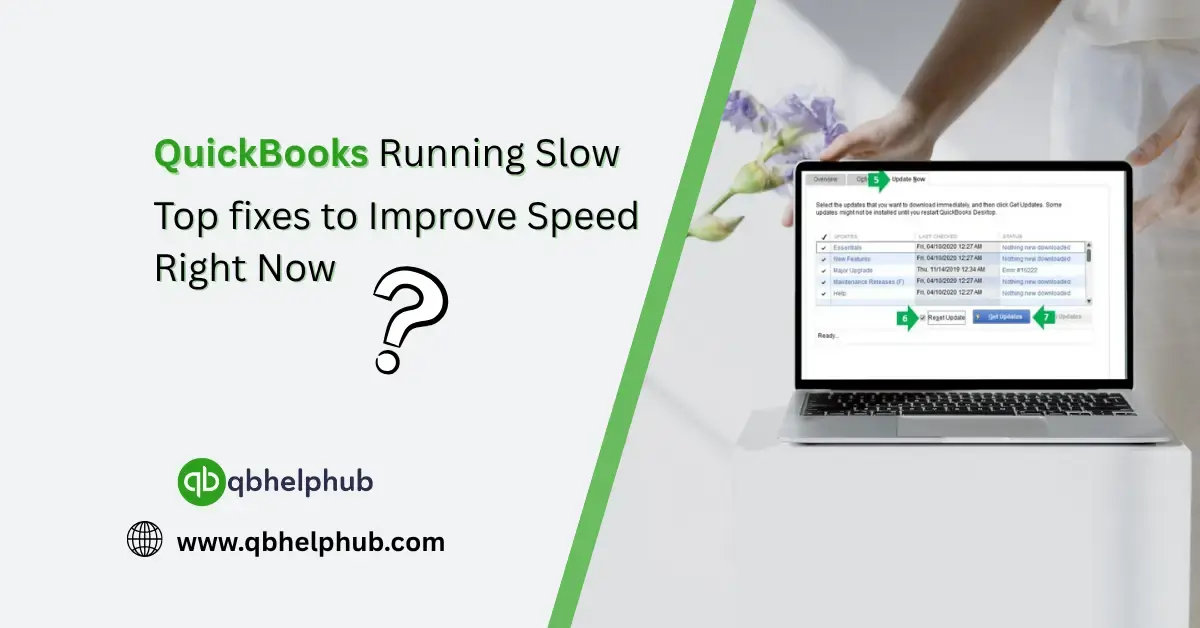
- Check for QuickBooks updates regularly under Help > Update QuickBooks Desktop.
- If you’re using QuickBooks Online, keep Chrome or Firefox updated, and clear your browser cache every so often.
7. Optimize Report Settings
If reports are taking forever to generate, it might be your filters.
- Avoid running overly detailed reports that span multiple years.
- Filter by specific dates or accounts to limit the data load.
Also, disable auto-refresh for reports if it’s not needed, that’ll stop QuickBooks from constantly recalculating in the background.
8. Use the QuickBooks Tool Hub (Desktop Only)
QuickBooks Tool Hub is like a repair kit for the Desktop version. It can fix many common glitches that slow things down.
Inside, you’ll find:
- Quick Fix My Program – for crashing or freezing issues.
- File Doctor – to resolve file corruption or damage.
- Network Issues Tool – for multi-user errors.
Additionally, the best part is you can get it free from the official QuickBooks website.
Read Also: Top 5 Problems QuickBooks Tool Hub Can Fix
9. Set Up Scheduled Backups (Not Manual Ones Mid-Task)
If QuickBooks is backing up files while you’re working, it can slow everything to a crawl.
- Schedule backups outside of business hours.
- Use cloud-based backup tools that run silently in the background, if needed.
No one wants to wait 10 minutes while a backup freezes your workflow.
10. Move to a Faster Drive (SSD Recommended)
Still using a traditional hard drive (HDD)? It might be time to upgrade.
- SSDs drastically improve load times and file processing speed.
- Especially helpful if you’re hosting large company files or switching between tasks often.
An SSD won’t fix every QuickBooks issue, but it’ll definitely speed up the everyday stuff.
Final Thoughts
QuickBooks might slow down for any number of reasons, bloated files, old hardware, poor network setups, or even outdated software. But you don’t have to worry much about it, with the right adjustments and a bit of cleanup, you can get back to smooth, speedy performance.
Remember: the longer you wait to fix it, the slower things will get. Take five minutes today to tune it up, and your future self (and your team) will thank you.
Get In Touch with Us
If you are interested to know more about QuickBooks and basic troubleshooting steps, we are here to help you through our dedicated customer service team. Fill out the customer response form or feel free to reach to us at support@qbhelphub.com Our highly competent team is here to solve all your queries regarding QuickBooks.
FAQs