Managing your books gets a whole lot easier when everything is in its place, especially those pesky vendor credits and refunds. QuickBooks Online makes it simple, once you know where to click and what to look for. But here’s the thing: if you don’t record vendor credits and refunds correctly, your numbers can get messy fast. Overpaid bills, duplicate transactions, or skewed expense reports? Yeah, none of that’s fun.
Read Also: QuickBooks Running Slow? Top fixes to Improve Speed Right Now
1. First Things First – What Exactly Is a Vendor Credit?
Think of a vendor credit like store credit. You bought something from a vendor. Maybe you returned it, or maybe they overcharged you, and now they owe you. Instead of cash, they might apply that amount to your next bill. If they issue a refund, that’s actual money coming back.QuickBooks handles both, but the steps are a little different.
2. Recording a Vendor Credit in QuickBooks Online
Let’s say your vendor sent you a credit memo because you returned $200 worth of materials. Here’s how to enter that into QBO:
- Head to the + New button.
- Choose Vendor Credit.
- Pick the vendor who issued the credit.
- Enter the credit date, then fill out the category (like Office Supplies or Inventory).
- Add the amount and description. Don’t overthink this, just make it clear for future you.
- That’s it. The credit is now sitting in your system, waiting to be applied to a future bill.
3. Applying the Vendor Credit to a Bill
So, you’ve got the credit logged. Next time you enter a bill from that vendor, QuickBooks will actually prompt you with something like: “Hey, you have a credit available!” It’s pretty intuitive.
Here’s what to do:
- Open the bill you’re entering.
- You’ll see the credit appear in the right-hand section under “Credits.”
- Check the box to apply it.
It’ll deduct the credit amount from the bill total. No calculator required.
Read Also: How to Add, Manage & Delete Users Profiles in QuickBooks Online & Intuit Enterprise Suite
4. What About When the Vendor Sends a Refund?
A refund means the vendor sends actual money back to your account. You’ll need to tell QuickBooks that it happened, and also connect it to the right vendor credit so everything matches.
Do this:
- Click the + New button again.
- Select Bank Deposit.
- Choose the bank account where the money landed.
- In the “Received From” field, select the vendor.
- Set the account to Accounts Payable (super important).
- Now you’ve got the refund logged, but QBO doesn’t yet know it offsets a credit. So here’s the final step…
5. Link the Refund to the Vendor Credit
This is the part a lot of folks forget, but it keeps your books tidy.
- Go to + New again.
- Choose Expense or Check (either works).
- Select the vendor.
- Under Category, pick Accounts Payable.
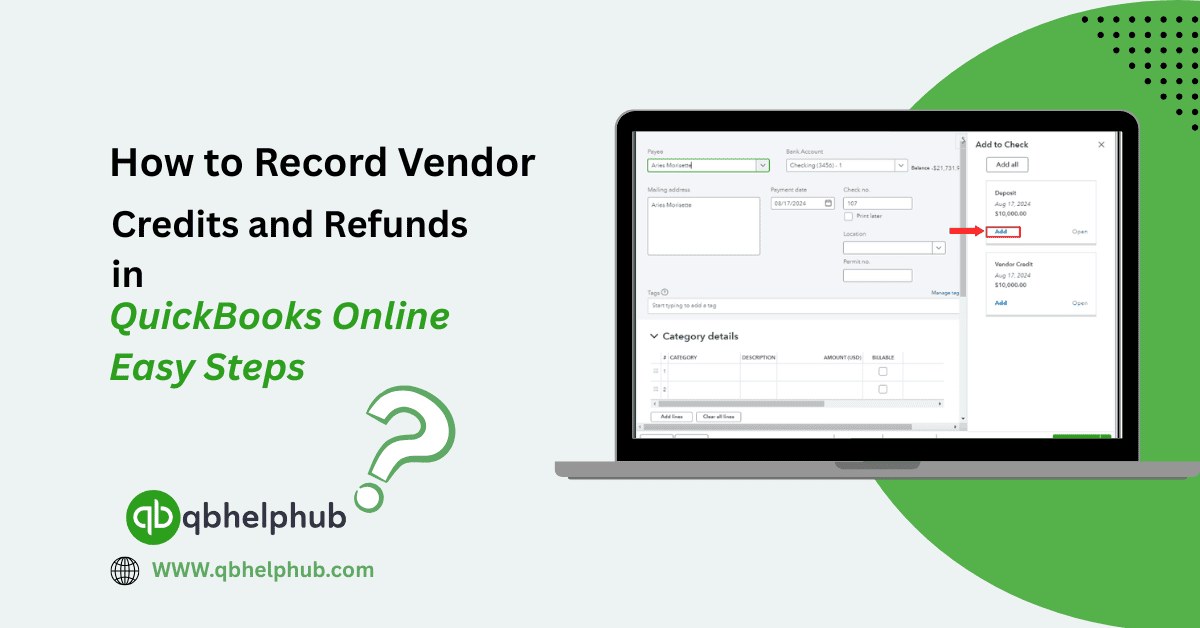
- Then, on the right, click Add under “Outstanding Transactions” and match it to the deposit and the credit.
Save it, and done! Your vendor refund and credit now cancel each other out perfectly in the books.
6. Bonus Tip – Always Match Refunds to Bank Feeds
If you use bank feeds in QuickBooks, make sure to match the vendor refund to the actual bank deposit. Otherwise, you risk doubling up. Just find the transaction under Banking, click Match, and QBO should auto-recognize it based on what you entered.
7. When to Use a Vendor Credit vs. Refund
Quick rule of thumb?
- Use a Vendor Credit if you plan to apply it to a future bill.
- Use a Bank Deposit + Expense combo if the vendor issued a cash refund.
Mixing these up causes a ton of confusion later. Best to pick the right route from the start.
Read Also: How to Switch from QuickBooks Self-Employed to Solopreneur [Easy Steps]
To Conclude
Recording vendor credits and refunds in QuickBooks Online isn’t hard, but it’s easy to overlook the little things. And that’s when the numbers stop making sense. By following the steps above, you’ll keep your books accurate, your vendors squared away, and your sanity intact. So, the next time you get a credit memo or unexpected refund check in the mail, you’ll know exactly what to do.
FAQs (Frequently Asked Questions)