QuickBooks Online (QBO) is a powerful accounting solution for all types of businesses. One of its most helpful features is to invite an accountant to help manage finances and prepare taxes. Adding an accountant in QuickBooks Online helps businesses to work effectively with financial professionals for bookkeeping, tax preparation or financial reporting. Instead of sharing your login credentials with your accountant, QuickBooks Online allows you to give them direct access to your books in a secure manner. Let’s get into the details of this step-by-step guide on how to add an accountant in QuickBooks Online
Read Also: How to Fix the QuickBooks “Closes Unexpectedly” Issue?
Why Should you Link an Accountant to your QuickBooks Online?
We should cover some of the benefits of adding an accountant to QuickBooks Online.
- Best Financial Assistance: An accountant can read through transactions, help to merge accounts, and give ideas for tax-saving purposes.
- Timely and Accurate Tax Filing: An accountant prepares and files tax reports accurately and on time.
- More Financial Insights: Assistance from a professional helps you to make the right decision in your business.
- Money Saving: Your accountant can make your life easier by streamlining the processes instead of working on the books.
- Secure Collaboration: With QuickBooks Online, accountants can access their clients’ financial data directly and securely without the need for shared login credentials.
How to Add an Accountant in QuickBooks Online?
1. Sign in to QuickBooks Online
Firstly, sign in to your QuickBooks Online account:
- Go to QuickBooks Online Login
- And then, log in with your credentials (email and password) to sign in
Make sure you are logged in as an admin, as only admins can invite an accountant.
2. Go to Manage Users Section
After logging in, complete the steps below:
- Initially, navigate to Settings by clicking on the Gear Icon (top right corner).
- Choose Manage Users from the list.
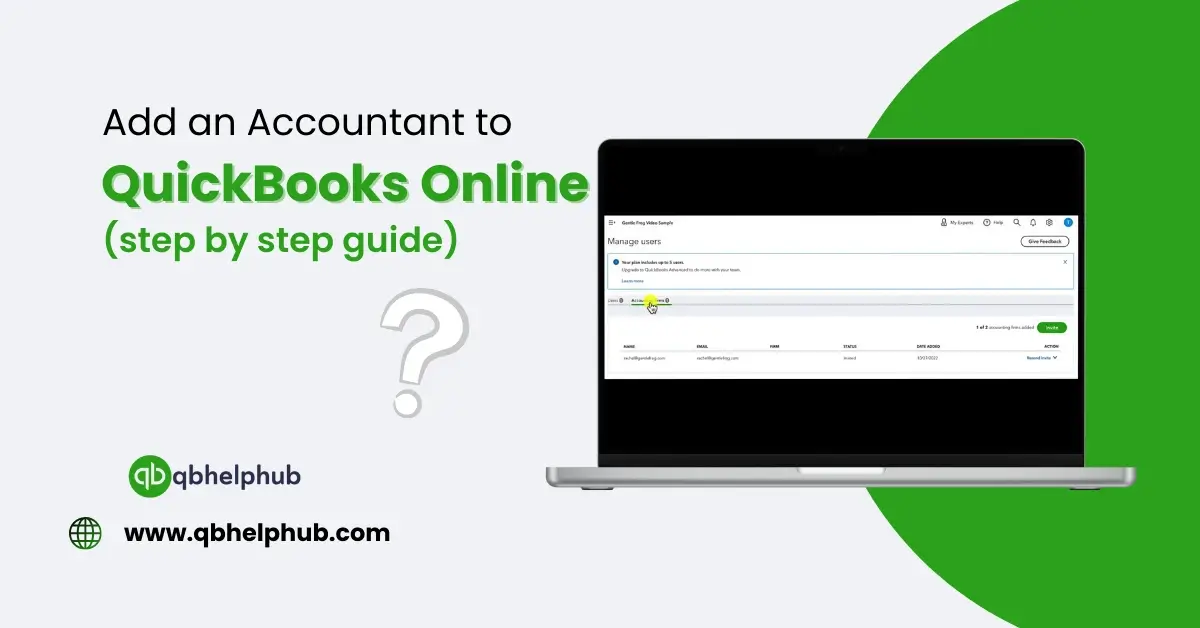
- Then, click on the accountants tab.
3. Invite an accountant to your accounts.
Follow these steps to add your accountant:
- Click on Invite Accountant.
- Type in your accountant’s email address.
- Moreover, click on the Save or Send Invitation
An email will be sent to your accountant with a prompt to access your QuickBooks Online account.
Read Also: How to Change Primary Admin in QuickBooks Online?
4. Authenticate the Invitation with Your Accountant
Your accountant will need to accept the invitation before accessing your QuickBooks account. Here’s what they need to do:
- Check the email from QuickBooks and select the Accept Invitation link.
- Log in using their QuickBooks Online Accountant account or create one if they don’t already have it.
- Also, after logging in, they will be linked to your QuickBooks account and can start managing funds.
5. Verify Accountant Access
Once your accountant accepts the invitation, check that they can access it:
- Go to Manage Users again.
- Then, click on the accountants tab.
- Finally, look for your accountant’s name under the list of active users.
How to Remove an Accountant?
Here are steps to remove an accountant from your QuickBooks Online account, if needed.
- Click on the Gear Icon (Settings) >Manage Users.
- Next, go to the accountants tab.
- Find the accountant you wish to remove and select Delete.
- Then, confirm the removal.
Furthermore, removing the accountant will prevent them from accessing your QuickBooks Online account.
Key Points to Consider While Adding an Accountant
- Invite Only a Trusted Accountant: Make sure you’re only inviting a licensed and reputable professional.
- Your Accountant Gets Special Access: Accountants have extra capabilities, like reviewing and correcting journal entries.
- You Can Invite Up to Two Accountants: With QuickBooks Online, you can invite and add up to two accountants at no charge.
- Assess Your Financial Situation: An accountant serves as an intermediate between you and the IRS, but he or she also has access to your financial information. Hence, it’s important to secure sensitive financial data
Read Also: What is QuickBooks Error 30154 and How to Resolve It?
Final Thoughts
Summing up, you can easily add an accountant to QuickBooks Online and get your business finances organized improve accuracy, and help to manage taxes effectively. Follow these easy steps:
- Sign in to QuickBooks Online
- Accountants tab under Manage Users
- Then, send an Invitation
- Accept the Invitation with the Accountant
- Verify Accountant Access
Get in Touch with Us
If you are still not able to an accountant to your QuickBooks Online, we are here for your Quickbooks support through our dedicated customer service team. Fill out the customer response form or feel free to reach to us at support@qbhelphub.com. Our highly competent team is here to solve all your queries regarding QuickBooks Online.