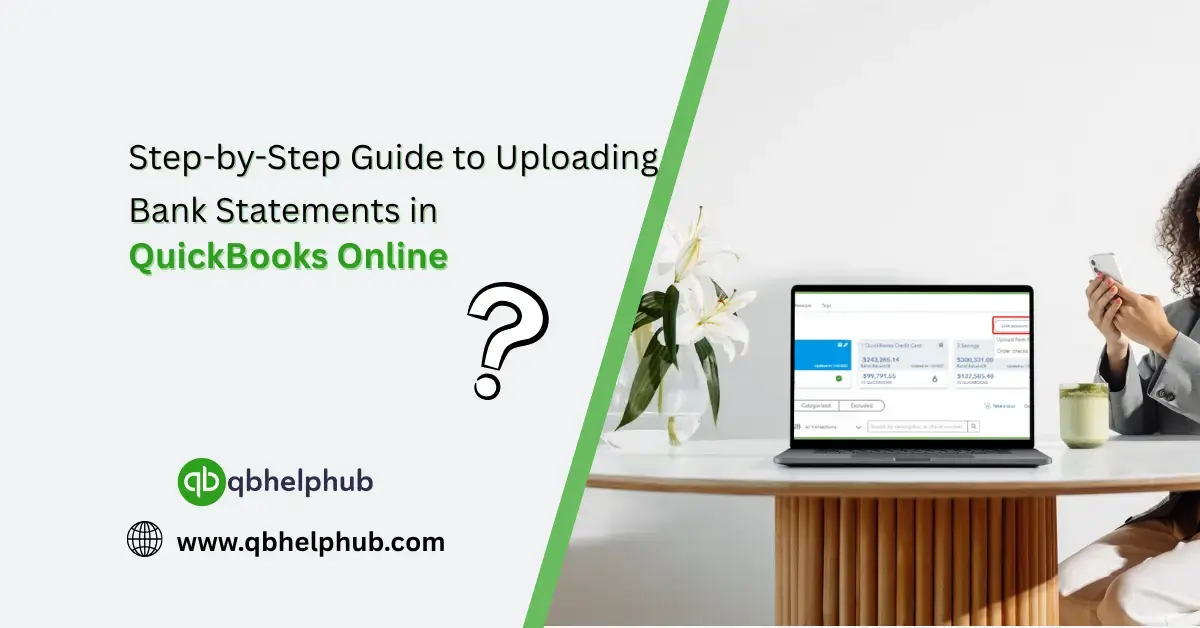
Getting your bank statements into QuickBooks Online doesn’t have to be stressful or time-consuming. If you’ve ever wondered how to make sure all your transactions are in one place for easier tracking, this guide is for you. Whether you’re new to QuickBooks or just trying to tidy up your records, uploading bank statements correctly can make reconciliation much smoother. And let’s be honest, when tax time rolls around, having those numbers lined up can really save you a headache. Let’s walk through it all, one step at a time.
Read Also: How to Set up a Credit Card Account in QuickBooks?
Understand Why Uploading Statements Matters
Manual entry is not only slow, it’s risky. Typos, missed transactions, or duplicate entries can throw off your books fast. When you upload a bank statement directly into QuickBooks Online, you cut out those errors and save time. Plus, the system does a lot of the matching for you. This helps keep your records clean, especially when you’re preparing for reports or audits.
Know The Format QuickBooks Needs
QuickBooks Online can’t read just any file you throw at it. You’ll want to make sure your bank statement is in one of the accepted formats, usually CSV, QFX, OFX, or QBO. Most banks allow you to download statements in these file types right from your online banking portal. If you only see PDF? You’ll need to convert it, or request another format.
Access The Banking Section in QuickBooks Online
Once you’ve got your file ready, log in to QuickBooks Online. On the left navigation panel, click on “Banking” or “Transactions.” This is where all your connected accounts live. If you haven’t linked your bank yet, you can either connect it directly or choose to manually upload the statement instead. Some users prefer uploading for better control over which data gets added.
Read Also: How to Change Primary Admin in QuickBooks Online?
Select The Right Bank Account
When you’re in the banking tab, pick the account you want to upload the statement for. It’s important to match the file to the correct bank account in QuickBooks. Otherwise, transactions may go into the wrong place, which creates a bigger mess later. Double-check the date range on your bank file so you’re not accidentally overlapping transactions you’ve already imported.
Upload The Statement File
Look for a button that says something like “Upload from file” or “File upload.” Click it and browse to the bank statement file you saved earlier. Follow the prompts, QuickBooks will ask you to confirm the account and file type. Once everything looks right, hit “Next.” If your file is a CSV, you’ll need to map the columns, like date, description, and amount, so QuickBooks understands what it’s reading.
Review And Categorize Imported Transactions
After uploading, your transactions will show up in the For Review tab. Now’s your chance to go through them and categorize each one. QuickBooks may automatically suggest categories based on past behaviour, but it’s always smart to double-check. Make sure things like payments, deposits, and fees go to the right expense or income accounts. Don’t just blindly accept everything, it’s your books, after all.
Match With Existing Transactions (If Any)
Sometimes, you’ve already recorded an expense or invoice manually, and the uploaded transaction is a match. QuickBooks will often detect this and suggest matching it for you. Accept these matches when you’re confident it’s accurate. This helps avoid duplicates and keeps your records cleaner. If you spot a transaction that doesn’t belong or looks off, it’s okay to exclude or delete it.
Read Also: How to Login as an Accountant in QuickBooks Online?
Stay Consistent Moving Forward
If uploading statements worked well for you, consider making it a monthly habit. Some users do it weekly to stay on top of things. Either way, staying consistent means fewer surprises later. You’ll catch errors faster and be way more prepared when it’s time for financial reviews or taxes.
Consider Automating with a Bank Feed
As a side note, if your bank allows it, connecting a live bank feed is even easier than uploading files. QuickBooks will pull in transactions daily, giving you real-time visibility.
Conclusion
Uploading bank statements to QuickBooks Online may seem like a chore at first, but once you’ve done it a couple of times, it becomes second nature. It’s one of the easiest ways to keep your finances neat, reduce manual entry, and avoid bookkeeping headaches down the road. Stay organized, review regularly, and trust the process, you’ll thank yourself come year-end.
Get In Touch with Us
If you are interested to know more about QuickBooks and basic troubleshooting steps, we are here to help you through our dedicated customer service team. Fill out the customer response form or feel free to reach to us at support@qbsolved.com Our highly competent team is here to solve all your queries regarding QuickBooks.