QuickBooks Online (QBO), is a tool commonly used to manage accounting, track expenses and processing payrolls by business organizations. The Primary Admin user in QBO has full access and control over the account, including managing users, billing and security settings. Whereas, it might be required to change the Primary Admin sometimes in cases like, if the previous admin leaves the company and the responsibility is being transferred to a new person. Let us understand how to update Primary Admin in QuickBooks Online, step by step.
When to Change the Primary Admin for QuickBooks Online?
Before we get into the steps, let’s look at the reasons one might need to change the Primary Admin:
- The current Primary Admin is quitting the company.
- The company has changed ownership.
- One person is taking on the responsibility.
- The email address of the existing Primary Admin is no longer accessible.
- Because of security or privacy concerns, an admin change.
Whatever the reason, QuickBooks Online makes it simple to transfer Primary Admin access securely.
Different User Roles in QuickBooks Online
There are many different user roles available on QuickBooks Online, let us understand the basic differences:
- Primary Admin: The person in charge of everything from user management to subscription and security settings, the primary admin has access to everything.
- Company Admin: Same privileges as Primary Admin, except they cannot transfer the Primary Admin role
- Normal/ Standard User: You can allow them access into certain areas like reports, banking, or expenses.
- Reports Only User: Can only view report and have no ability to edit data
The Primary Admin has the highest level of control and should be transferred responsibly.
How to Change Primary Admin in QuickBooks Online?
1. Log in as the Primary Admin
The user needs to be signed in as the current Primary Admin in order to change the Primary Admin. If the user does not have access, they would have to either reset the login or reach out to QuickBooks Support for help.
- Go to QuickBooks Online Login
- Log in by entering your credentials
If you do not remember your details, you can click on “Forgot password?” and complete the process to reset it.
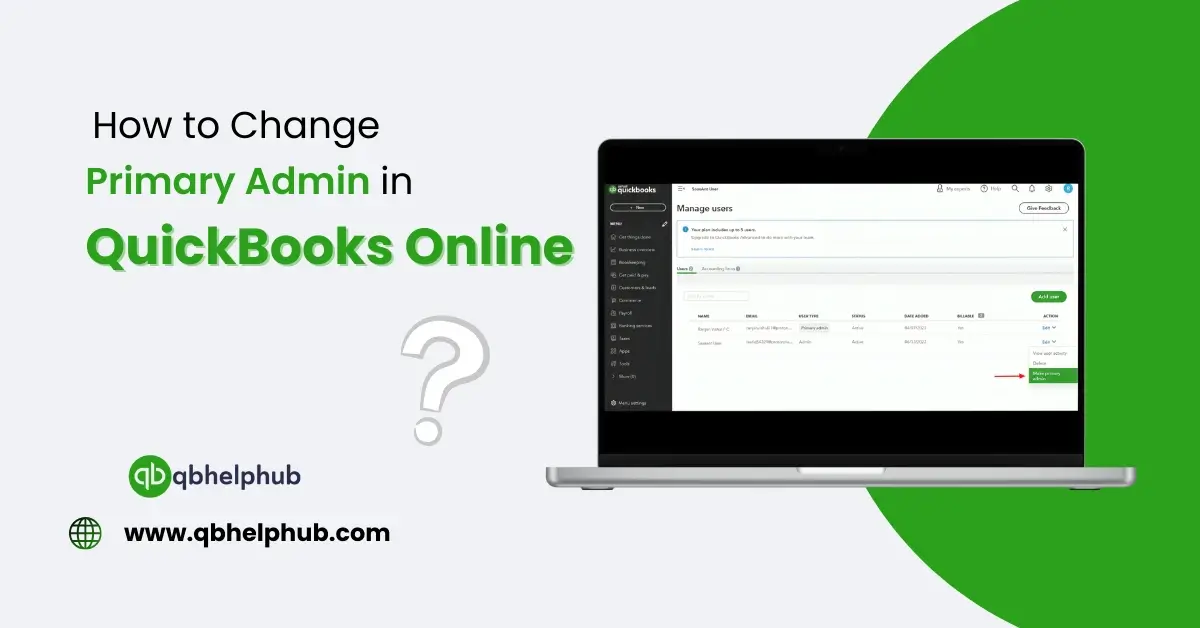
2. Go to the Mange Users Section
After logging in as the Primary Admin, do the following:
- Open Settings (Gear Icon) from the top right corner.
- Then click on the menu item Manage Users.
- From here you will see a list of all the users that have access to your QuickBooks account.
3. Add the New Admin (If not already listed)
If the individual you wish to set as the new Primary Admin is not listed as a user, please add them using these steps:
- In the Manage Users section, click Add User.
- Then, choose their role as Company Admin
- After adding it, you need to enter their email address and click on Save.
- An invitation is sent to the user via email, it must be accepted by them to be added as the new user.
After adding new user, you can then transfer over the Primary Admin role.
4. Assign the New Primary Admin
To transfer the admin role:
- Find the new user in the Manage Users list.
- Then, click the Edit link next to their name.
- Select Make this user the Primary Admin.
- Click Save & Confirm to save the changes.
- Finally, an email invitation will be sent to the new Primary Admin.
5. Make the New Admin Accept the Invitation
The new Primary Admin must accept the invitation to complete the transfer:
- Look for an email invitation from QuickBooks.
- Or, you can either click the Accept Invite link in the email.
- Log in to QuickBooks Online to verify the change.
- After acceptance, the role transfer is complete.
6. Remove the Old Admin (Optional)
After the transfer, you can either keep the previous admin as a regular user, or remove them entirely:
- Edit their role by going to Manage Users, selecting Edit and updating their role.
- To remove them, click Delete next to their name.
Final Thoughts
If you want to change the Primary Admin in QuickBooks Online, it is an easy process but you have to follow a stepwise procedure. Follow these to make sure your QuickBooks Online is secure and under the control of the right person.
- Sign in as the current admin.
- Go to Manage Users.
- Assign a new Primary Admin.
- Accept the invitation with the new admin (the previous one is not accessible anymore).
- If there is a previous admin, remove or change them.
Get in Touch with Us
If you are still not able to change the Primary Admin in QuickBooks Online, we are here for your support through our dedicated customer service team. Fill out the customer response form or feel free to reach to us at support@qbhelphub.com. Our highly competent team is here to solve all your queries regarding QuickBooks Online.