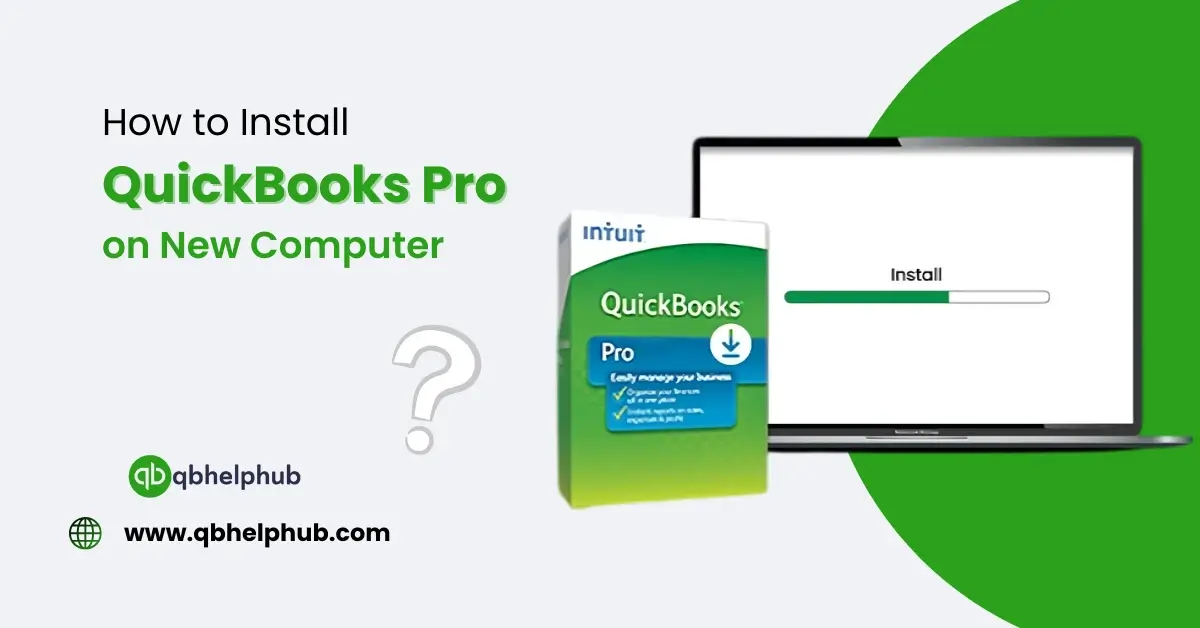
QuickBooks Pro is an accounting software designed to help small businesses and employees to manage their finances more efficiently. The installation process for QuickBooks Pro is simple in case you have bought a new computer and want to download QuickBooks Pro on it. If you’re moving to a new computer, you will have to reinstall QuickBooks Pro to continue using it or if you already have QuickBooks data, you will need to back up and restore your files. From installing to setting everything up, this guide will help you through the process of install and setting up QuickBooks Pro on your new computer.
Read Also: How to Change Primary Admin in QuickBooks Online?
Here is a quick guide to setting up QuickBooks Pro on your new computer:
Step 1: Get Ready for the Installation
There are some things you need to do before installing QuickBooks Pro on your new computer.
1. Check System Requirements
Ensure the system requirements for QuickBooks Pro are met in your new computer. Here are some fundamentals:
- Windows 10 or above (64-bit recommended)
- Something between a minimum of 4GB RAM (8GB highly recommended)
- 2.5GB of available disk space minimum
- The device must be connected to the internet for activation and updates
- The valid QuickBooks Pro license key
On Windows, if you need to check your computer specifications, go to Settings > System > About.
2. (If you use QuickBooks) Backup Your QuickBooks Data
When transferring QuickBooks Pro from an old computer, back up your QuickBooks company files to an external hard drive or to cloud storage. To do this:
- First, you need to open QuickBooks on your old computer.
- Click on File > Backup Company > Create Local Backup.
- Store the backup file on a removable media or cloud storage.
Step 2: Download QuickBooks Pro for your PC
After preparing everything, here’s how to install QuickBooks Pro on your new computer.
1. Download QuickBooks Pro
You can also use a QuickBooks Installation and if not, then download the latest version directly from the QuickBooks official website:
- Go to the QuickBooks Download Link
- Then, input your product and license number.
- Click Download and then save to the computer.
Read Also: Resolve QuickBooks Error H202 in 3 Simple Steps! (Guaranteed Fix)
2. Install QuickBooks Pro
After the download, install the software:
- Open the setup file for QuickBooks Pro (setup.exe) you downloaded to initiate in the setup process.
- If you are prompted by the User Account Control, click Yes.
- Follow the instructions on the screen.
- When prompted, enter your license number and product key.
- If your required option is not available, select Custom or Network Options depending on how you wish to use QuickBooks:
- Express Setup: Most effective for a single laptop.
- Custom and Network Install: Choose this if you want to configure QuickBooks for multi-user access.
Tap Install, and wait for the download to finish.
3. Activate QuickBooks Pro
You will have to activate QuickBooks before you start using it after installation
- Firstly, open QuickBooks Pro.
- Go to Help > Activate QuickBooks Desktop.
- Follow the prompts and input your information to activate.
Step 3: Restore your QuickBooks Data (If needed)
If you did backup your QuickBooks data from the old computer, follow the restore steps given below:
- The next step you need to do is open QuickBooks Pro in your new computer.
- Select File > Open or Restore Company.
- Choose Restore a backup copy, and next, click Next.
- Then, select Local Backup and choose your backup file.
- Click next and follow the prompts to restore your data.
Step 4: Update QuickBooks Pro
Upgrade QuickBooks Pro to receive the latest security updates and features:
- Open QuickBooks Pro.
- Use Help > Update QuickBooks Desktop.
- Click on Update Now, then Get Updates.
- Start it again after the updates are added.
Step 5: Get QuickBooks Ready for the First Time
After installation, configure QuickBooks as per your business requirements:
- Navigate to Company > My Company and add your company details.
- Schedule your account of information and financial balance.
- Set up user preferences if more than one person uses QuickBooks.
- Lastly, turn on automatic backups so your data isn’t lost.
Read Also: How to Fix QuickBooks Error Code 6123, 0?
Wrapping Up
To Install QuickBooks Pro on new computer is an easy task and you only need to follow few steps. With some preparation, downloading the correct version of your accounting software, and restoring your data properly, you can get back to managing your finances without any issues.
Get in Touch with Us
If you still have trouble installing QuickBooks Pro on your new device, we are here for your Quickbooks support through our dedicated customer service team. Fill out the customer response form or feel free to reach to us at support@qbhelphub.com. Our highly competent team is here to solve all your queries regarding QuickBooks Online.