
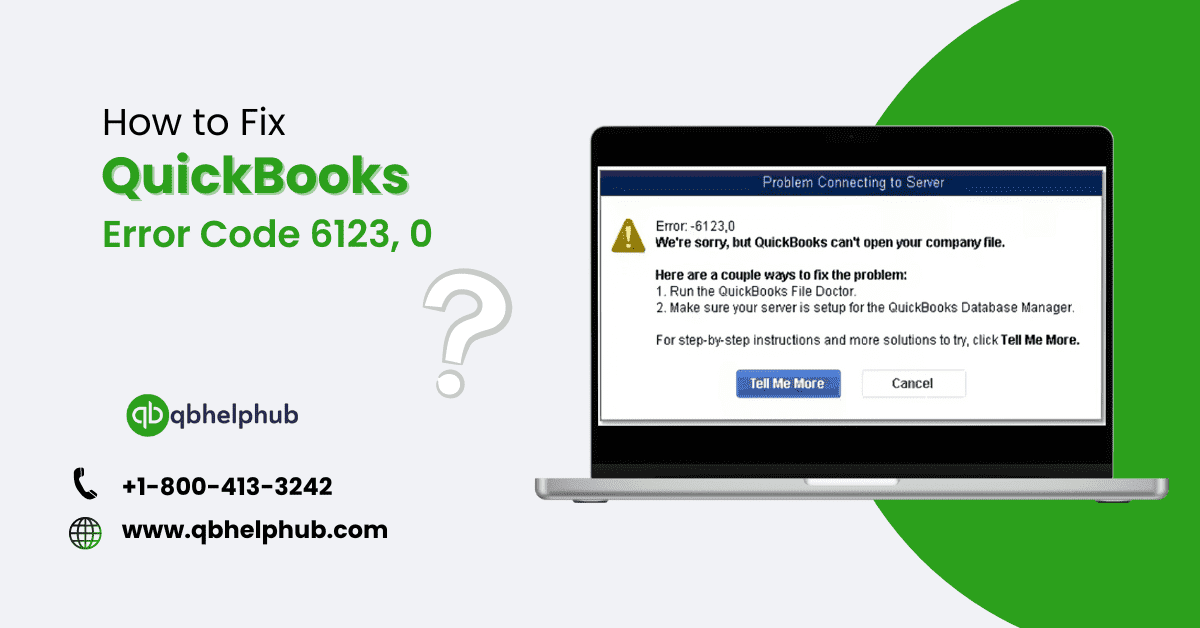
QuickBooks is a popular accounting software used by both large and small businesses. Like every software, QuickBooks has some issues. One common problem is QuickBooks Error Code 6123,0. This error can stop users from opening their company files, making it hard to complete important accounting tasks. In this guide, we will explain what QuickBooks Error Code 6123, 0 is and show you how to fix it step by step.
Read also: How to Fix the QuickBooks “Closes Unexpectedly” Issue?
What is QuickBooks Error Code 6123, 0?
QuickBooks Error Code 6123, 0 happens often when trying to open a company file. Restore a backup, or update QuickBooks to a new version. This error can stop your work and block access to important financial information, which can be especially frustrating during tax season or when dealing with urgent business tasks.
Common Scenarios Where You Might Encounter Error Code 6123, 0:
- Trying to open a company file in QuickBooks.
- From backup restoring a company file.
- Updating or upgrading QuickBooks to a new version.
- Accessing a company file stored on a network server.
Symptoms of QuickBooks Error Code 6123, 0:
- QuickBooks can’t open the company file.
- QuickBooks frequently crashing or freezing
- You find a message that says”connection to the QuickBooks company file has been lost.”
- Error message with code 6123, 0 displayed on the screen.
What Causes QuickBooks Error Code 6123, 0?
There are various reasons behind this error code, including:
1. Damaged Company File
When the file gets corrupted or damaged then your QuickBooks can’t open the file, which leads to an error of 6123,0.
2. Network Connection Issues
If your company file is saved on a network server,due to any network problem or incorrect settings can cause QuickBooks to lose its connection to the file.
3. Firewall or Antivirus Interference
When the firewall software or antivirus software blocks QuickBooks from accessing its files. It can cause an error of 6123, 0.
4. Incorrect QuickBooks Configuration
If your QuickBooks installation process is incorrect or incomplete, it can lead to this error. Because configuration errors can prevent QuickBooks from functioning properly.
5. Multi-User Mode Conflicts
If at a time, multiple users are trying to access the same company, a conflict may rise which leads to this error.
6. Damaged Windows OS or QuickBooks Files
Damage or corruption in important Windows system files or QuickBooks installation files can lead to Error 6123, 0.
Read Also: How to Use QuickBooks and How Do I Learn to Use It?
Step-by-Step Guide to Fix QuickBooks Error Code 6123, 0
Here are several methods to troubleshoot and fix QuickBooks Error Code 6123, 0.
Method 1: Use QuickBooks File Doctor Tool
The first thing you should try when you see this error is using the QuickBooks file doctor tool. Because this tool helps to find and fix common QuickBooks problems including issues with company files.
Steps to Use QuickBooks File Doctor Tool:
- Download and Install QuickBooks Tool Hub: If you do not have the QuickBooks tool hub then go to the official intuit website and install it on your system.
- Run QuickBooks File Doctor: When you installed QuickBooks tool hub, open it and click on the “Company Files Issues” tab. Then choose the “Run QuickBooks File Doctor”.
- Select Your Company File: Go to the file doctor window and select the company file which you are trying to open but it did not. If you did not find that file then browse your system to locate the file.
- Start the Repair Process: Select “Check Your File” and then “Continue”. If asked then enter your QuickBooks admin password and let the file Doctor run its diagnostic and repair process.
- Open Your Company File: When the process is complete, open your company file again to see if the error is resolved.
Method 2: Rename the .ND and .TLG Files
The .ND (Network Data) and .TLG (Transaction Log) files play a crucial role in managing your QuickBooks company files. If these files are damaged, they can prevent QuickBooks from opening the company file.
Steps to Rename the .ND and .TLG Files:
- Locate the Files: Move to the folder where your company file is stored.
- Rename the Files: Look for the files that have the same name as your company file but end with these extensions like .ND and .TLG. For example (MyCompanyFile.ND and MyCompanyFile.TLG). Right click on each file and choose “Rename” Add “Old” at the end of both file names (for example, MyCompanyFile.ND.old and MyCompanyFile.TLG.old).
- Restart QuickBooks: After remaining the files, open QuickBooks again to check if the error still occurs.
Method 3: Use the Auto Data Recovery (ADR) Tool If your company file is badly damaged, You might need QuickBooks Auto Data Recovery (ADR) to recover lost or corrupted data. This tool helps restore a backup copy of your company file.
Steps to Use the Auto Data Recovery Tool:
- Create a Backup of Your Data: Before using the Auto Data Recovery (ADR) first create a backup data of your company file.
- Locate the ADR Folder: Where the company file folder is located, you will see a folder named “QuickBooksAutoDataRecovery.”
- Copy the ADR Files: Then, copy the recent file named as .QBW.adr and .TLG.adr from the ADR folder. Then paste them into a new folder.
- Rename the Files: Rename the .QBW.adr file by removing the “.adr” part from the name. Do the same for the .TLG.adr file.
- Open QuickBooks: Open QuickBooks and move to the location of the recovered file. Try opening it and see if the error is resolved.
Method 4: Disable Antivirus and Firewall Temporarily
Sometimes, antivirus programs or firewalls block Quickbooks from accessing its company files. So you can temporarily disable your antivirus softwares which can help you to solve the error of code 6123, 0.
Steps to Disable Antivirus and Firewall:
- Turn Off Your Antivirus Program: You should follow the instructions for your antivirus program to temporarily disable.
- Turn Off Your Firewall: Go to the computer’s security settings and disable the firewall. Then write down how to turn it back on after troubleshooting.
- Open QuickBooks: If both firewall and antivirus are disabled, then try to open QuickBooks again.
- Re-enable Security Features: If turning off these programs fixed the issue, you should add QuickBooks to the exception list of your antivirus or firewall to avoid future problems.
Method 5: Create a New Windows User Profile
Sometimes, the error could be linked to your Windows user settings. So, creating a new Windows user profile with admin rights and trying to open QuickBooks from that profile might fix the problem.
Steps to Create a New Windows User Profile:
- Open Control Panel: First, move to the Control Panel and select “User Accounts.”
- Add a New User: Then, click on “Manage another account” and add a new user in PC settings.
- Set Administrative Permissions: Once creating the new user, make sure to assign Admin Rights.
- Log into the New Profile: Sign out your current account and sign in to the new profile you just created.
- Open QuickBooks: When the new profile is created, try to open the Quicks and the company file.
Method 6: Move the Company File to a Different Location
In some cases, the company file folder or drive may cause the issue. So, you should move the file to a different location to solve the issue.
Steps to Move the Company File:
- Locate the Company File: First, go to the folder where the company file is stored.
- Move the File: then, copy the company file and paste it into a different location, such as your desktop or another drive.
- Open QuickBooks: Now, open QuickBooks and the company file from the new location.
Method 7: Use QuickBooks Database Server Manager
If you are accessing a company file over the network, problems with the QuickBooks database server manager can cause errors of 6123, 0. You can fix this by updating the server manager settings.
Steps to Use QuickBooks Database Server Manager:
- Download and Install QuickBooks Tool Hub: If you do not have the QuickBooks tool hub then download it and install it as discussed above.
- Open the QuickBooks Database Server Manager: After installation, go to the QuickBooks Tool Hub, then select the “Network issues” tab, and choose the “QuickBooks Database Server Manager” .
- Scan the Company File Location: Then in Database Server Manager, browse to the location of your company file and do a scan.
- Re-open QuickBooks: After the scan, try opening your company file again. It will resolve the network related issues causing Error 6123, 0.
Method 8: Reinstall QuickBooks Software
If any of the above methods does not work, there may be issues with your QuickBooks installation. So you can reinstall the software to solve the issues.
Steps to Reinstall QuickBooks:
- Uninstall QuickBooks: First, go to the control panel then choose the “Programs and Features”. Select QuickBooks from the list, choose it and then “Uninstall” it.
- Download the Latest QuickBooks Version: After that, go to the official intuit website and download the latest version of QuickBooks.
- Reinstall QuickBooks: Now, run the installer and follow the on-screen instructions to reinstall the software.
- Restore Your Company File: When the installation process is complete, then restore the company file.
Read Also: What Types of Businesses Can Use QuickBooks Online?
Conclusion
QuickBooks Error Code 6123, 0 can be frustrating, especially if you are in the middle of important financial work. So, by following the above methods you can resolve this issue. You can use the QuickBooks File Doctor tool to adjust network settings and reinstall the software, to solve the error. Using all the methods you can access to your company file and get back to your accounting tasks. Also it’s important to keep updating your QuickBooks to maintain your regular backups of your company file to prevent data loss. If you are still facing the problem after applying all the methods then contact the QuickBooks support or QuickBooks ProAdvisor.

QuickBooks Error 6123-0 can be a major issue, but your article provides a very clear and easy-to-follow solution. This guide will surely help many users resolve their problems quickly!