
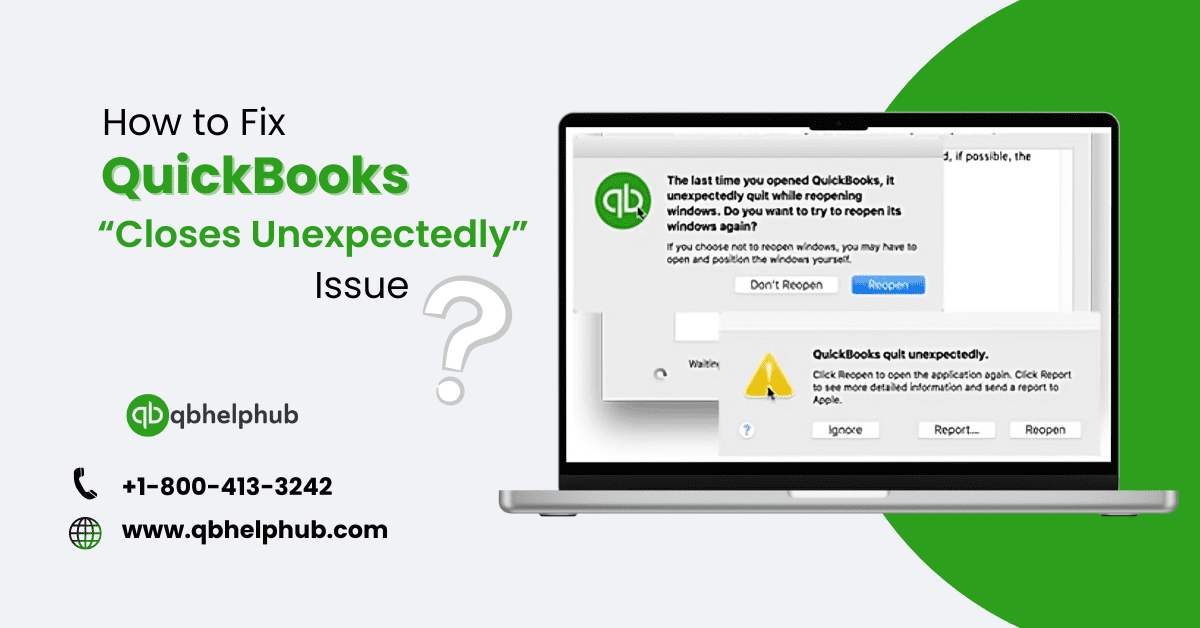
QuickBooks is one among the leading and widely used accounting software applications that exists in the present world. It’s especially popular among companies of the small and the middle category as an efficient tool for financial management, payroll, invoicing, and much more. However, like any software, QuickBooks also can face some technical issues. One of the biggest issues which users experience is the program crashing. This can be a frustrating experience to the user since it may disrupt work at hand or cause the loss of data. In this informative post, you will learn why QuickBooks is crashing along with the easiest methods to solve this QuickBooks “Closes Unexpectedly” Issue.
Read also: How to Record Tax Payments in QuickBooks?
Table of Contents
- Why Does QuickBooks Close Unexpectedly?
- Common Symptoms of the QuickBooks “Closes Unexpectedly” Issue
- How to Fix QuickBooks “Closes Unexpectedly” Issue: Step-by-Step Solutions
- Update QuickBooks to the Latest Version
- Repair QuickBooks Installation
- Use the QuickBooks Install Diagnostic Tool
- Rename the QBWUSER.ini File
- Disable Compatibility Mode
- Use Selective Startup Mode
- Create a New Windows Admin User
- Check for System Requirements and Updates
- Run QuickBooks in Safe Mode
- Check for Corrupt or Damaged Company File
- Preventing Future Crashes
- Conclusion
Why Does QuickBooks Close Unexpectedly?
There are many potential causes of the QuickBooks to shut down of its own accord. This is very important, hence understanding the cause of the problem is the first and significant step towards solving the problem. Here are some common factors that may contribute to QuickBooks crashing:
- Corrupt Installation Files: Possible factors that may result in QuickBooks software crash include: wrong installation of the QuickBooks or damage of installation files.
- Outdated Version of QuickBooks: If you are using an older version of QuickBooks, it may create issues with your operating system and close the application with no warning.
- Damaged or Corrupted Company File: The company file is the main folder that contains all your financial information. This file if damaged can lead to the program shutting down and will result in errors being given in QuickBooks.
- Third-Party Applications: Some of the issues that may arise may be caused by conflicts with other programs that are installed in the computer system for instance the anti-virus or any other programs of your own in the system.
- Insufficient System Resources: If QuickBooks is used on a computer not meeting all system requirements you may experience such symptoms as the program simply shutting down and other similar problems.
- Windows User Account Issues: At other occasions, the QuickBooks program may malfunction because of problems inherent with the account you are employing to operate the software program.
- Compatibility Issues: Launching QuickBooks on compatibility mode of an older version of Windows might lead to its sudden termination.
Common Symptoms of the QuickBooks “Closes Unexpectedly” Issue
There can be some signs that could be obvious in diagnosing whether QuickBooks is going to crash or close immediately. They include:
- QuickBooks freezes during a specific operation (e.g., running a report or accessing a company file).
- The software closes immediately after launching.
- You receive an error message before QuickBooks crashes.
- QuickBooks shuts down when opening a particular feature, such as invoices or payroll.
- The software runs sluggishly and eventually crashes.
Read Also: How to Record 401(k) Contributions in QuickBooks?
How to Fix QuickBooks “Closes Unexpectedly” Issue: Step-by-Step Solutions
1. Update QuickBooks to the Latest Version
The first way that can be adopted so as to get around the problem is ensuring that the QuickBooks software used is of the current release. QuickBooks is known to release updates constantly which help in fixing issues which are normally bugs and compatibility issues with other systems. Steps:
- Open QuickBooks.
- Go to the “Help” menu and select “Update QuickBooks Desktop.”
- Click on the “Update Now” tab.
- Select “Get Updates.”
- Once the update is complete, restart QuickBooks.
2. Repair QuickBooks Installation
At other times, the QuickBooks files may get damaged or corrupted and this results in the program crashing. This problem can be solved by repairing the installation. Steps:
- Press “Windows + R” to open the Run dialog box.
- Type “appwiz.cpl” and press Enter.
- Find QuickBooks in the list of installed programs and click on “Uninstall/Change.”
- Choose “Repair” and follow the prompts.
3. Use the QuickBooks Install Diagnostic Tool
The QuickBooks Install Diagnostic Tool is a special utility which is able to solve problems connected with errors in installation. It can actually detect and correct issues that entails. The software QuickBooks depends on some .NET Framework, C++, and MSXML components. Steps:
- The QuickBooks Install Diagnostic Tool can be downloaded from Intuit’s official website.
- Start it then wait until it detects some problem in your computer.
- Finally, once the scan has been done, you should turn off your computer and restart it then open the QuickBooks.
4. Rename the QBWUSER.ini File
The QBWUSER. Ini file is very important for the QuickBooks to work but if it gets damaged then it may result in the shut down of the software. Sometimes you can rename this file and QuickBooks will recreate it; that can solve the problem too. Steps:
- Navigate to the folder where the QBWUSER.ini file is stored: C:\Users\[Your Username]\AppData\Local\Intuit\QuickBooks [Version]\
- Right-click on the QBWUSER.ini file and select “Rename.”
- Add “.old” to the end of the file name (e.g., QBWUSER.ini.old).
- Try reopening QuickBooks.
5. Disable Compatibility Mode
QuickBooks might be in compatibility mode on an older version of Windows, which leads to its crashes at times. Steps:
- The first step is to right click the QuickBooks icon present on the desktop.
- Select “Properties. ”
- Now, click on the last tab present at the bottom of the window, which is the “Compatibility” tab.
- Uncheck the box that says “Run this program in compatibility mode.”
- After completing the previous step, the user has to click “Apply” and “OK”.
6. Use Selective Startup Mode
If there are third-party applications installed on the system, especially the Antivirus or the Firewall type that may interfere with QuickBooks, the system should be run in Selective Startup mode. Steps:
- Press “Windows + R” and type “msconfig” into the Run dialog box.
- Go to the “General” tab and select “Selective startup.”
- Uncheck “Load startup items.”
- Go to the “Services” tab and check “Hide all Microsoft services,” then click “Disable all.”
- Click “Apply” and restart your computer.
7. Create a New Windows Admin User
On other occasions, the QuickBooks software can definitely crash owing to Windows user profile. This can be solved by creating a new Windows admin user which grants the user all the powers of an administrator without necessarily having to log in as such. Steps:
- Click on the start icon on the bottom left, locate and click on “Control Panel” in the start menu and then click on ‘User Accounts’.
- Go to the link “Manage another account” then click on “Create a new account. ”
- To the new account assigned the role as Administrator.
- You can create a new account and login into it, then try to run QuickBooks.
8. Check for System Requirements and Updates
Make sure your computer is up to scratch to run QuickBooks, as listed below. Lack of the system resources may lead to freezing as well as abrupt closure of the software. Steps:
- Visit the official QuickBooks website.
- Either upgrade the hardware or the software that you are using for your work.
- Make sure that your OS and drivers are up to date.
9. Run QuickBooks in Safe Mode
If you are having issues with QuickBooks crashing then running QuickBooks in safe mode may help you figure out if another application is to blame. It is especially helpful since it starts only the most critical ones with less chance of conflicts thus extending the use of Safe Mode. Steps:
- Turn off your computer if it is on then turn it back on and when the windows logo comes up repeatedly press the “F8” key.
- Choose ‘Safe Mode’ from the pop up menu.
- Relaunch QuickBooks and see if the issue remains.
10. Check for Corrupt or Damaged Company File
Perhaps the problem is with the company file as a file If the problem relates to a specific company file then the problem may lie with the company file. One of the ways to fix corrupted QuickBooks company files is by using the built-in utility called QuickBooks File Doctor. Steps:
- Visit the site and carefully download QuickBooks File Doctor in your system.
- Open the tool and choose the particular company file which is generating the problem.
- Follow the on-screen instructions to repair the file.
Preventing Future Crashes
When you have fixed the QuickBooks “closes unexpectedly” problem, it is always helpful to follow the steps to avoid such kinds of issues in future. Here are some best practices: Regularly Update QuickBooks: The user should always make sure they are using the current QuickBooks version in the market as this will reduce the bugs that might affect the system. Backup Your Data: Soon as possible ensure you have a copy of your QuickBooks company file to avoid risks in future crashes. Maintain System Health: Check your operating system and your hardware to the requirements needed for QuickBooks to function properly. We recommend updating the system constant and to scan for malicious programs. Limit Third-Party Software: Try not to install other applications that are not necessary to be run concurrently with QuickBooks; especially antivirus that might interfere with theQuickBooks program. Use Reliable Hosting: In case you utilize QuickBooks on a network or a cloud environment then you must guarantee that the hosting service that you employ is very stable and well maintained.
Read Also: How to Pay myself in QuickBooks?
Conclusion
QuickBooks, an important piece of software for every business, brings various inconveniences if it fails and can possibly result in the loss of important information. Luckily, as promised, you will learn how to fix it and avoid recurrence as you follow the guidelines provided herein. If the problem is because of corrupt files, outdated software, or system’s compatibility, the fix is there to help you get back to working normally within a short time. You should update when necessary, make the data back up constantly, and keep your system healthy so that you do not experience the incidents of QuickBooks closing down in future. Ensure to seek help from QuickBooks support or professional in case the issue In the following sections, endures as gone through the following solutions.


Unexpected crashes in QuickBooks can be frustrating, but your troubleshooting guide is an excellent resource for fixing this issue. The step-by-step solutions you’ve provided are very helpful!