
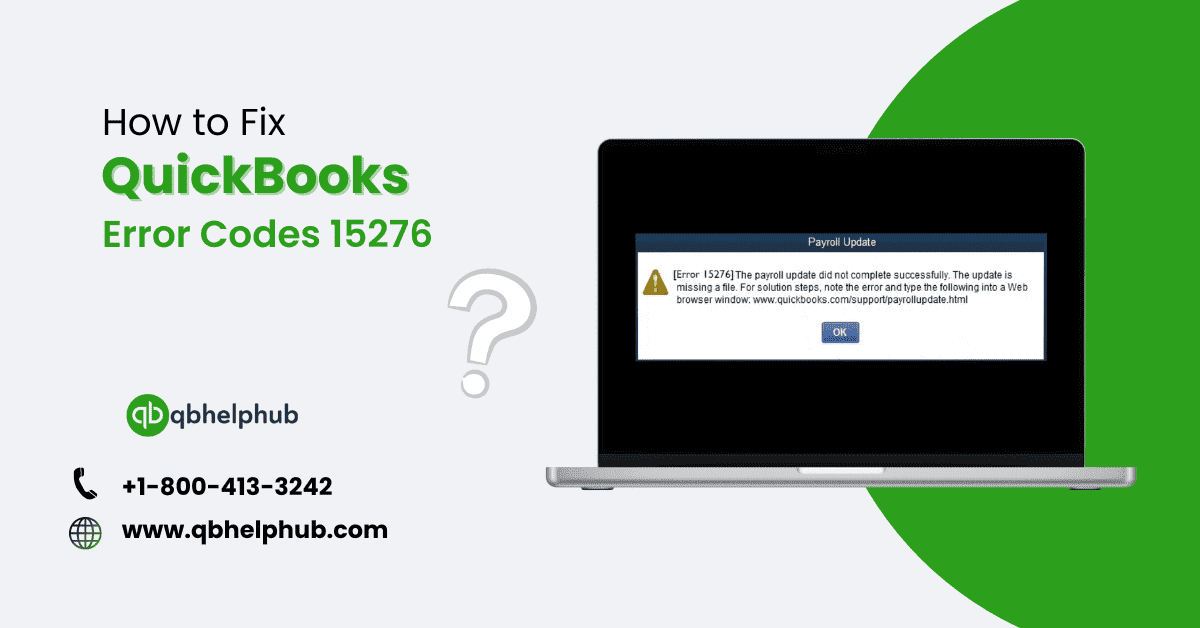
QuickBooks is a popular accounting software used by millions of small and mid-sized businesses. These businesses handle finances, payroll, and accounting tasks. However, like all software, QuickBooks also has some common issues. It has the Quickbooks error code 15276. This error can create obstacles while updating payroll or the QuickBooks desktop itself.
So, here is everything you need to know about QuickBooks error code 15276. In this guide, you will find the error code, explain why it happens, and how you can fix it. In the end, you will get a clear knowledge of this error 15276.
What is QuickBooks Error Code 15276?
Typically, a user faces this error code 15276 while updating the QuickBooks desktop or payroll services. This error code shows the following messages: Error 15276: The payroll update was not complete. The file you wanted to update is being used, so it can not be changed. This error shows that there is an issue with updating or replacing a file that is currently in use. Also, you can face this error due to improper configuration of QuickBooks or its other services.
What Causes QuickBooks Error Code 15276?
First, it is important to know the causes behind this error code 15276. Then, you can easily fix it effectively. Here are the main causes why this error happens:
- Incomplete or Corrupted Update: Are you facing obstacles while updating a file? If yes, then it’s a clear sign that your file is corrupted, and you will get an error of 15276.
- User Account Control (UAC) Settings: If UAC is not set up correctly, it can block QuickBooks from accessing important system files, so an update is incomplete.
- Registry Issues: If you have entered a corrupted or damaged registry, this error can happen.
- Internet Explorer Configuration Problems: As we know, Internet Explorer is the default browser for QuickBooks. So, any wrong settings or cache problems can cause this error.
- Damaged QuickBooks File or Installation: If your installation process is incomplete and your software files are damaged, then updating this error can create obstacles.
How to Fix QuickBooks Error Code 15276: Step-by-Step Solutions
Now that we know the causes behind this error code 15276. Let’s discuss its solutions. Follow these steps carefully to fix the issues.
Solution 1:
Run QuickBooks as an Administrator. This gives it permission to access and change system files, which is often needed to finish updates.
- First, you have to close the QuickBooks if it is running.
- Second, for choosing “Run-As-Administrator,” right-click on the QuickBooks Desktop icon and select it.
- Then, if you are facing any error, update the QuickBooks again.
Read Also: How to Fix QuickBooks Error 6190?
Solution 2:
If you face an error due to data damage, then verifying and rebuilding the data will help you to fix this error.
- To open a file, you have to open QuickBooks.
- After that, you have to choose “Utilities” and then “Verify Data”.
- Still, you may face some issues, so go back to “File” and choose “Utilities” and then “Rebuild Data.”
- Once the process is complete, restart the QuickBooks and update it again.
Solution 3:
You can avoid this error by updating QuickBooks manually.
- You can download the latest version from the QuickBooks official website.
- After downloading the latest file, install the downloaded file by double-clicking on it.
- Now, you can check whether your error is solved or not after reopening QuickBooks.
Solution 4:
Another solution is to correct the configuration settings of Internet Explorer because it is the primary browser of QuickBooks, and for internet connection, it depends on IE. So, wrong settings can prevent installation and updates from downloading.
- First, go to “Tools” through the Internet Explorer,
- Second, click on “Internet Options”.
- After that, move to “Security” and configure settings to Medium High.
- Then, click on the “Advanced tab” and check the following options.
Use
- TLS 1.0
- TLS 1.1
- TLS 1.2
- Now, click on “Apply” and “OK”.
- Once the error is fixed, you can restart your system.
Solution 5:
Turn off the User Account Control because updating it can prevent it.
- First, press both the “Windows+R” keys at a time and then type “Control Panel.”
- Second, move to “User Accounts” and then choose “Change User Account Control Settings.”
- After that, slide to “Never Notify” and click “OK.”
- Now, update the QuickBooks again after restarting your system.
- When the update is complete, turn on the UAC back to protect your system.
Solution 6:
Additionally, you can use the QuickBooks Diagnostic Tool, which automatically detects and repairs the error that is related to QuickBooks installation and updates.
- First, go to the Intuit official website and then download and install the QuickBooks Tool Hub.
- Second, Open the QuickBooks Tool Hub and go to the “Installation Issues” tab.
- Then, choose “QuickBooks Install Diagnostic Tool” and run it.
- When the process is complete, check if the error is resolved or not.
Read Also: How to Record Tax Payments in QuickBooks?
Solution 7:
Temporary internet files can build up and interfere with QuickBooks updates. First, you should clear them to solve this issue.
- First, open Internet Explorer and go to “Tools”.
- Second, you have to choose the “Internet Options” and move the crosser to the “General” tab.
- Then, click on “Delete” under Browsing History.
- After that, check the files such as “Temporary Internet Files and Website Files” and “Cookies and Website Data.”
- Now, click “Delete” and then restart Internet Explorer.
Solution 8:
Have you faced the same issue after applying all the above solutions? Then, simply repair the QuickBooks installation, which can solve the issue.
- First, press the keys “Windows + R” at a time. Then, type“Control Panel”.
- Second, move the crosser to “Programs and Features” and search QuickBooks in the list.
- After that, choose “Repair” by clicking the right button on QuickBooks.
- Then, you will get instructions on how to complete the repair process and follow it.
- Now, update your QuickBooks by restarting your computer again.
Solution 9:
Are you facing this error while updating your payroll? Then, by updating the QuickBooks Payroll Tax Table, you fix QuickBooks Error 15276. Here are the steps.
- First, in QuickBooks, go to “employees.”
- Second, choose “Get Payroll Updates.”
- Then, check that the box shows “Download entire payroll update.”
- Now, click “Update” and wait for the process to complete.
Solution 10:
Sometimes, antivirus or firewall settings can block QuickBooks updates. So, you have to turn off them for a short time to fix this issue.
- First, go to the antivirus icon, then right-click on it and choose “Disable.”
- Second, open the control panel and go to “Windows Firewall.”
- Then, click on “Turn Windows Firewall on or off” and choose “Turn off Windows Firewall.”
- Now, you can update QuickBooks again.
Note: After updating, keep in mind that you have to turn on the antivirus and firewall settings to keep your system secure.
Read Also: How to Pay Wage Garnishment in QuickBooks Online?
Conclusion:
Now, you know the QuickBooks error code 15276 can severely affect updating your software or payroll services. However, this article helps you get your QuickBooks back to working condition by providing solutions. Thus, it’s very important to regularly update QuickBooks and the proper configuration settings to avoid this error in the future. Still, if you are getting this error, then it’s time to contact customer support. Their customer support number is (call 800-413-3242).

Your guide on resolving QuickBooks Error 15276 is very detailed and well-explained. Technical errors can be frustrating, but your easy-to-follow steps make fixing them simple!
Wow wonderful blog layout How long have you been blogging for you make blogging look easy The overall look of your site is great as well as the content