
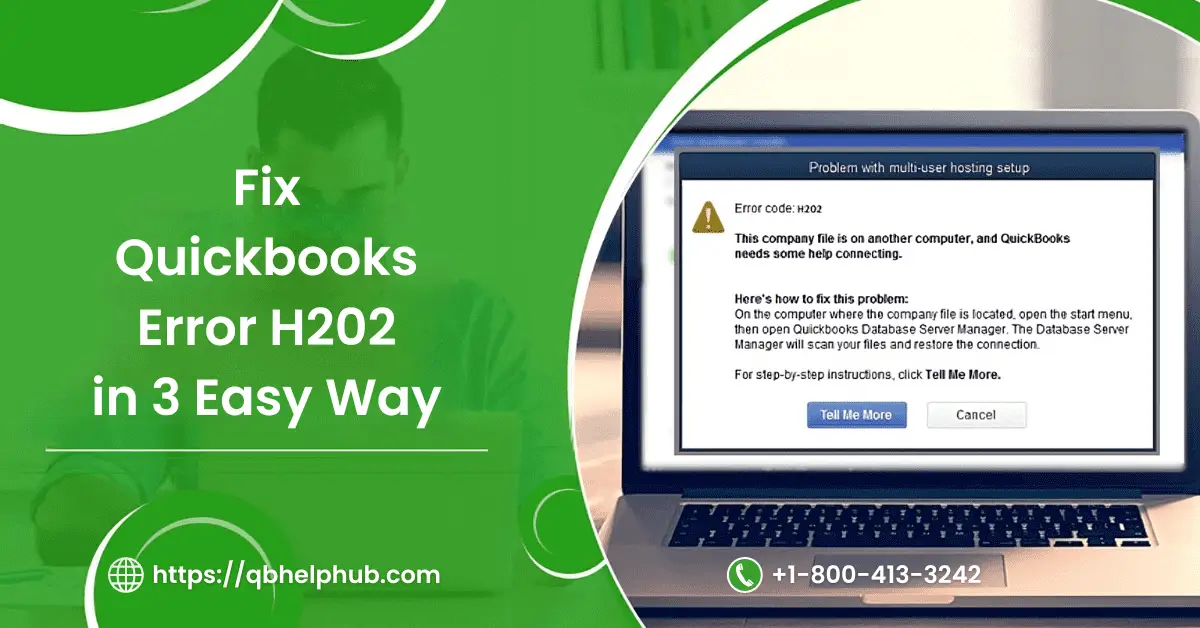
Are you facing QuickBooks Error H202? Don’t worry, you’re not alone! This common issue can be frustrating. But with our easy-to-follow guide, you can easily fix it in no time. In this quick guide, we’ll walk you through three simple steps to fix QuickBooks Error H202. You can make your QuickBooks up and running in no time. Let’s dive in!
Read also: How to Fix QuickBooks Error 1603?
Introduction
QuickBooks Error H202 is a common error that many users face when switching to multi-user mode. This error can halt your workflow. If you’re too facing the error, try the following steps given below. You’ll be back to business in no time.
What is QuickBooks Error H202?
QuickBooks Error H202 occurs when QuickBooks cannot communicate with the server or another computer hosting the company file. This error blocks you from accessing the multi-user mode. As a result, your authorised users fail to access the company file.
Step 1: Check Network Connectivity
First, you should check that your network is functioning correctly. Let’s see how to do so.
Check Your Internet Connection
Make sure your internet connection is stable. If the connection is weak, it can delay the communication between QuickBooks and the server. You can ping the server to check the speed.
Ping the Server
To test the network connection:
- Open the Command Prompt on your computer.
- Type ping [your server name].
- Press Enter.
- If you receive replies, your network is working. If not, there might be an issue with your network setup.
Step 2: Configure QuickBooks Database Server Manager
The QuickBooks Database Server Manager allows QuickBooks to connect with the company file in multi-user mode. Here’s how to configure it:
Download and Install the QuickBooks Database Server Manager
- Visit the QuickBooks website and download the QuickBooks Tool Hub.
- Install the tool and open it.
- Navigate to the Network Issues tab and run the QuickBooks Database Server Manager.
Scan Your Company File
- Open QuickBooks Database Server Manager.
- Click on the Start Scan button
- Scan your company file.
- Post the scan, try accessing your company file again.
Read also: How to Fix Common QuickBooks Errors?
Step 3: Verify and Adjust Hosting Settings
Incorrect hosting settings can trigger QuickBooks Error H202. Follow these steps to verify and adjust the settings:
Check Hosting Settings
- Open QuickBooks on each workstation.
- Go to File > Utilities.
- Check the “Host Multi-User Access” option is selected on the server and not on the workstations.
Adjust Firewall and Security Settings
- Open the Control Panel on your server.
- Go to System and Security > Windows Firewall.
- Click on Allow an app through Windows Firewall.
- Ensure QuickBooks is not blocked by the firewall.
Why Does QuickBooks Error H202 Occur?
Here are some common reasons why most users face Error H202 in the first place.
- Incorrect hosting configuration
- Damaged network data files
- Firewall blocking QuickBooks communication
- Network issues
QuickBooks Error H202: Early Signs
If you notice the following signs, they indicate the possibility of Error H202 in the future.
- Constantly flashing “QuickBooks Error H202” message
- Failing to switch to multi-user mode
- QuickBooks running slow
- Difficulty accessing the file
Preventing QuickBooks Error H202 in the Future
Here are some tips to prevent Error H202 from occurring in the first place:
Regular Network Maintenance
Perform regular network maintenance through certified experts to ensure good compatibility between your workstations and the server.
Update QuickBooks Regularly
Regularly (or periodically) update your QuickBooks software to benefit from the latest patches and bug fixes.
Backup Your Data
Regularly backup your QuickBooks data to avoid losing data to unfortunate events.
Additional Troubleshooting Tips
If the tips shared above fail to resolve QuickBooks Error H202, try these additional tips:
Check for Windows Updates
Sometimes, an outdated Operating System (OS) can also cause compatibility issues. Check whether the OS is up to date and if not, update and see if the problem subsides.
Reinstall QuickBooks
If nothing works, reinstall QuickBooks and give it a fresh start. However, back up your data first before proceeding.
Conclusion
Handling Error H202 can be overwhelming. But you can quickly resolve the errors in three simple steps discussed above. Check network connectivity, configure the QuickBooks Database Server Manager, and verify hosting settings. That’s all. Lastly, check if your QuickBooks operates smoothly in multi-user mode. Besides, never forget to periodically update your software to avoid such errors in the future.
Frequently Asked Questions
QuickBooks Error H202 occurs when QuickBooks fails to communicate with the server. The error may also occur when it fails to connect with another computer hosting the company file. That significantly blocks multi-user mode.
You can check through the Command Prompt. Ping the server from the Command Prompt. If you receive replies, your network connection is stable.
In such a situation, check your hosting settings, and make sure QuickBooks has no access-restrictions via the firewall.
It is imperative to regularly update QuickBooks. The software performs the latest fixes and improvements through updates. This prevents errors due to bugs and keeps performance smooth. Therefore, check for updates every month and do the needful.
Yes, it might work. Completely uninstall QuickBooks and it might resolve some persistent errors by default. However, always backup your data before carrying out the procedure.

Your step-by-step guide on resolving QuickBooks Error H202 is very detailed and easy to follow. Troubleshooting errors can be difficult, but your explanation makes it much more manageable. Great work!
How to Fix QuickBooks Error 1603?
QB Help Hub made resolving QuickBooks Error H202 a breeze! Their step-by-step guide was easy to follow, and their support team was available to answer any questions. Highly recommend their expertise for anyone dealing with QuickBooks issues.
Hi there!
Thank you so much for your kind words! We’re thrilled to hear that our guide on resolving QuickBooks Error H202 was helpful and that our support team was there for you. We’re always here to assist with any QuickBooks issues you may encounter. Your recommendation means a lot to us!