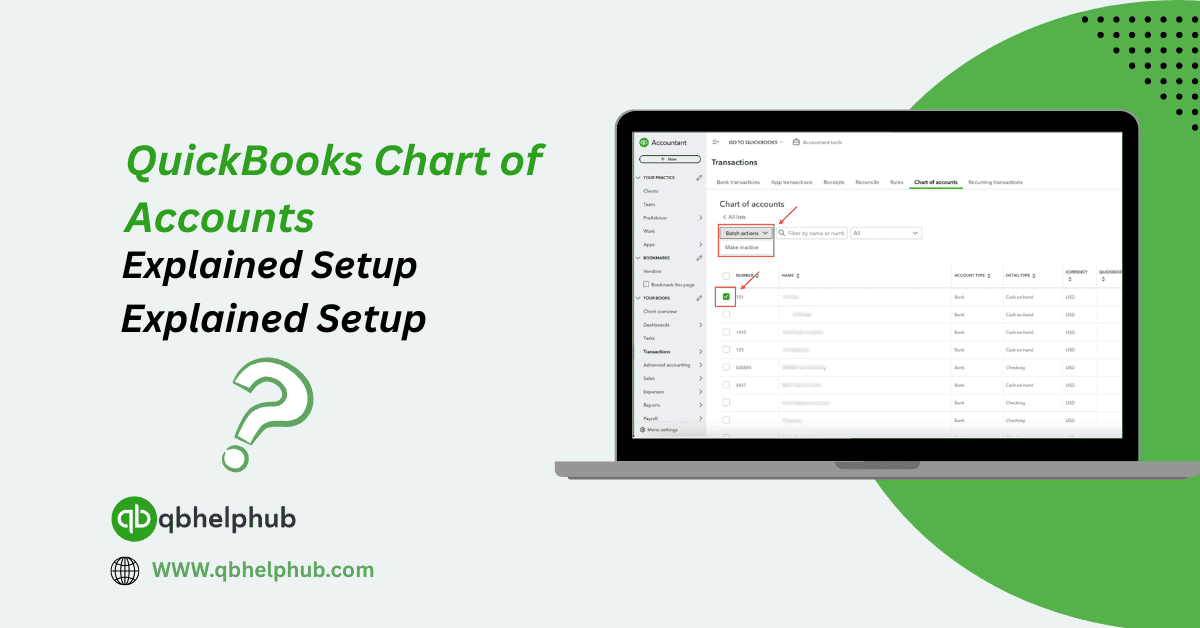
When you first open QuickBooks and start entering your company’s financial info, you’ll come across something called the “Chart of Accounts.” It might sound technical and tough, but it’s actually one of the most important tools inside QuickBooks. Think of it as the backbone of your entire accounting system. It organizes everything, what you earn, what you spend, what you own, and what you owe.
If you’re running a business and want cleaner books, accurate reports, or just a better understanding of your numbers, then getting this part right matters. In this post, we’ll walk through what the Chart of Accounts is, how to set it up, which categories to pay attention to, and a few helpful tips you’ll be glad to know later.
Read Also: QuickBooks API Integration Explained How to Set It Up and Use It?
What Is the Chart of Accounts in QuickBooks?
Each time you record a sale, an expense, or a loan payment, QuickBooks uses the Chart of Accounts to decide where that transaction should go. For example, if you buy office supplies, QuickBooks logs that under “Office Expenses.” Get paid from a customer? That’s recorded under “Income” or “Sales.”
This chart helps you group everything properly so that reports like your Profit and Loss or Balance Sheet make sense.
Account Types You’ll See Most Often
QuickBooks automatically creates some standard accounts based on your business type, but it also gives you freedom to add more. There are five major account types you’ll work with:
- Assets: These are things your business owns. Bank accounts, inventory, vehicles, equipment, all fall into this category.
- Liabilities: Anything you owe. This includes credit card balances, loans, or unpaid bills.
- Income: This is what you earn from your core business activities.
- Expenses: The costs of running your business, rent, utilities, payroll, software subscriptions, etc.
Every transaction you make will hit at least two of these accounts due to double-entry accounting (more on that another time).
Setting Up Your Chart of Accounts the Right Way
Setting up your Chart of Accounts properly in the beginning will save you a lot of cleanup work later. When you first create a QuickBooks file, you’ll be prompted to choose an industry. Based on your answer, QuickBooks will pre-fill the COA with common accounts for your type of business.
You can keep what makes sense and delete or rename what doesn’t. You can also add new accounts manually. When adding an account, be sure to:
- Choose the correct account type (asset, expense, etc.)
- Give it a clear name so it’s easy to find later
- Add a description if needed (especially helpful when working with a team or accountant)
Popular Account Categories to Include
Here are some commonly used categories small businesses often include in their Chart of Accounts:
- Bank Accounts – Checking, savings, PayPal, etc.
- Accounts Receivable – Money customers owe you.
- Accounts Payable – Bills you need to pay.
- Sales/Service Income – Your main sources of revenue.
- Payroll Expenses – Wages, taxes, benefits.
- Office Expenses – Supplies, software, postage.
- Utilities – Internet, phone, electricity.
If you’re not sure what to include, it’s okay to start simple. You can always add more categories as your business grows.
Tips To Keep Your Chart of Accounts Clean and Useful
After a few months of running a business, your books can get messy, especially if more than one person is doing the data entry. Here are a few practical tips to keep things organized:
- Don’t duplicate accounts. Before creating a new one, double-check if something similar already exists.
- Merge accounts if you find you’ve been using two different ones for the same purpose (e.g., “Supplies” and “Office Supplies”).
- Deactivate old accounts instead of deleting them. That way, your historical data stays intact.
- Limit who can create new accounts so you don’t end up with unnecessary categories.
- Review the COA every quarter to clean up unused or confusing accounts.
A clean COA makes your reports easier to read, and more trustworthy, especially at tax time or when presenting numbers to investors or lenders.
Read Also: QuickBooks Checking Account Full Review of Features, Fees, Pros & Cons
Why The Chart of Accounts Matters to You
If you’ve ever looked at a Profit and Loss statement and found yourself confused, chances are your Chart of Accounts needs adjusting. A well-organized chart makes financial reports easy to follow. You’ll know exactly where your money’s going, how much you’re making, and whether your business is healthy.
Also, a well-structured COA saves time. You won’t waste hours hunting down where to enter an expense or income item. It also helps your accountant help you—faster, and with fewer questions.
Should You Customize Your Chart of Accounts?
Absolutely. No two businesses are the same. Even if you’re using the default accounts QuickBooks gives you, it’s worth going in and tailoring them. For example, if you run a bakery, you might want specific income categories like “Custom Cakes” or “Wholesale Orders.” A graphic designer might want to separate “Design Fees” from “Print Costs.”
Customization helps reflect how your business actually works, not just how QuickBooks thinks it should.
Conclusion
Understanding and maintaining your QuickBooks Chart of Accounts is one of those behind-the-scenes tasks that quietly keeps your business on track. It helps you stay in control of your money, run better reports, and make smarter decisions. While it may seem like a small piece of the puzzle, it touches nearly every transaction you enter. Keep it organized, clean, and customized, and you’ll thank yourself at tax time and beyond.
Read Also: How to Choose Best Version of QuickBooks for Small Businesses?
Get In Touch with Us
If you are interested to know more about QuickBooks and basic troubleshooting steps, we are here to help you through our dedicated customer service team. Fill out the customer response form or feel free to reach to us at support@qbsolved.com Our highly competent team is here to solve all your queries regarding QuickBooks.