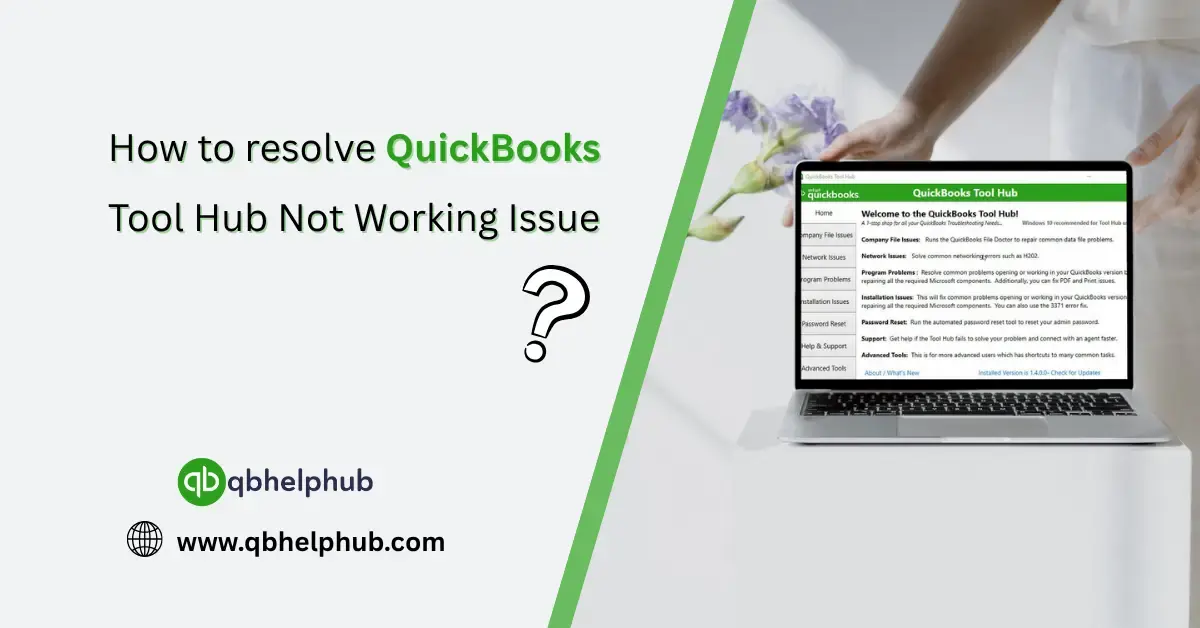
When QuickBooks Tool Hub stops working or won’t open at all, it usually shows up at the worst possible time, right when you’re counting on it to fix something else in QuickBooks. The good news? Most of the time, it’s fixable without diving too deep into tech stuff. Here’s what you can do if QuickBooks Tool Hub refuses to cooperate.
1. Try Running It as Administrator First
Let’s start simple. Right-click the Tool Hub icon and choose Run as administrator. That alone works more often than you’d think. If it doesn’t, keep going.
2. Check Your Windows Version
Tool Hub only works properly on Windows 10 (64-bit) or newer. If your system is running an older OS or 32-bit architecture, that’s likely the issue. In that case, you’ll either need to update your system, or use the tools individually without Tool Hub.
3. Reinstall QuickBooks Tool Hub Completely
Sometimes a broken install is the culprit. Do this:
- Uninstall Tool Hub via Control Panel > Programs > Uninstall a program
- Then, re-download the latest version directly from Intuit’s official site
- Install it fresh and try opening it again
Don’t forget to restart your system after reinstalling, just to clear out any old temp data.
Read Also: Top 5 Problems QuickBooks Tool Hub Can Fix
4. Temporarily Disable Antivirus or Firewall
Every now and then, your antivirus or firewall settings may block the app from opening or running properly. Try turning them off briefly and then open Tool Hub again. If it works, you’ll need to whitelist the program in your antivirus settings going forward.
5. Make Sure .NET Framework Is Enabled
QuickBooks Tool Hub relies on Microsoft .NET Framework. If it’s missing or not working, the app won’t run properly.
- Go to Control Panel > Programs > Turn Windows Features on or off
- Then, make sure .NET Framework 4.8 (or the latest one available) is checked
- If it’s already on, try repairing it by going to Apps > Optional Features
After that, restart and try again.
6. Delete Tool Hub Cache and Temp Files
Corrupted cache or leftover temporary files could be preventing Tool Hub from working. Use Disk Cleanup or manually clear out temporary folders:
- Press Windows + R, type %temp%, and press Enter
- Delete all files that appear
- Do the same for C:\ProgramData\Intuit\QuickBooks Tool Hub
Then try launching Tool Hub again.
7. Update Your System
If you haven’t installed Windows updates in a while, you could be missing important compatibility updates. Go to:
- Settings > Update & Security > Windows Update
- Click Check for updates and install anything that pops up
This often fixes compatibility issues quietly working in the background.
8. Try Opening from the Installation Folder
Sometimes shortcuts go bad. Navigate to where Tool Hub was installed (usually in C:\Program Files (x86)\Intuit\QuickBooks Tool Hub) and double-click the actual .exe file. That bypasses shortcut issues.
Read Also: Fixing QuickBooks Installation Issues with Tool Hub
Still Not Working?
If none of these steps work, then it’s time to reach out to QuickBooks Support or your IT team. You might be dealing with deeper system-level issues like user profile corruption or administrative permission blocks.
Get In Touch with Us
If you are interested to know more about QuickBooks and basic troubleshooting steps, we are here to help you through our dedicated customer service team. Fill out the customer response form or feel free to reach to us at support@qbhelphub.com Our highly competent team is here to solve all your queries regarding QuickBooks.
FAQs (Frequently Asked Questions)