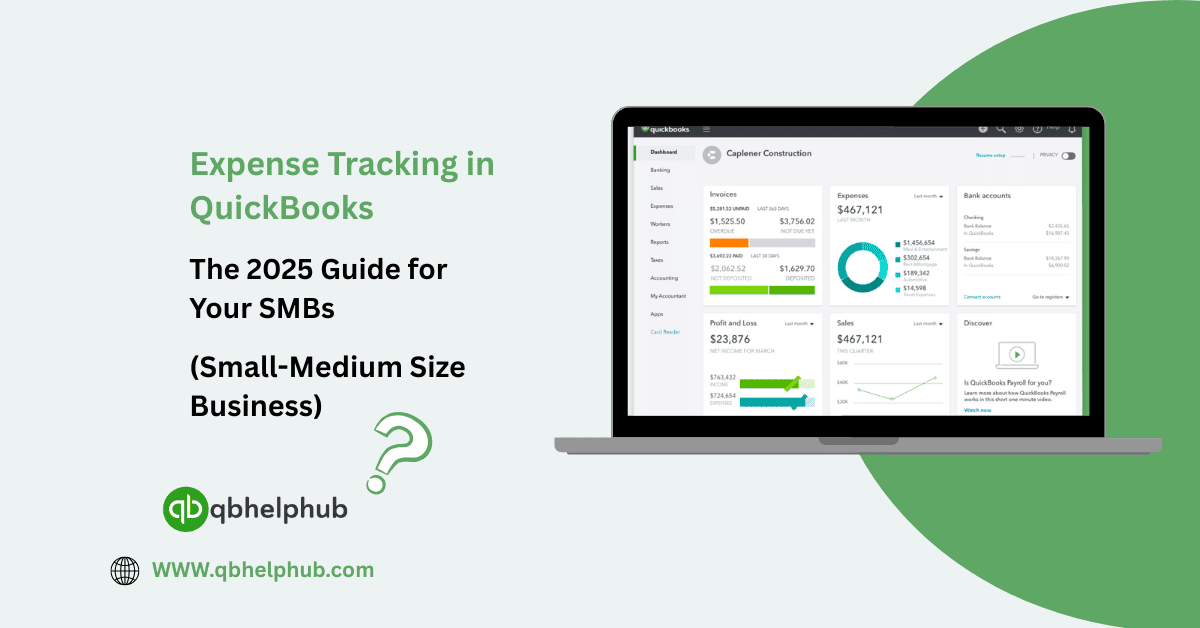
Managing business expenses may not be the most exciting part of running a company, but it’s one of the most important especially for small and medium-sized businesses. If you don’t have a clear view of what’s going out, you can’t confidently plan what’s coming in. That’s where QuickBooks shines. Whether you’re new to the software or just not using it to its full potential, this guide will help you get a solid handle on how to track expenses accurately, save time, and avoid those costly end-of-year surprises.
Read Also: How To Connect Shopify to QuickBooks Online Using Intuit’s Official Connector (2025 Edition)
1. Set Up Your Expense Categories the Right Way
When you’re just starting out, it might feel fine to toss everything into “Miscellaneous” or “Office Supplies.” But as your business grows, those broad labels can really mess with your reporting.
QuickBooks allows you to create specific expense categories like advertising, meals, travel, software, and so on. Set these up to match how you actually spend. Not only will this help you stay organized, it’ll make tax season way smoother when you’re trying to sort deductions.
2. Connect Your Bank and Credit Card Accounts
One of the easiest ways to automate expense tracking is by linking your business bank accounts and credit cards directly to QuickBooks. Once connected, the software will pull in all your transactions automatically no need to enter each expense by hand.
You’ll still need to review and categorize them, but this setup saves a ton of time and helps ensure nothing slips through the cracks. And yes, you can connect multiple accounts, even if you’re running different parts of your business from separate cards.
3. Use The Mobile App to Track Receipts on the go
It’s easy to lose paper receipts especially if you’re traveling or juggling multiple purchases in a day. With the QuickBooks mobile app, you can snap a photo of your receipt right after you make the purchase.
Once uploaded, QuickBooks matches the receipt to the correct transaction and files it away. You won’t need to keep the paper copy, and come tax time, everything will be stored neatly in your system. No more digging through drawers or glove compartments to find that missing fuel receipt.
4. Create Recurring Expenses for Predictable Costs
Some business costs stay the same every month things like subscriptions, rent, or insurance. Instead of entering these manually each time, you can set up recurring transactions in QuickBooks.
Just pick the expense, how often it happens, and the amount. Then, QuickBooks will automatically record it on schedule. This is a great way to save time while making sure you don’t forget to log those regular bills.
Read Also: QuickBooks Error 404: A Simple Guide
5. Tag Expenses to Specific Projects or Clients
If your business does project-based work or tracks billable expenses, QuickBooks lets you assign each cost to a specific client or project. This means you can track profitability at a more detailed level not just overall.
It’s especially helpful if you invoice clients for reimbursements. You can easily pull up expenses tied to their project and include them in their next invoice without scanning through your entire ledger.
6. Run Expense Reports to Spot Trends Early
Good tracking is about more than just record-keeping it’s also about decision-making. QuickBooks offers built-in reports that show you exactly where your money is going.
You can view spending by vendor, category, or time period. If one area is creeping up more than expected, you’ll catch it early instead of discovering it when you’re already short on cash. Use these reports monthly or quarterly to check in on spending habits and adjust your budget accordingly.
7. Use Rules to Speed Up Categorization
Here’s a handy feature that not everyone uses bank rules. When you notice a vendor keeps showing up in your transactions (say, your internet provider or your office supply vendor), you can set a rule in QuickBooks so that it auto-categorizes those expenses each time.
Once set up, these rules work in the background, saving you the step of categorizing recurring expenses manually. Just make sure to review occasionally to ensure the rules still apply.
8. Don’t Mix Personal and Business Expenses
It might be tempting to use your personal card when you’re in a rush or forgot your business one, but that habit creates extra work later. If you do mix purchases, QuickBooks can still help you separate the personal charges but you’ll have to take time categorizing and excluding them manually.
The better option? Keep business and personal accounts separate. It’s cleaner, easier, and better for your financial sanity down the line.
9. Review Your Expenses Before Closing Each Month
Before you close your books for the month, take a few minutes to review your expenses. Check for duplicates, uncategorized charges, or anything that looks off. If something seems weird like a charge that’s way too high or posted on the wrong date now’s the time to fix it.
Regular reviews keep your records clean and accurate, which helps with forecasting, taxes, and decision-making. Even if you’re working with a bookkeeper, this step is worth doing yourself from time to time.
10. Use QuickBooks Tags to Organize Beyond Categories
If you need more flexibility than basic categories allow, QuickBooks lets you use “Tags.” These are customizable labels you can apply to transactions to track spending by theme like “marketing campaign” or “event expenses.”
Tags are perfect for comparing spending across teams, departments, or seasons. They don’t affect your accounting structure but give you added visibility without making your chart of accounts overly complicated.
Final Thoughts
Tracking expenses in QuickBooks doesn’t have to be complicated. The key is to build smart habits early, automate where you can, and check in regularly. Once you have a good system in place, it becomes second nature and you’ll always know exactly where your money is going. That kind of clarity doesn’t just help with taxes. It gives you real control over your business’s financial health.
Get In Touch with Us
If you are interested to know more about QuickBooks and basic troubleshooting steps, we are here to help you through our dedicated customer service team. Fill out the customer response form or feel free to reach to us at support@qbsolved.com Our highly competent team is here to solve all your queries regarding QuickBooks.