Are you curious about how QuickBooks Online works but not quite ready to commit? You’re not alone. That’s exactly where the free demo account comes in handy. It lets you click around, explore features, and get comfortable, without having to input your own financial data. Think of it as a test drive, just for your bookkeeping. Whether you’re new to accounting or switching from another software, this hands-on look helps you decide if it’s the right fit for your business. Let’s break down how to access and make the most of it, step by step.
What Is the QuickBooks Online Demo Account?
The demo account is like a sample version of QuickBooks Online. It’s pre-loaded with example transactions, customers, vendors, and bank feeds. So, even if you’ve never touched accounting software before, you can play with real features and see how everything works. You won’t need a credit card, and your personal information stays private.
Also called a “test drive,” it’s offered directly by Intuit, and it mimics the QuickBooks Online Plus version. That means you’ll see tools like invoicing, reports, chart of accounts, banking, and more.
Read Also: How to Login to QuickBooks Online?
Why Use the Free Demo Before Signing Up?
Let’s face it, committing to accounting software isn’t a small decision. You need something that clicks with your workflow. The demo helps by giving you:
- A risk-free way to learn the interface
- A chance to see what reports and tools are included
- An opportunity to test how your team might use it
And because you’re not inputting your own company’s data, you can try out features freely. Accidentally delete a fake invoice? No worries.
How to Access the QuickBooks Online Free Demo
You won’t need to download anything, without the need of an active account. Here’s how to get in:
- Go to Intuit’s official demo page for QuickBooks Online test drive.
- Choose your country if prompted (like the U.S. or Canada).
- Click on the demo link, and the portal will redirect you to the sample company.
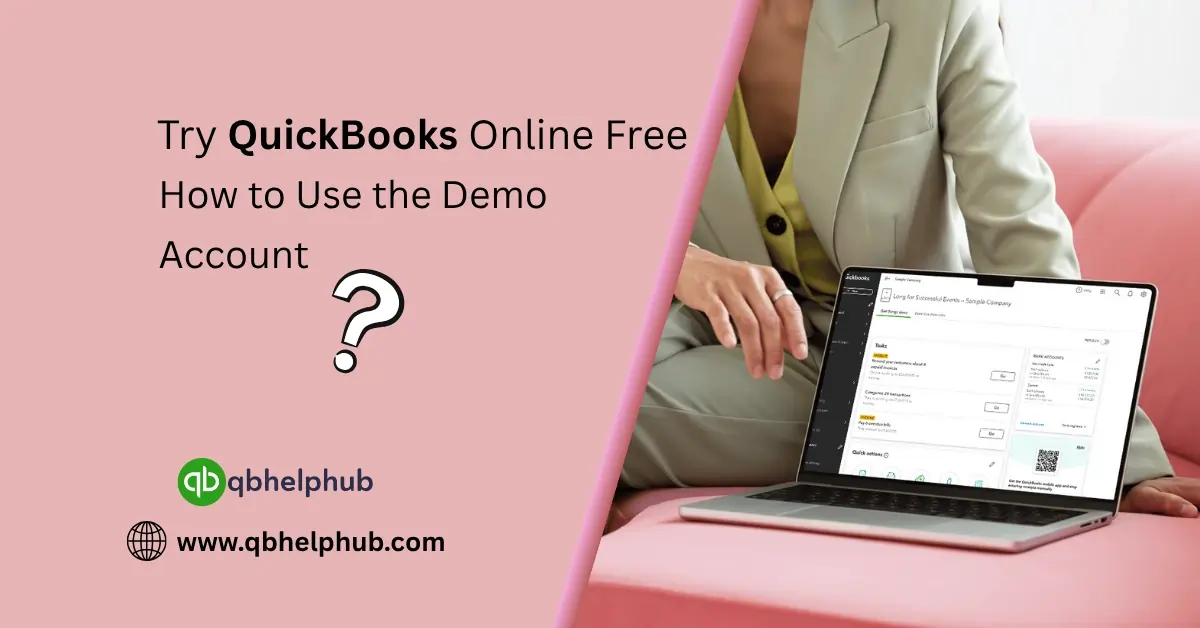
It usually loads as “Craig’s Design and Landscaping Services,” a fake company set up with customers, transactions, and accounts already in place. You can explore freely without fear of messing up anything real.
What You Can Do in the Demo
Once inside, you’ll see a dashboard with income, expenses, bank accounts, and shortcuts. From there, you can explore sections like:
- Sales: Create invoices or sales receipts
- Expenses: Log bills or write checks
- Banking: Try reconciling and categorizing transactions
- Reports: Run a profit and loss report or balance sheet
- Payroll (Limited): While payroll is not fully functional in the demo, you’ll get a feel for how it integrates
It’s great for exploring things like how to record credit card payments or how to reconcile accounts, without risking your own financial data.
Read Also: How to Set up a Credit Card Account in QuickBooks?
What You Can’t Do in the Demo
You can’t:
- Connect real bank feeds
- Set up your own custom workflows
- Access live payroll features like direct deposit
- Save anything, once you exit, it resets
But honestly, for learning the layout and understanding how it all fits together, it’s more than enough. And it gives you an idea of what you’ll be working with if you decide to sign up.
How the Demo Helps You Choose the Right Plan
After test driving QuickBooks Online, you’ll have a better feel for what tools matter most to you. For example:
- Need time tracking and project costs? QuickBooks Plus will be your best bet.
- Just want to send invoices and track expenses? Essentials may be enough.
- Have payroll needs? That’s where QuickBooks Full Payroll Service or QuickBooks Pro Payroll could come in.
Seeing how those features function in real time makes it easier to decide between Essentials, Plus, and Advanced versions.
Tips to Make the Most of Your Test Drive
- Take notes: Jot down what features you liked or found missing.
- Try things you’ll actually do: Run a report, create a fake invoice, or simulate reconciling.
- Invite a teammate: If you’re not the only one using the software, see how others feel using it.
You can also use the demo to walk through common fixes, like correcting a vendor payment, or exploring tools you’d use every month.
What If You Need More Help?
If something confuses you during your demo trial, don’t stress. You can get help even before purchasing.
QuickBooks offers 24/7 support via their help center, or you can connect with advisors. For payroll-related questions, you can reach out via the QuickBooks Payroll Support Phone Number or the QB Payroll Support Number if you’re dealing with taxes or direct deposits.
Whether it’s about choosing a plan or understanding how payroll services Intuit offers can integrate with your business, real help is just a call or chat away.
Conclusion
Trying out the QuickBooks Online demo account is one of the smartest things you can do before making a decision. It helps you get a feel for the software without any pressure, so you know exactly what you’re getting. Whether you’re looking to handle expenses, send invoices, or explore payroll features, the demo lets you walk through it all. Take your time, explore what matters to your business, and when you’re ready, you’ll know exactly what version fits best.
Get In Touch with Us
If you are interested to know more about QuickBooks and basic troubleshooting steps, we are here to help you through our dedicated customer service team. Fill out the customer response form or feel free to reach to us at support@qbhelphub.com Our highly competent team is here to solve all your queries regarding QuickBooks.