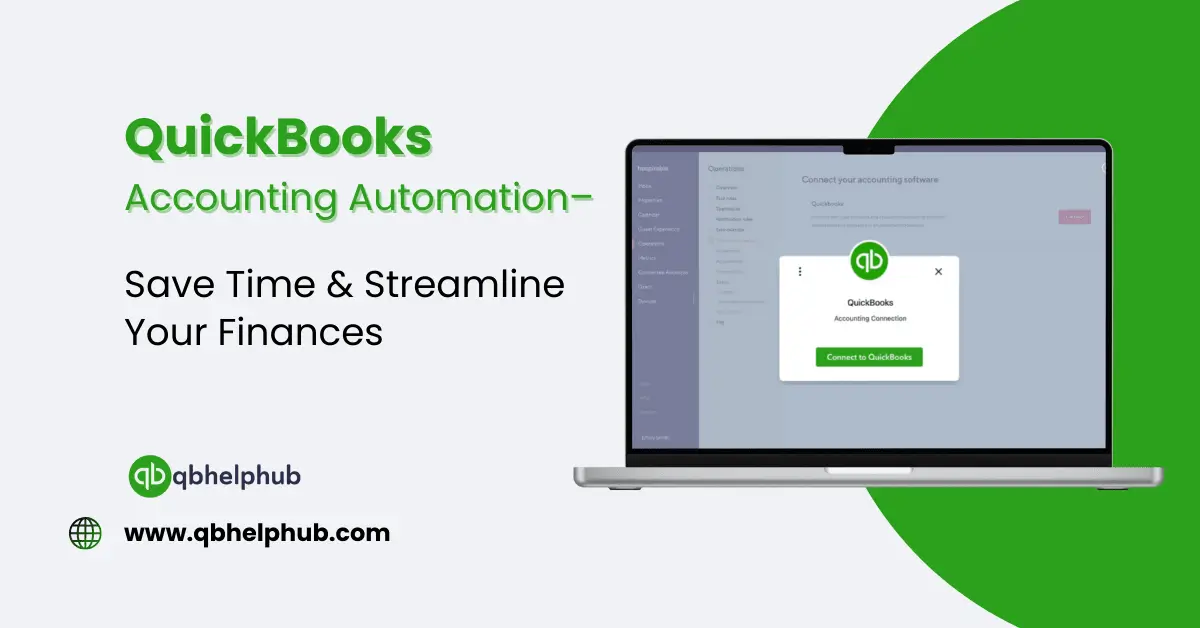
A significant part of business is tracking income, expenses, and bills but doing it all is very time-consuming that’s where QuickBooks comes to help. QuickBooks can do your accounting for you, as it can make your daily routine easier and more efficient. In this blog, we’ll help you with how you can use QuickBooks to ease your accounting.
See Also: How to Fix Socket Error 10061 in QuickBooks Point of Sale
Why Automate Accounting?
When you are doing everything manually you can type a number in incorrectly or forget to make a payment on a bill. QuickBooks automation cuts down on human error. You also save time, and you always have up-to-date financial information at your fingertips.
Benefits of Using Automation
- Minimizes mistakes and enhances precision
- Keeps your records organized
- Easier to track where your money is being spent
- Keeps up with payments and taxes for you
Now let’s see how to configure and use QuickBooks to automate your accounting processes.
How To Set Up QuickBooks for Automation
First things first, before you go into automation setup, you will need to create your QuickBooks account. Here’s how to do it:
Step 1: Link Your Bank and Credit Card Accounts
QuickBooks lets you connect your business bank and credit card accounts directly to the software.
- Firstly, open QuickBooks and navigate to Banking.
- Click Link account.
- Then type out your bank’s name and log-in credentials.
- Finally, choose the accounts you wish to link.
- Click Connect.
Once you connect, QuickBooks will automatically download your transactions each day.
Step 2: Establish Rules for Transactions
QuickBooks allows you to make rules to sort transactions.
- Select Banking, then Rules.
- lick New Rule.
- Select conditions such as “If description contains ‘Amazon.’
- Select a category, such as Office Supplies.
- Save the rule.
QuickBooks will automatically categorize matching transactions according to your rule.
See Also: Is QuickBooks Desktop Being Phased Out?
Step 3: Automate Invoicing
You can even automate the way you send invoices to your clients.
- Select Sales then click on Invoices.
- Click Create Invoice.
- After you fill in the customer and product
- Then, select the Make Recurring checkbox.
- Finally, select the frequency for sending the invoice weekly, monthly, etc.
- Save it.
Now, QuickBooks invoices you the scheduled time.
Step 4: Set Up Bill Payments and Reminders
You can input bills and schedule alerts, so you’ll never forget to pay one.
- Select Expenses, then select
- Click New Bill.
- Add the details such as vendor name, amount, and due date.
- Click Save and Schedule Payment.
If your bank allows it, you can also schedule for online bill payments via your online banking features.
Stay on Track with Reporting
QuickBooks prepares reports automatically as well. Such reports demonstrate how your business is performing.
Common Reports You Can Use
- Income Statement: Your income and Expenses
- Balance Sheet: It lists your assets and debts
- Cash Flow Report: Assists with tracking money flows in & out. Moreover, you can ask QuickBooks to email you these reports weekly or monthly.
Integrations to Make Automation Even Better
Integration with other tools that can extend your automation power QuickBooks plays nice with them.
Useful Integrations
- Time tracking applications like TSheets or Clockify
- Inventory management tools, such as SOS Inventory
- Payment’s processor such as PayPal or Stripe
- Ecommerce platform Such as Shopify or WooCommerce
Those tools sync with QuickBooks to automatically update your data, so you don’t have to enter it twice.
How to Make the Most of Automation: Tips
- Revisit your rules regularly to ensure they are still serving you
- Always verify your reports for correctness
- Updating software helps keep you are using their latest features
- Record your finances on the go by using the mobile apps
See Also: QuickBooks for Startups: Why is it The Best Accounting Tool for New Entrepreneurs?
To Wrap Up
Automatic Accounting with QuickBooks will save you time you will no longer need to spend hours on receipts, chasing payments, or wondering if you forgot to pay a bill. With minimal setup, you can allow QuickBooks to take care of the hard parts so you can focus on growing your business.
Get In Touch with Us
If you are interested to know more about QuickBooks Desktop and QuickBooks Online, we are here to help you through our dedicated customer service team. Fill out the customer response form or feel free to reach to us at support@qbhelphub.com Our highly competent team is here to solve all your queries regarding QuickBooks.