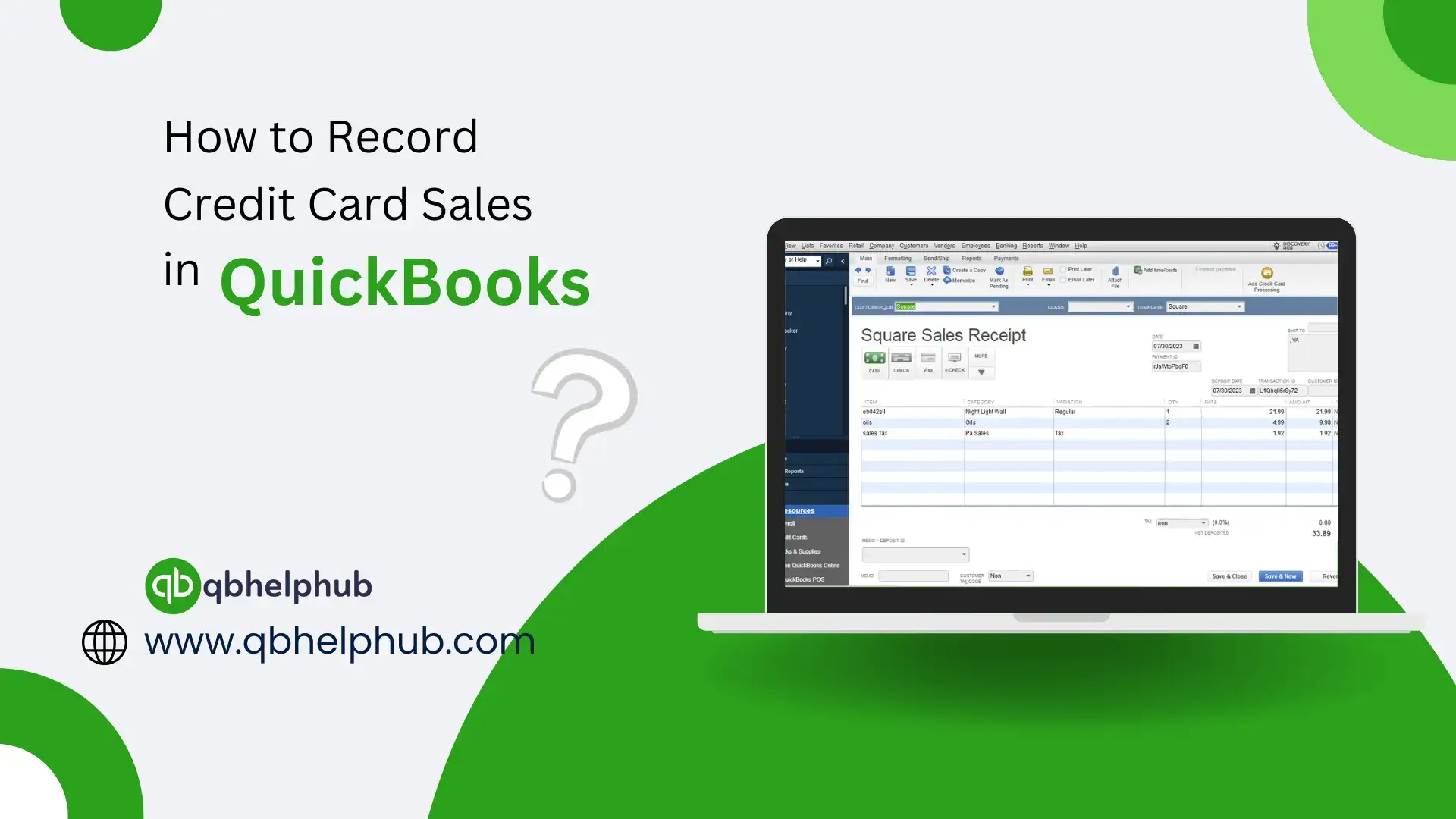
Recording credit card sales in QuickBooks is demanding for healthy business finances. Whether you have a retail store, online store, or service-based business, tracking credit card transactions helps you keeping better financial records, reconciling accounts, and simplifies accounting processes. Recording sales the right way keeps your financial records clean, ensures accuracy in reporting, and prepares you for tax time. Whether you have QuickBooks Online or QuickBooks Desktop, QuickBooks provides a simple solution for recording these transactions with a few easy steps.
If you operate a business and customers that pay with credit cards, accurate accounting for those sales is very important. QuickBooks helps you post credit card sales easily, which keeps your books organized and accurate. But how do you properly record those sales? This guide will help you learn about credit card sales and how to effectively track them in QuickBooks to help keep your finances in check.
Read Also: What is intuit QuickBooks Payroll online
Importance of Recording Credit Card Sales in QuickBooks
Before diving into the steps, let’s discuss why it’s so important to record credit card sales:
- It tells you how much money your business is making.
- It allows you to track the fees that credit card companies charge.
- You can see what payments are still being processed.
- Moreover, it keeps you prepared for taxation season.
Read Also: Add Accountant to QuickBooks online
Step by Step Guide to Enter QuickBooks Credit Card Sales:
Here’s how to enter credit card sales with QuickBooks Online and QuickBooks Desktop. Depending on which version you are using, the steps may be slightly different.
Step 1: Click ‘+ New’ (QuickBooks Online)
or ‘Customers > Receive Payments’ (QuickBooks Desktop)
The first step to recording a credit card sale is to the receive payment in QuickBooks:
- In QuickBooks Online, select + New > Receive Payment.
- Then, navigate to Customers > Receive Payments in QuickBooks Desktop.
Step 2: Enter the Payment Information
In the payment form:
- Choose the customer’s name.
- Choose Credit Card as your mode of payment
- Enter the amount paid.
- type=”button”> Set the payment date.
- In “Deposit To,” choose Undeposited Funds (if you’ll deposit it later) or your bank account (if it’s already deposited).
Step 3: Process and add the processing fees (if any)
If your credit card company takes a fee from the payment, you need to record this fee. Here’s how:
- Choose + New > Bank Deposit (for QuickBooks Online) or Banking > Make Deposits (for QuickBooks Desktop).
- Once in the deposit screen, locate the payment.
- Under that, in the body, add a line for the fee amount.
- “Credit Card Fees” should be captured in your Expense account.
- Insert the negative figure of the fee (i.e., -$2.00)
- Also, make sure the total should equal the actual deposit.
Step 4: Save the Payment
After you are done with filling in all the details:
- Click Save and Close.
- Sales on your credit card is now recorded.
Tips for Recording Credit Card Sales
Follow these tips for recording new credit card sales:
1. Integrate A Payment Gateway
Certain credit card companies (such as Square or PayPal) may integrate with QuickBooks. This makes automatic additions of payments possible due to its time-saving capability.
2. Use Undeposited Funds
However, if your credit card payments are processed when they are transferred over to your bank account, you may want to consider using Undeposited Funds instead. So, when the cash reaches in your bank, you can easily match it up.
3. Reconcile Your Bank Statement
Always reconcile your bank statement each month to ensure that your recorded sales and deposits are in line with your actual bank balance.
To Conclude
In this QuickBooks guide, we have covered how to record credit card sales. It can assist with managing income, fees, and keeping you organized. Follow these easy steps, and you’ll be able to record sales smoothly and be prepared for everything from daily reports to tax season. Just remember to check your records regularly and to seek help if necessary. Recording credit card sales with QuickBooks doesn’t have to be difficult, it can be quick and hassle free.
Read Also: How to Fix Common QuickBooks Errors
Get in Touch with Us
If you need further help in recording credit card sales in QuickBooks, we are here to help you through our dedicated customer service team. Fill out the customer response form or feel free to reach to us at support@qbhelphub.com . Our highly competent team is here to solve all your queries regarding QuickBooks.