
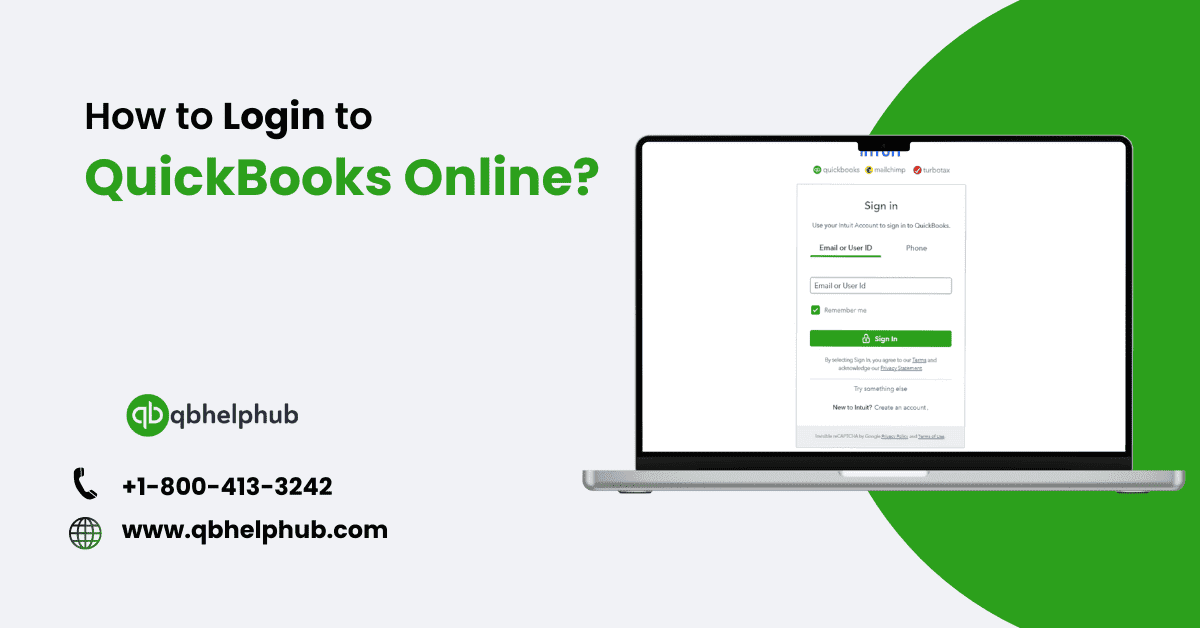
What is better than having accounting software which allows you to access your data from anywhere with the help of the internet? QuickBooks Online is a finance software which lets you do just that owing to the facilities provided by cloud computing. But the process of logging into QuickBooks Online can seem daunting, like trying to find the right key for a lock, but it is so simple that once you get the hang of it, it’s a breeze. Regardless of being an old player or a novice in the business industry, understanding how to access your financial data quickly and efficiently is crucial. This guide will walk you through every step of the login process, ensuring that you can easily access your QuickBooks account whenever you need it.
Read also: How to download QuickBooks desktop: fast and easy steps
Introduction
It has become so important for everyone to track finances, even more so for businesses. An efficient and simple way for businesses to handle their finances is via using QuickBooks Online. It provides a strong and powerful medium for all types of businesses to keep accurate tabs of their accounts. Before you take advantage of the features, you need to know how to log in. This comprehensive guide will help you navigate the login process, address common issues, and provide tips to ensure a smooth experience.
What is QuickBooks Online?
QuickBooks Online is the perfect finance management software for small to medium-sized businesses. It facilitates finance management, expense tracking, invoice creation, and report generation from any device with internet access. Apart from traditional desktop versions in terms of ease and simplicity, QuickBooks Online is cloud-based which provides the flexibility to work from any and everywhere.
Why Use QuickBooks Online?
There are several reasons why more and more businesses are using QuickBooks Online:
- Accessibility: Log in and access your account from any device at any time, from anywhere.
- Collaboration: More than one user uses the account simultaneously.
- It provides automatic updates. Get the latest in features and security updates, no finger lifting required.
- Integration: This would allow integration with other business tools and applications.
- Cost-Effective: It has different price plans to cater to different business requirements and budgets.
Setting Up Your QuickBooks Account
Sign up for QuickBooks Online first before you can log in. This is how to do it:
- Go to QuickBooks Website: Open the official website of QuickBooks.
- Plan Selection: Choose the plan that best fits the business enterprise.
- Sign Up: Enter the requested details in order to generate your account.
- Check your email: QuickBooks will send a verification email. Click through to verify your account.
- Setup Complete: Follow these instructions to complete the setup.
Navigating to the Login Page
Sign in to QuickBooks Online using the following steps.
- Open Any Browser: This could be any web browser on your computer or your phone.
- Go to QuickBooks Website: This is the website of quickbooks.intuit.com.
- Click on Sign In: The “Sign In” button is at the top right corner of the page; click it.
Read also: How to Login as an Accountant in QuickBooks Online?
Entering Your Credentials
First, you’ll need to get to the login page, and then you’ll log in with your credentials:
- Add in your email address or user ID in the required field, which is connected to your QuickBooks account.
- Password: Type your password carefully. Make sure that the Caps Lock is off.
- Click Sign In: After filling in the details, click the “Sign In” button.
Using Multi-Factor Authentication
What is better than an excellent financial management software? A software which comes with extra safety padding to keep all your sensitive information safe. QuickBooks Online also provides multi-factor authentication facilities for extra safety:
- Verification Code: You may be prompted to enter a verification code that has been sent by email or to your mobile device after entering your credentials.
- Full Authentication: Use the code in the window below and click “Verify” to finish logging in.
Troubleshooting Login Issues
If you have problems logging in, consider the following troubleshooting steps that can assist in the process:
- Check Internet Connection: Make sure you are connected to the internet.
- Clear Browser Cache: Carry out a simple clearing of your browser cache; occasionally, login issues may be resolved.
- Update Browser: Keep your browser updated.
- Disable Extensions: Browser extensions may sometimes disrupt the login process. Try disabling them temporarily.
Resetting Your Password
Have you ever forgotten your password and panicked because you are unable to recover your account? Well there is no need to worry in case you forget your QuickBooks Online password. Here is how to reset:
- Click Forget Password: On the Login page, click “Forgot Password?”
- Email: Input the e-mail address that serves as your log-in for QuickBooks.
- Follow the Instructions: QuickBooks will send a password reset link to your email. Follow the instructions to reset your password.
Recovering Your User ID
If you can’t remember your user ID:
- Click on Forgot User ID: On the login page, click “Forgot User ID?”
- Enter Your Email: Provide the email address associated with your account.
- Check Your Email: QuickBooks will send an email with your user ID information.
Login Tips and Best Practices
To ensure a smooth login experience, consider these tips:
- Use a Strong Password: Create a password that includes a mix of letters, numbers, and symbols.
- Enable MFA: Multi-factor authentication adds an extra layer of security.
- Keep Your Browser Updated: Regularly update your web browser for optimal performance.
- Bookmark the Login Page: Save the QuickBooks login page to your bookmarks for easy access.
Mobile Login to QuickBooks
Logging into QuickBooks Online via mobile is just as simple:
- Download the App: Download the QuickBooks app from the App Store or Google Play.
- Open the App: Launch the app on your mobile device.
- Enter Your Credentials: Input your user ID and password.
- Use MFA: If prompted, enter the verification code sent to your email or phone.
Keeping Your Account Secure
Security of your financial data should always be your first priority. Following are some of the ways you can keep your QuickBooks account safe:
- Update Your Password: Change your password from time to time.
- Unique Passwords: There should be different passwords for different accounts.
- Monitor Account Activity: Check your account activity regularly for any access that looks suspicious.
- Enable Account Alerts: This allows alerts upon login attempts and other important activities concerning the account.
Contacting QuickBooks Support
If you’re still having trouble logging in, QuickBooks support can help:
- Visit the Support Page: Go to the QuickBooks support page on their website.
- Choose Your Issue: Select the issue you are experiencing from the list of common problems.
- Contact Support: Follow the instructions to contact QuickBooks support via chat, phone, or email.
Read also: Should You Upgrade to QuickBooks Desktop Pro Plus 2024?
Conclusion
Logging into QuickBooks Online is not a seemingly intimidating task. You do not have to scratch your head endlessly trying to figure out the procedure. Just follow the easily applied steps and tips we have given above to access, manage and safely keep your account and money. Keep in mind that, at any point in time, QuickBooks has several resources and support options you can turn to for help.
QB Help Hub’s instructions for logging into QuickBooks Online were straightforward and easy to follow. Their support ensured that we could access our account securely and efficiently. A great help for QuickBooks users!
QB Help Hub made logging into QuickBooks Online simple with their easy-to-follow instructions. Their support team ensures that you can access your account quickly and securely. Great resource for QuickBooks users!
Fantastic guide on logging into QuickBooks Online! The step-by-step instructions are clear and easy to follow. QB Help Hub is an excellent service provider, offering top-notch support for QuickBooks users. Highly recommend their services for any QB-related needs!
Logging into QuickBooks Online can sometimes be confusing for new users, but your step-by-step guide makes the process simple. The clarity and structure of your content are excellent!