Closing the books at the end of each month isn’t just about checking off a to-do list, it’s the foundation for understanding your business’s health. If you’re using QuickBooks, you’ve already got a head start. But the trick is knowing how to use its tools smartly, so your monthly close doesn’t turn into a never-ending marathon.
Whether you’re closing your first month or just looking to speed things up, this guide will walk you through practical tips to make your month-end close in QuickBooks smoother, faster, and a whole lot more accurate.
Read Also: How to Pay myself in QuickBooks
1. Start With a Closing Checklist
Before diving into QuickBooks, build a checklist of the tasks you need to complete every month. Things like:
- Reconciling bank and credit card accounts
- Reviewing unpaid invoices and bills
- Recording payroll and tax payments
- Reviewing the Profit & Loss and Balance Sheet
- Adjusting journal entries (if needed)
- Locking the books
Also, if you keep this list handy, same tasks, every month, over time, it becomes muscle memory.
2. Reconcile Every Account, Every Time
One of the biggest mistakes? Skipping bank or credit card reconciliations, because, you’d be surprised how easy it is for a duplicate entry or missed transaction to mess up your entire month.
In QuickBooks Online:
- Go to Accounting > Reconcile
- Choose the account, then compare each transaction to your statement
- Then, check off matches and investigate any discrepancies
As a result, this step alone catches 90% of the little things that create big problems down the road.
3. Review Your Accounts Receivable and Payable
Accounts receivable (A/R) tells you who owes you. Accounts payable (A/P) tells you who you owe. Both matter equally at month’s end.
Head over to:
- Reports > A/R Aging Summary
- Reports > A/P Aging Summary
Look for old balances, unapplied credits, or customer invoices sitting unpaid. Same goes for bills, follow up or resolve issues before closing. Moreover, don’t forget that clearing up unapplied payments or misapplied credits keeps your reports cleaner.\
Read Also: How to Record Tax Payments in QuickBooks?
4. Enter All Payroll and Employee Expenses
If you’re using QuickBooks Payroll, make sure all your payroll entries are recorded and matched to payments. For contractors or out-of-pocket employee expenses, double-check:
- Expense reports
- Mileage logs
- Reimbursements due
Everything should be in QuickBooks by the end of the month, otherwise, your profit numbers will be off.
5. Run and Review Key Financial Reports
Once you’ve cleaned up data and posted everything, it’s time to pull the numbers:
- Profit & Loss (P&L) – Compare this month to the previous one or to your budget.
- Balance Sheet – Ensure your asset, liability, and equity accounts make sense.
- Statement of Cash Flows – Helpful for understanding how your cash is moving.
Consequently, look for red flags, negative balances, unusually high expenses, or missing accounts, don’t just run reports, read them.
6. Fix Errors Before They Snowball
Did a payment get posted to the wrong customer? Is a deposit showing twice? This is your window to correct errors while they’re still fresh.
Use the Audit Log in QuickBooks Online (under the Gear icon) to track who changed what and when. If something looks off, fix it before it becomes next month’s mystery.
7. Set a Closing Date to Prevent Changes
Once you’re confident everything’s accurate, close the books by setting a closing date:
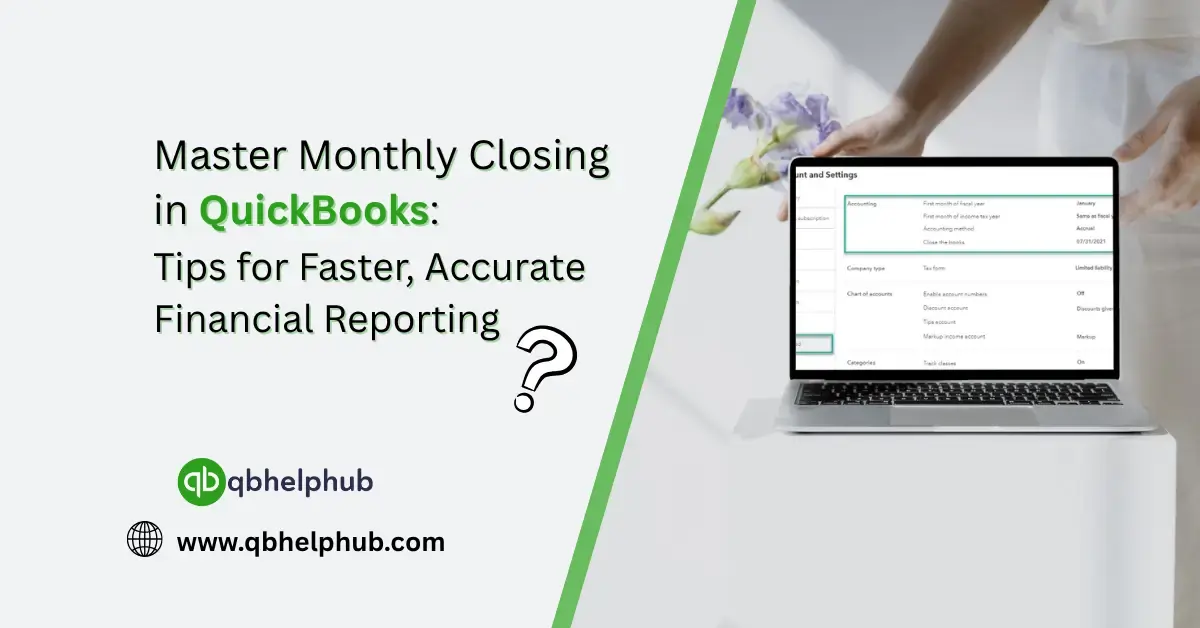
- Firstly, go to Gear > Account and Settings > Advanced
- Then, under “Accounting,” choose a closing date and optionally require a password
This keeps staff (or even you) from accidentally editing past transactions. It’s one of the simplest ways to maintain financial integrity over time.
8. Use QuickBooks Tags or Classes for Clean Categorization
Want clearer insight into which department or location spent what? Use Tags (in QBO) or Classes (in QuickBooks Desktop or Plus plans) to break down income and expenses.
It takes a bit more setup, but it pays off big time when you’re reviewing P&L reports by department, client, or event.
Read Also: How do I Login into an Intuit QuickBooks Account?
9. Automate What You Can
Some tasks shouldn’t take up brainpower every month. QuickBooks can help you:
- Schedule recurring journal entries for things like rent or depreciation
- Automate invoice reminders for unpaid customer balances
- Set up rules for banking to auto-categorize regular transactions
Automating even a few tasks can shave hours off your close time.
10. Archive Reports and Notes for Your Records
After your close, save a PDF copy of your key financials (P&L, Balance Sheet, Cash Flow) and any closing notes or decisions made. This becomes part of your audit trail and a sanity-saver next quarter. Also, consider using the Attachments feature in QuickBooks to store those docs right inside your system.
Final Thoughts
Mastering the monthly close in QuickBooks isn’t just about speed, it’s about confidence. Confidence that your numbers are accurate, your data is clean, and your business decisions are based on truth, not guesswork. With the right process and tools, you’ll go from dreading month-end to knocking it out with ease.
Get In Touch with Us
If you are interested to know more about QuickBooks and basic troubleshooting steps, we are here to help you through our dedicated customer service team. Fill out the customer response form or feel free to reach to us at support@qbhelphub.com Our highly competent team is here to solve all your queries regarding QuickBooks.
FAQs