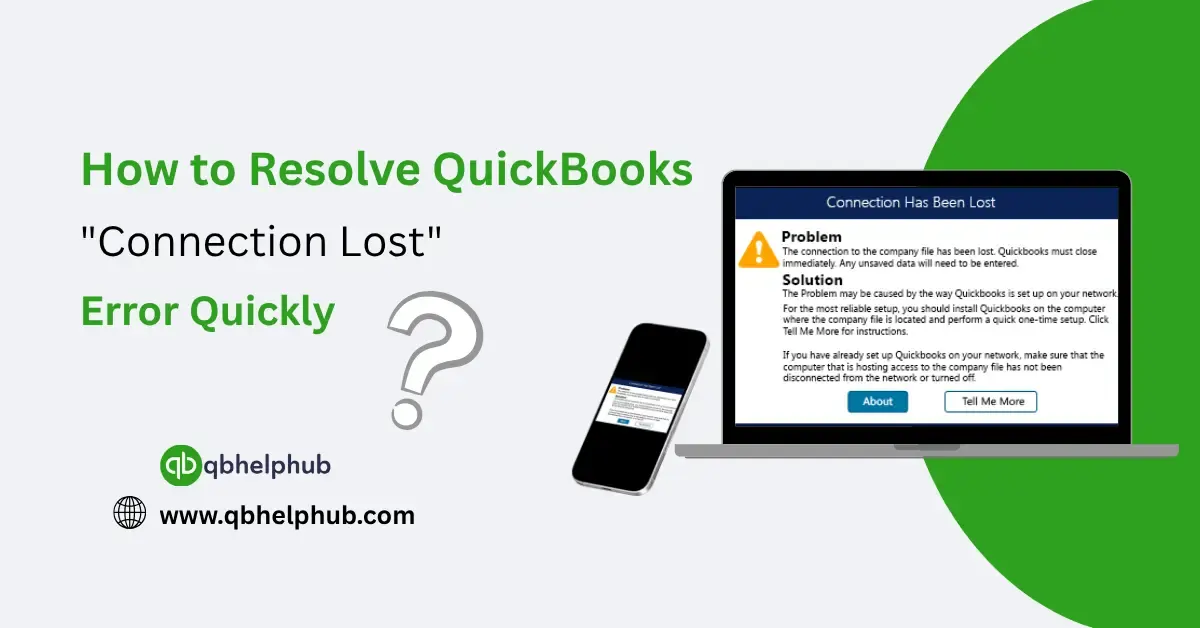
There’s nothing more frustrating than being in the middle of important work in QuickBooks Desktop and suddenly seeing the message:
“The connection to the company file has been lost. QuickBooks must close immediately.”
Whether it happens once or keeps coming back, the ‘Connection Lost’ error can bring everything to a halt.
This blog explains why this error happens, what it actually means, and how to fix it without spending hours guessing. Whether you’re working solo or in multi-user mode, there are a few reliable ways to solve it and keep it from coming back.
Read Also: Easy QuickBooks Online Login Guide
What Causes the “Connection Lost” Error in QuickBooks?
The error is basically QuickBooks’ way of saying: “Hey, I can’t access the company file right now.” It doesn’t always explain why but in most cases, the reason is tied to one of the following:
- Network interruption or timeout
- Server or host computer going to sleep
- QuickBooks Database Server Manager not running
- User permissions or file access conflicts
- Windows updates or antivirus software interfering with connectivity
- Damaged company file or data folder issues
If you’re using QuickBooks in multi-user mode, the error often points to a network or sharing issue. If you’re in single-user mode, it could be a local file access problem.
Step-by-Step Fix: Solving the ‘Connection Lost’ Issue in QuickBooks
Let’s walk through the quickest ways to fix the problem based on what may be causing it.
1. Restart Everything
This may sound too simple, but often, a fresh reboot of both the host (server) and workstation clears temporary glitches.
- Restart your computer
- If you’re using multi-user mode, restart the server too
- Reopen QuickBooks and try accessing the file again
If the problem goes away, it was likely a brief network delay.
2. Prevent the Server from Sleeping
If the host computer is set to go into sleep or hibernate mode, it can drop the connection to your company file.
Fix it like this:
- Go to Control Panel > Power Options
- Select “Never” for “Put the computer to sleep”
- Save changes
This ensures the server stays active while QuickBooks is in use.
3. Verify Hosting Settings
In multi-user setups, only one system (the server) should have hosting turned on.
To check this:
On each workstation:
- Open QuickBooks
- Go to File > Utilities
- If you see Stop Hosting Multi-User Access, that’s the host. Leave it on.
- If you see Host Multi-User Access, don’t click it that means hosting is off, which is correct for that machine.
Conflicting hosting roles cause major issues like file disconnection.
4. Restart the QuickBooks Database Server Manager
This service allows workstations to access the company file in multi-user mode. If it’s stopped or isn’t running right, the connection might drop.
Steps to restart:
- Press Windows + R, type services.msc, and hit Enter
- Find QuickBooksDBXX (XX = your QuickBooks version, like 29 for 2019)
- Right-click it > Restart
- Also ensure its startup type is set to Automatic
Then, reopen QuickBooks and try accessing the company file again.
5. Move the Company File to a Local Folder (for Testing)
Sometimes, the location of the company file can cause trouble especially if it’s on a failing drive or a bad network path.
Try this:
- Copy your.QBW company file and .TLG file
- Paste them into a new folder on your local desktop
- Open QuickBooks and open the file from that new location
If it works there, the problem is with the original storage path not the file itself.
6. Run QuickBooks File Doctor
File Doctor (part of QuickBooks Tool Hub) can detect and repair common file or network problems that cause dropped connections.
Steps:
- Download QuickBooks Tool Hub from Intuit’s site
- Install and open it
- Click the Company File Issues tab
- Run QuickBooks File Doctor
- Select your company file and start the scan
After the scan completes, try opening QuickBooks again.
Tips to Prevent ‘Connection Lost’ Errors in the Future
Here are a few habits that help keep the issue from coming back:
- Always close QuickBooks properly before shutting down your computer
- Avoid storing your company file on external drives or unstable networks
- Keep Windows, QuickBooks, and Database Server Manager up to date
- Avoid sudden power-offs use an uninterruptible power supply (UPS) if possible
- Only install updates when users aren’t accessing the file
- When to Contact Support
If none of these step’s work or if the issue keeps happening daily it might be time to contact QuickBooks support. Especially in larger environments or server setups, you may need deeper troubleshooting.
You can reach out to:
- QuickBooks 24/7 support phone number
- QB help desk for multi-user support
- Or chat directly inside the QuickBooks Tool Hub app
Make sure you have your QuickBooks version, company file location, and error details ready when you call.
Final Thoughts
QuickBooks’ “Connection Lost” error might feel like a major disruption, but it’s usually something you can fix fairly quickly with the right steps. Whether it’s a sleep setting, a server manager glitch, or a minor network hiccup, identifying the cause doesn’t have to be complicated. Start with the simple checks restart your system, verify hosting roles, and use the Tool Hub when needed. And if all else fails, don’t hesitate to contact support. With a little patience and the right approach, you’ll have QuickBooks running smoothly again in no time.
Read Also: How to Fix QuickBooks Company File Opening Issues
Get In Touch with Us
If you are interested to know more about QuickBooks and basic troubleshooting steps, we are here to help you through our dedicated customer service team. Fill out the customer response form or feel free to reach to us at support@qbhelphub.com Our highly competent team is here to solve all your queries regarding QuickBooks.