Sharing your QuickBooks company file with team members should be smooth but sometimes, when you try switching to multi-user mode, and QuickBooks freezes, gives an error message, or simply refuses to let others in. If you’ve found yourself stuck in this situation, you’re not the only one.
The good news is that this issue is easily fixable and usually without needing to repair your whole setup. So, we’ll walk through what causes the QuickBooks multi-user mode error, how to identify the problem, and most importantly, how to solve it step-by-step.
Read Also: How to Fix Common QuickBooks Errors?
What Is the Multi-User Mode Error in QuickBooks?
Multi-user mode allows more than one person to access the same QuickBooks file at the same time. Moreover, it’s essential for growing businesses where multiple users need to work on tasks like invoicing, payroll, or reporting at once. When things go wrong, you might see one of these messages:
“QuickBooks could not connect to the company file.”
“Error H202: This company file is on another computer, and QuickBooks needs some help connecting.”
“Only one user can access this company file at a time.”
Furthermore, these errors mean QuickBooks is having trouble communicating with the file over your network, the file is probably fine, it’s the connection that’s broken.
Read Also: What are some common problems with QuickBooks payroll?
Common Causes of Multi-User Mode Errors
These errors usually come down to a few specific issues:
- Hosting configuration issues on workstations
- QuickBooks Database Server Manager not running on the server
- Firewall or antivirus blocking communication
- Incorrect folder permissions for the company file
- Damaged network data (. ND) file
In short, the file is there, QuickBooks just can’t open it.
Step-by-Step: How to Fix QuickBooks Multi-User Mode Error
Here’s how to troubleshoot the problem, one step at a time.
Step 1: Verify Hosting Settings
Only the server computer (the one where the company file is stored) should be set to host.
On each workstation (NOT the server):
- Open QuickBooks
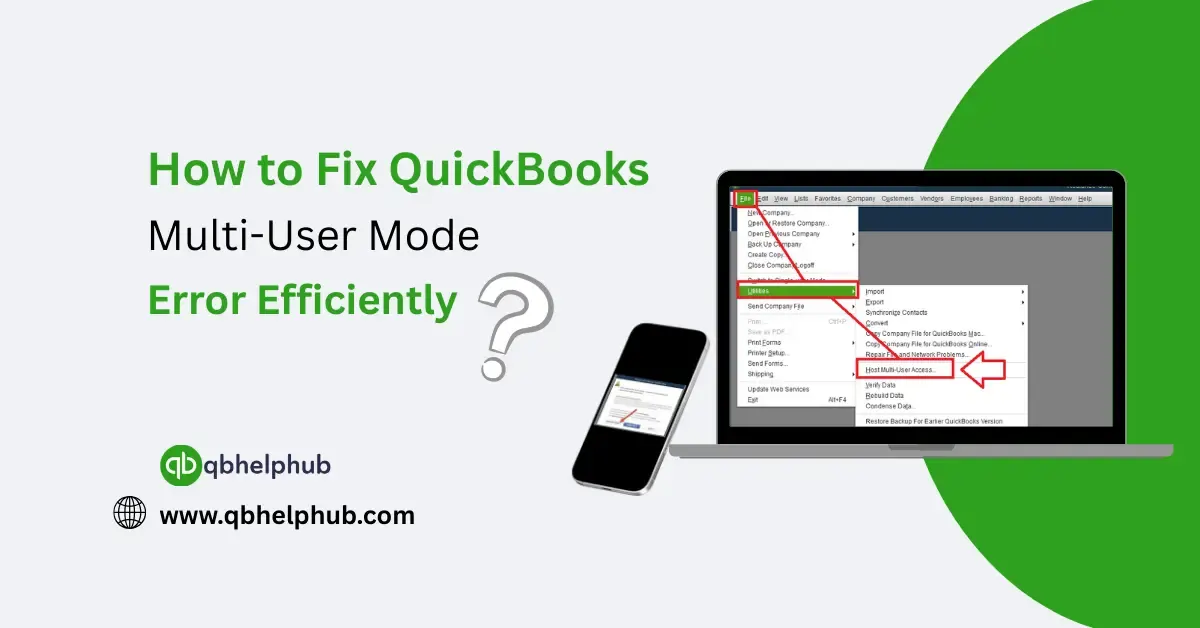
- Then, go to File > Utilities
- If you see Host Multi-User Access, do nothing
- If you see Stop Hosting Multi-User Access, click it
This disables hosting on machines that shouldn’t be hosting. You want just one computer to act as the host.
Step 2: Use the QuickBooks Database Server Manager
QuickBooks needs this service running on the server to manage file access for multiple users.
- Download and open QuickBooks Tool Hub (if you haven’t already)
- Then, go to the Network Issues tab
- Click QuickBooks Database Server Manager
- Browse to the folder where your company file is stored
- Click Start Scan
Once it finishes scanning, it should fix many basic connection issues automatically.
Step 3: Check Folder Permissions
Make sure the folder that holds your company file has full access rights for all users.
- On the server computer, right-click the folder
- Choose Properties > Security tab
- Then, make sure users like “Everyone” or “QBDataServiceUserXX” have Full Control
- Apply the changes and close the window
Step 4: Add Firewall and Antivirus Exceptions
Sometimes your firewall blocks QuickBooks’ communication without you even knowing.
To fix this:
- Open your firewall settings
- Add exceptions for:
- QBDBMgrN.exe
- QBW32.exe
- FileDoctor.exe
- Ports: 8019, 56728, 55378–55382 (depending on version)
If you’re using third-party antivirus software, you may need to add similar exclusions there.
Step 5: Delete and recreate the. ND File
The. ND (Network Data) file helps QuickBooks access your company file in multi-user mode. If it’s damaged, QuickBooks can’t connect properly.
To fix it:
- Go to the folder where your company file is stored
- Find the file with the same name as your company file but ending in. ND
- Right-click and delete it
- Open Database Server Manager again and rescan the folder
QuickBooks will automatically recreate a new. ND file when the scan is complete.
Read Also: Steps to Resolve QuickBooks Online (QBO) Login Problem
Step 6: Switch to Multi-User Mode Again
Once all the steps are done, try switching to multi-user mode:
- Open QuickBooks on a workstation
- Go to File > Switch to Multi-User Mode
If all went well, you should be connected now. No more error messages.
Still Having Trouble?
If you’ve followed all the steps above and QuickBooks still won’t switch modes, consider:
- Restarting all computers and the router
- Ensuring all users are using the same QuickBooks version and year
- Verifying the server is not asleep or shut down
And when in doubt, don’t waste hours guessing. Reach out to QuickBooks 24/7 support phone number or speak with a ProAdvisor. They can walk you through deeper fixes if needed.
To Conclude
QuickBooks’ multi-user mode is a great feature, when it works. When it doesn’t, it usually comes down to misconfigured network settings, permissions, or simple oversights like hosting enabled on the wrong computer.
Fixing these doesn’t have to be complicated. Just follow the steps carefully, take your time, and don’t skip the basics like restarting or scanning with the Tool Hub. With a little patience, you’ll have your team back in the file and running smoothly again.
Get In Touch with Us
If you are interested to know more about QuickBooks and basic troubleshooting steps, we are here to help you through our dedicated customer service team. Fill out the customer response form or feel free to reach to us at support@qbhelphub.com Our highly competent team is here to solve all your queries regarding QuickBooks.