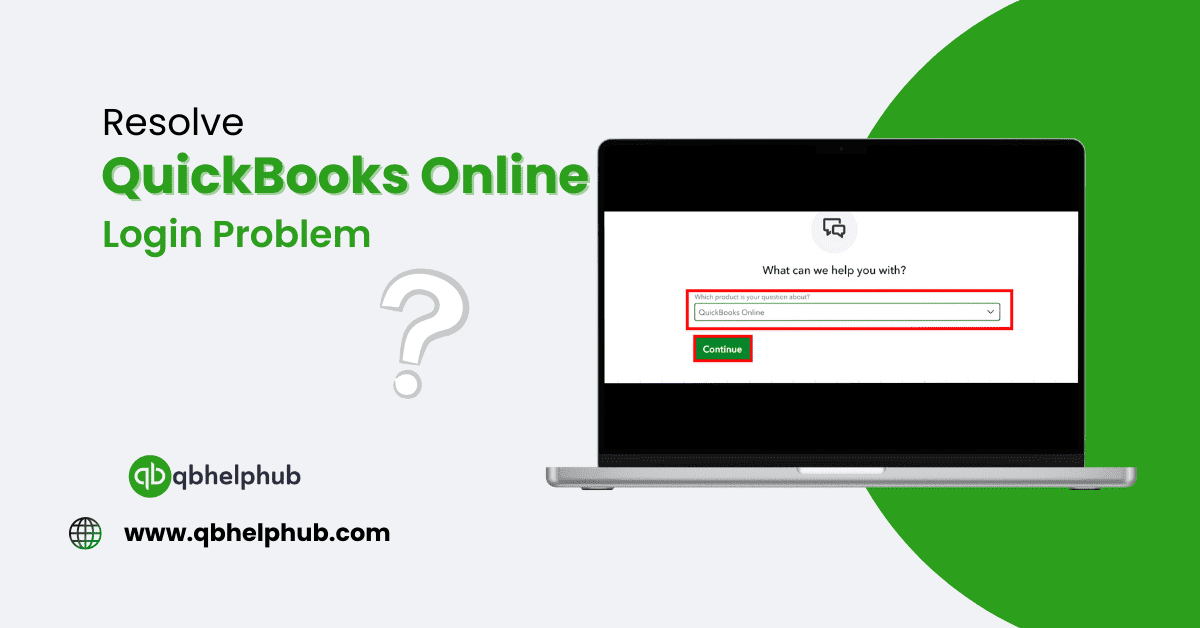
QuickBooks Online (QBO), is an accounting tool that is commonly used by both small and large business organizations. It allows users to conveniently organize their finances, invoices, and payroll. The QuickBooks Online (QBO) login issue is a problem that users face when trying to sign in to their QuickBooks Online account. This issue can restrict access to essential financial information and interfere with business functioning. Let’s take a closer look at the common causes behind the issues and the ways to fix them easily.
Read Also: What is QuickBooks Error 30154 and How to Resolve It?
Common Causes of QuickBooks Online Login Problem
- Wrong login credentials– You might have trouble logging in if you entered wrong email or password.
- Browser problems– Sometimes, the settings or cache of your browser may cause issues in logging in.
- Internet Connectivity Issues– A Slow or unstable internet connection may restrict a user from entering the QuickBooks account.
- Multiple login attempts– Too many failed login attempts might temporarily block your access.
- Interference by firewall or security software– Such softwares can block proper loading of QuickBooks Online.
- Server downtime – In some cases, QuickBooks Online servers might be down for repair.
How to Fix QuickBooks online Login Issues
1. Check Your Login Credentials
The initial and easiest step is to make sure that you use the right email and password. Follow these steps:
- Check for typos in your email address and password.
- When entering your password, ensure that the Caps Lock key is not on.
- If you forgot your password then click on “Forgot password? and then follow the steps to reset it.
2. Clear Browser Cache/Cookies
Your browser caches data to make websites load faster but sometimes this stored data can lead to issues while logging in. Clearing the cache and cookies solves the issue.
Here’s how to clear cache:
Google Chrome: Click on the upper right corner menu icon (three dots) > Settings > Privacy and Security > Clear Browsing Data > Select Cookies and other site data and Cached images and files > Click to Clear Data.
Mozilla Firefox: Click the menu button > Options > Privacy & Security > Clear Data > Select Cookies and Cached Web Content > Clear.
Microsoft Edge: Click three dots at top-right corner > Settings > Privacy, search, and services > Choose what to clear > Select Cookies and Cached Data > Click Clear.
Once you are done with clearing cache (restart the browser), try logging in again.
Read Also: How to Resolve QuickBooks Error 1712 and Get Back on Track
3. Use an Incognito or Private Window
Browser extensions or stored cookies sometimes interfere with QuickBooks Online. Here are steps you can take while using an incognito or private browsing mode:
- Google Chrome: Ctrl + Shift + N
- Mozilla Firefox: Ctrl + Shift + P
- Microsoft Edge: Ctrl + Shift + N
Try opening QuickBooks Online in this mode to see if you can sign in.
4. Ensure Your Internet Connection is Stable
If your internet connection is slow or unstable, you may not be able to access QBO. Here’s what you can do:
- Restart your Wi-Fi router and check again.
- If possible, go with a different network.
- Make sure to run a speed test, that will help you to check if you do have a steady connection.
5. Disable Browser Extensions
Certain browser extensions (such as ad blockers or security plugins) can clash with QuickBooks Online. Turn off extensions and try to log in again.
- Go to your browser settings.
- Click Extensions or Add-ons.
- Disable all extensions and log in again.
- Check the QuickBooks Online Server Status
6. Check for QuickBooks Online Servers Issues
Even after trying so many fixes, nothing works, it means that the problem is not on your end. It is possible that QuickBooks Online servers are down. For QuickBooks Online status check, go on to QuickBooks Online Status Page.
In case of a server issue, you will have to wait until Intuit fixes it.
7. Temporarily Disable Firewall or Security Software
This means security software or firewalls may sometimes be blocking access to QuickBooks Online. Try disabling your antivirus and firewall temporarily, then try to log in.
Depending on your browsers, if this works for you, please add QuickBooks Online a trusted site in your security settings so it doesn’t happen again.
Read Also: What is QuickBooks Error Code PS033?
8. Reset the Password to your QuickBooks Account
If nothing works, you need to reset your password. Follow these steps:
- Visit the QuickBooks Online Sign-in page.
- Click on “Forgot Password?”
- Enter your registered email.
- Reset your password with the instructions sent to you via email.
Get in Touch with Us
If nothing works, we are here for your support through our customer service team. Fill out the customer response form or feel free reach to us at support@qbhelphub.com. Our highly competent team is here to handle and solve all your queries regarding QuickBooks Online.
Related Source:
How to Fix QuickBooks Error Code 3003
How to Fix QuickBooks Error Codes and Issues?