
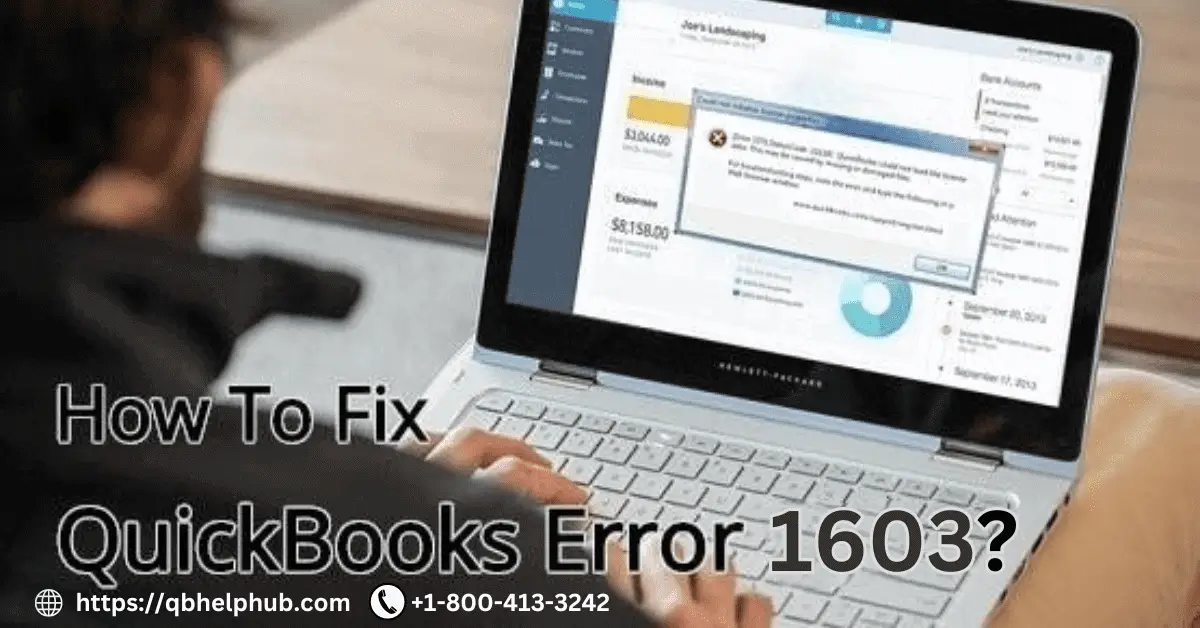
Are you getting overwhelmed with the QuickBooks Error 1603? That’s okay! Many users find it difficult to handle. But it’s easy to fix if you know where to hit the hammer. That’s why, in this quick guide, we’ll see what causes QuickBooks Error 1603, how to identify them and learn some best solutions. Let’s get started!
What is QuickBooks Error 1603?
It is one of the challenging errors that QuickBooks users face when trying to install or update the QuickBooks Desktop application. If you see the message in the middle of the process, it simply means that the installation process has been interrupted or corrupted. Unless you fix the underlying issues, you won’t be able to complete the installation process. In this regard, let’s learn where to hit the hammer, you can fix it in no time.
Five Reasons Why You See QuickBooks Error 1603
Let’s check out five common reasons that can cause QuickBooks Error 1603:
- Damaged Microsoft .NET Framework: QuickBooks works on the Microsoft .NET Framework. Any damage to the framework can cause installation errors.
- Incomplete Process or Corrupt File: Sometimes, the installation file gets rendered as incomplete or might be corrupted from inside. As a result, the installation process may fail and you see Error 1603.
- Windows Issues: If there is any problem with the Windows Installer, QuickBooks can display 1603 Error.
- Access Issue: If you install QuickBooks without admin access, it can also lead to Error 1603.
- Antivirus or Firewall Issue: Sometimes, your antivirus or firewall may block the installation process, causing the error.
How to Identify QuickBooks Error 1603
Let’s learn what are some early signs to detect QuickBooks Error 1603 in advance and take proactive actions.
- Abrupt installation halts
- Constant warning message of “Error 1603: The update installer has encountered an internal error.”
- Unable to open QuickBooks after installation.
- Too slow computer process or highly unresponsive during installation
What to Prepare Before Fixing
Before you start fixing QuickBooks Error 1603, do the following things:
- Backup Your Data: Make sure to back up all your important QuickBooks data.
- Check System Requirements: Make sure your system meets the minimum requirements for QuickBooks installation.
- Update Windows: Update your Windows before fixing the error.
- Temporarily Disable Antivirus: Sometimes, antivirus software can interfere with the installation process. Disable it temporarily before you start fixing the error.
Now, let’s see different approaches to fix the QuickBooks Error 1603.
Read also: How to Fix Common QuickBooks Errors?
Tip 1: Use QuickBooks Install Diagnostic Tool
The QuickBooks Install Diagnostic Tool is provided by Intuit. You can download and use it to fix some common installation errors. Here’s how you can use it:
- Download the Tool: Visit the official Intuit website and download the QuickBooks Install Diagnostic Tool.
- Run the Tool: Close all programs running in the background. Open, install and run the tool. It will automatically diagnose and fix if there are any issues related to Microsoft .NET Framework, MSXML, or C++.
- Restart Your Computer: Once the tool completes the diagnosis and repair, restart your computer and try installing QuickBooks again.
Tip 2: Repair Microsoft .NET Framework
QuickBooks runs on Microsoft .NET Framework. So, if the framework has issues, it can render 1603 Error. Here is how you can repair the Microsoft .NET Framework :
- Open Control Panel: Go to the Control Panel on your computer.
- Programs and Features: Check Programs and Features > Turn Windows features on or off
- Repair .NET Framework: Locate .NET Framework 4.5 or later. Uncheck the box and restart your computer. Now, check the box again to reinstall the Microsoft .NET Framework .
- Reinstall QuickBooks: Now, reinstall QuickBooks to see if the error is resolved.
Tip 3: Reinstall QuickBooks
If the first two methods do not work, try to reinstall QuickBooks to fix the error. Here’s how you can do it:
- Uninstall QuickBooks: Go to Control Panel > Programs and Features. Locate QuickBooks in the program list and uninstall it.
- Download the Installer: Go to the official QuickBooks website and download the latest version of the installer.
- Install QuickBooks: Run the installer and follow the on-screen instructions to complete the installation process.
Tip 4: Update Windows
If Windows has not been updated for a long time, it may show compatibility issues. Let’s see how to fit it.
- Open Settings: Start Menu > Settings
- Update & Security: Update & Security > Windows Update
- Check for Updates: Click on “Check for Updates” and install the latest version available.
- Restart your computer: Once the update is complete, restart your computer and install QuickBooks again. Check if the problem has been resolved.
Tip 5: Do Manual Fixation
If none of the above tips work, here are some manual tips to try.
- Check Disk Space: Make sure that your computer has enough disk space for the QuicksBooks application.
- Run QuickBooks Install Diagnostic Tool Again: Use the tool multiple times to see if it can fix issues.
- Check Permissions: Make you have administrative access to run the software.
- Temporarily Disable Startup Programs: Try to disable unnecessary startup programs. Sometimes, they might interfere with the installation process.
Conclusion
It could be a daunting task to fix QuickBooks Error 1603. But using the right tips, you can easily fix the error and run QuickBooks without any issues. However, feel free to look for other solutions available in other resources. But, if you still find it challenging, get in touch with the team of QB Help Hub. We can help you resolve QuickBooks Error 1603 as soon as possible.
Frequently Asked Questions
QuickBooks Error 1603 commonly occurs when there is an issue while installing or updating QuicksBooks Desktop application.
The QuickBooks Install Diagnostic Tool is available for download on the official Intuit website. Once you download it, you can install and run the diagnosis and fix the issue.
There could be numerous reasons including damaged .NET framework, corrupt installation file, obsolete OS, etc. Sometimes, lack of admin permission to run the software or firewall blockage can also cause the issue. A comprehensive analysis is necessary to correctly identify the reason.
Yes, it can fix the problem if an obsolete Windows is blocking QuickBooks from running due to an incompatibility issue.
There could be various other reasons that might cause the error such as damaged .NET framework, corrupt installation file, obsolete OS, etc. Try to do a 360-degree analysis to correctly identify and fix the problem.
How to Fix QuickBooks Error 1603?
Your guide on fixing QuickBooks Error 1603 is very helpful! The clear explanations and structured steps make it much easier for users to resolve this issue without hassle. Keep up the great work!
Do I need to be a tech expert to fix QuickBooks Error 1603?
No, you don’t need to be a tech expert to fix QuickBooks Error 1603. This error usually occurs during installation or updates. QuickBooks provides step-by-step guides to help you resolve it. If you find it challenging, our support team is available to assist you. Feel free to call us at +1-800-413-3242 for professional help.
Fixing QuickBooks Error 1603 was a stress-free experience thanks to QB Help Hub. Their expert guidance and clear instructions got us back on track quickly. Their support team is knowledgeable and patient. A big thanks to QB Help Hub!
Thank you so much for your kind words! We’re delighted to hear that you had a stress-free experience fixing QuickBooks Error 1603 with our help. Our team is dedicated to providing clear guidance and support, so it’s wonderful to know that we could assist you effectively. If you have any more questions or need further assistance in the future, don’t hesitate to reach out. We’re always here to help!