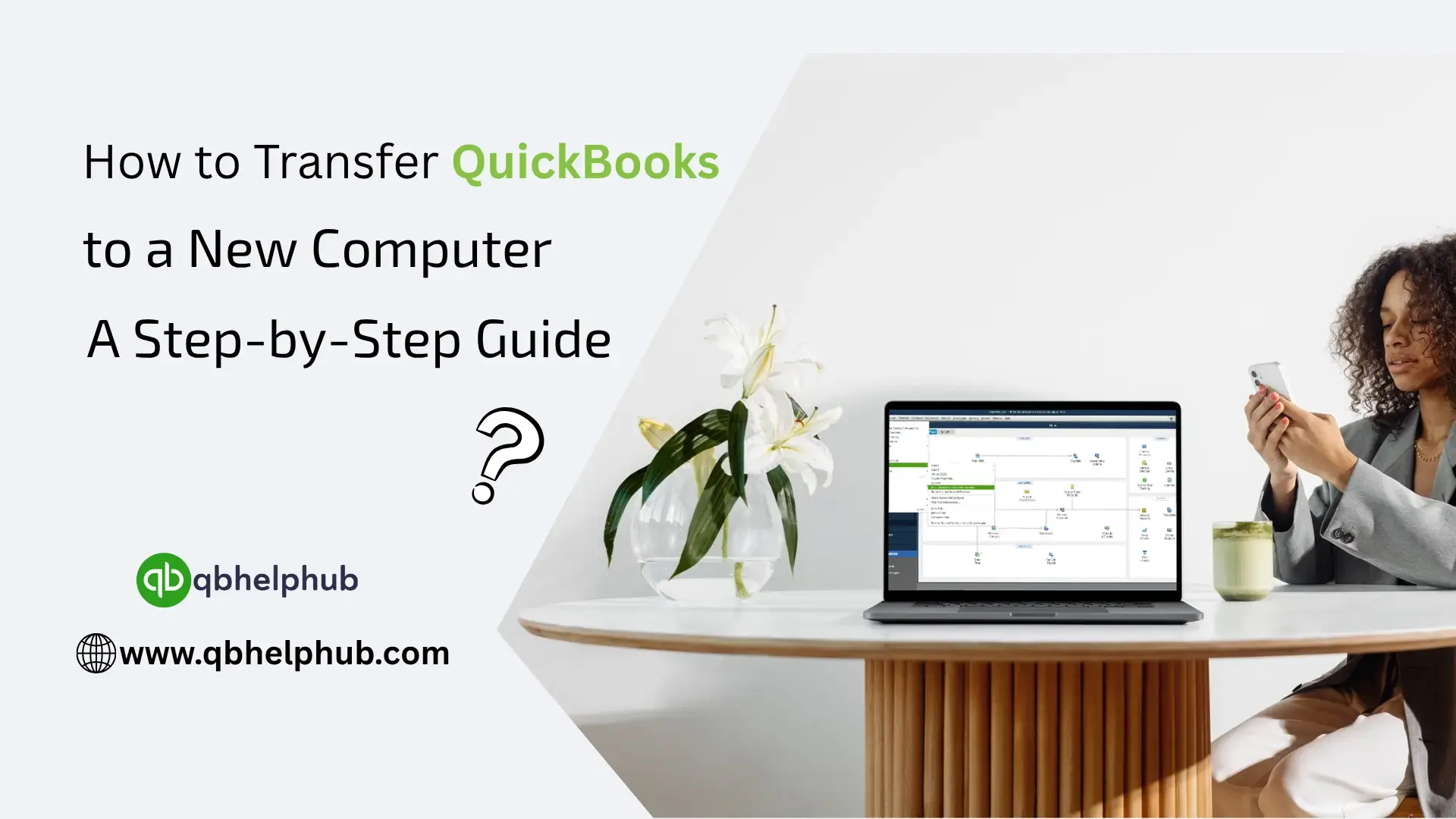
Switching to a new computer? But if you’re using QuickBooks and wondering how to move everything over without breaking something, or losing your data, you’re definitely not alone. Transferring QuickBooks can seem technical, but it really doesn’t have to be stressful. You just need to handle it with a bit of care and the right steps. Let’s talk through it, stepwise.
First Things First: What Exactly Are You Moving?
You’re not just taking the software with you. Nope. You’ll also be moving your actual company file (which holds all the data), plus maybe a few custom templates or reports you’ve tweaked. So, it’s not just “reinstall and done.” Think of it more like moving a business binder, you’re taking the program and the contents.
So, before anything else: make a list. You’ll need your QuickBooks license and product number (usually in your purchase email or inside the software itself), the company file, and a flash drive or cloud space to carry it over.
Read Also: Quick Fix for QuickBooks BEX Error: A Step-by-Step Guide
Back It All Up Before You Touch Anything
Even if you’ve done this before, don’t skip this step. Seriously.
On your current computer:
- Open QuickBooks
- Go to File > Back Up Company > Create Local Backup
- Choose where to save it (use a USB drive, external hard drive, or cloud)
Give the file a clear name. Don’t call it “backup.” You’ll thank yourself later.
Jot Down Your License Info, you’ll Need It
This is that part people forget and then panic mid-install. You can find it inside QuickBooks by pressing F2 or Ctrl + 1, a little info box will pop up with your license and product numbers.
If you can’t find it that way, check your email receipt from Intuit or log into your Intuit account. Worst case? Contact Intuit support.
Install QuickBooks on the New Machine
On your new computer, head to the official QuickBooks download page and grab the installer for the version you already have. Don’t try some random website. You don’t want to deal with corrupt installers.
Once it’s downloaded:
- Run the installer
- Enter your license and product numbers
- Follow the prompts
Boom, QuickBooks is now on your new PC.
Time to Restore Your Company File
Now comes the part where you bring your actual work over.
Steps:
- Plug in your flash drive or access your backup file from the cloud
- Open QuickBooks on the new machine
- Go to File > Open or Restore Company > Restore a backup copy
- Follow the instructions and choose where to save it locally
Make sure you save it in an easy-to-find folder. Desktop or a dedicated QuickBooks folder under Documents works well.
Read Also: Step-by-Step Guide to Setting Up QuickBooks Desktop Enterprise
Are You Running Multi-User Mode? Here’s What to Do
If multiple people access QuickBooks at your office or over a network, you’ll need to reconfigure that on the new machine. That involves setting up the QuickBooks Database Server Manager again.
You’ll also need to:
- Re-scan the folder where the company file is stored
- Check your firewall settings
- Possibly re-map any network drives
If this sounds confusing, don’t sweat it. Just take your time, or ask your IT person if you’ve got one.
Check That Everything’s There and Working
Open QuickBooks and poke around:
- Does your company file open without errors?
- Are your customer and vendor records intact?
- Are templates, logos, and settings still there?
If anything seems off, don’t panic. You can always restore the backup again. Just make sure you still have that original backup handy.
Remove QuickBooks from the Old Computer (Optional)
If you’re done with the old computer, it’s smart to remove QuickBooks from it, mostly to avoid confusion or license issues.
You can uninstall it via Control Panel, or just disconnect it from the internet and stash it away if you’re nervous about deleting things.
- A Few Helpful Reminders
- Don’t rush. Double-check every step, especially before deleting anything
- Save that license number somewhere safe, just in case you need it again
- Run a test invoice or report on the new machine to be sure it all works smoothly
Read Also: Where Can You View All Transaction Reports in QuickBooks?
Final Thoughts
Moving QuickBooks to a new computer doesn’t have to be some daunting, nerve-wracking project. If you slow down, make a backup, and double-check your license info, you’ll have a smooth transition. And if something goes wrong? It’s not the end of the world. You’ve got your backup, and now, you’ve got this guide.
Get In Touch with Us
If you are interested to know more about QuickBooks and basic troubleshooting steps, we are here to help you through our dedicated customer service team. Fill out the customer response form or feel free to reach to us at support@qbhelphub.com Our highly competent team is here to solve all your queries regarding QuickBooks.