You’re installing QuickBooks, everything’s moving smoothly and then out of nowhere, it stops. You see something about “Error C=1304” and a message saying QuickBooks couldn’t write to a file. Not the best moment. This error usually catches people off guard, mostly because it seems like a system-level problem when all you’re trying to do is install or update software. The good news is that you are not stuck. This one’s fairly common and, more importantly, fixable without a full-on IT support. Let’s take it step by step and walk through what’s causing the issue and what you can do about it.
Read Also: How to Fix Common QuickBooks Errors?
First: What Is C=1304, Anyway?
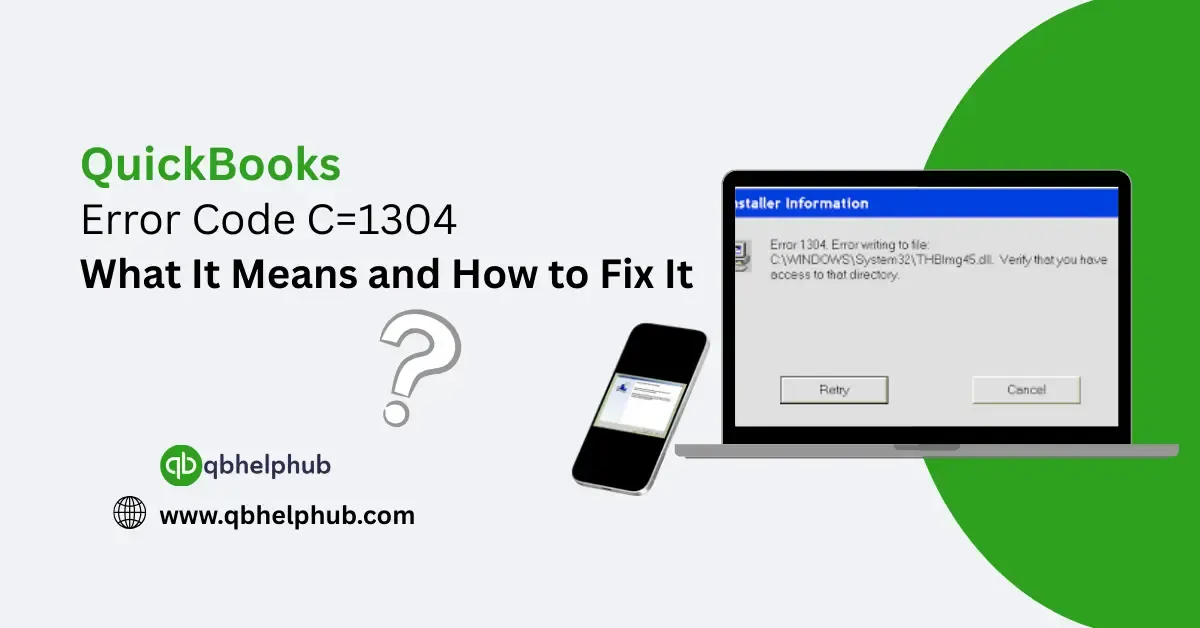
So, QuickBooks throws this message when it can’t access or write to a specific file during installation. Sometimes it’s a printer-related DLL, sometimes it’s a shared Microsoft file. The error might look like this:
“Error writing to file [filename]. Verify that you have access to that directory.” It usually means either the installer can’t reach a file, doesn’t have permission, or something on your system like antivirus software is getting in the way. It doesn’t necessarily mean the file is corrupt or missing, but something’s blocking the process.
Let’s Look at What Might Be Causing It
The most common reasons this error pops up:
- Damaged install files (from the CD or the downloaded installer)
- Lack of user permissions, installer isn’t running with admin rights
- Antivirus or security software is blocking the process
- A Microsoft component like .NET or MSXML is acting up
- System files or directories are locked or inaccessible
You might’ve done everything right, and this still shows up. That’s okay, it happens more often than you’d think.
Fixing It: Try These Steps One at a Time
The fixes are pretty simple in most cases. You don’t have to be a computer expert to handle this, though take your time with each one.
Read Also: Easy QuickBooks Online Login Guide
1. Copy the Installation Files to Your Computer
If you’re installing QuickBooks from a CD and it’s scratched, dusty, or your CD drive is just moody (it happens), this could trigger the error.
Here’s what to do:
- Create a new folder on your desktop
- Open the CD and copy all files from the CD to the new folder
- Run the installation from your desktop instead
This eliminates any read errors coming from the CD drive.
If you’re using a downloaded file, consider re-downloading the installer again from the official Intuit site. The first one may’ve been incomplete or corrupted.
2. Turn Off Your Antivirus Temporarily
Not forever, just while you run the installation. Sometimes security programs think the QuickBooks installer is doing something shady and block it. If your antivirus software is a little too “protective,” it might cause this exact kind of error.
Pause the real-time protection. Try installing again. If it works, that was the culprit. Don’t forget to turn the antivirus back on afterward.
3. Run the Installer as Admin
QuickBooks needs full permissions during setup. If your user account doesn’t have admin rights or if the installer isn’t running with them, you might hit a wall.
Do this:
- Right-click the setup file (setup.exe or similar)
- Choose Run as administrator
- Let the installation proceed
This step alone fixes the error for a lot of users.
4. Use the Install Diagnostic Tool
If you haven’t already tried this, Intuit offers a free tool that scans for exactly these kinds of installation problems.
How to run it:
- Download the QuickBooks Tool Hub (free on Intuit’s site)
- Install and open the Tool Hub
- Click on the Installation Issues tab
- Select QuickBooks Install Diagnostic Tool and run it
- Wait for the scan to complete, then restart your PC
This tool checks for issues with system components like the .NET Framework , MSXML, and C++ Redistributables, all things QuickBooks needs to install correctly.
5. Manually Repair Microsoft Components
If the install tool didn’t do the trick, you might need to manually repair or reinstall key Microsoft parts.
Go to Control Panel > Programs and Features and look for:
- Microsoft .NET Framework
- MSXML (various versions)
For each one:
- Choose it from the list
- Click Uninstall/Change, then choose Repair
You can also download fresh versions from Microsoft if repair isn’t available.
After repairing, restart your computer and give the install another try.
6. Try a Clean Reinstall (As a Last Resort)
This isn’t usually necessary, but if you’ve tried everything else and the error keeps showing up, a clean install could be the solution.
Use the Clean Install Tool from Intuit to remove old install files and registry entries that might be conflicting with the current process. Before you do this, make sure you back up your company files.
Read Also: Fixing QuickBooks Installation Issues with Tool Hub
A Quick Word on Prevention
This might be a one-time issue, but if you’ve seen C=1304 more than once, it’s worth doing a little system cleanup:
- Keep your system updated
- Run QuickBooks updates regularly
- Avoid installing from outdated installers or unverified sources
- Be cautious with third-party security software some are just too aggressive
- Always run installations with admin rights
To Wrap Up
No one wants to see error codes especially not during installation. But QuickBooks Error Code C=1304, while annoying, is usually not a sign of major trouble. It often comes down to permission issues or small system conflicts that are pretty straightforward to fix. Just take it step by step, keep calm, and remember: you’re not the first person to run into this. And you definitely won’t be the last.
Get In Touch with Us
If you are interested to know more about QuickBooks and basic troubleshooting steps, we are here to help you through our dedicated customer service team. Fill out the customer response form or feel free to reach to us at support@qbhelphub.com Our highly competent team is here to solve all your queries regarding QuickBooks.