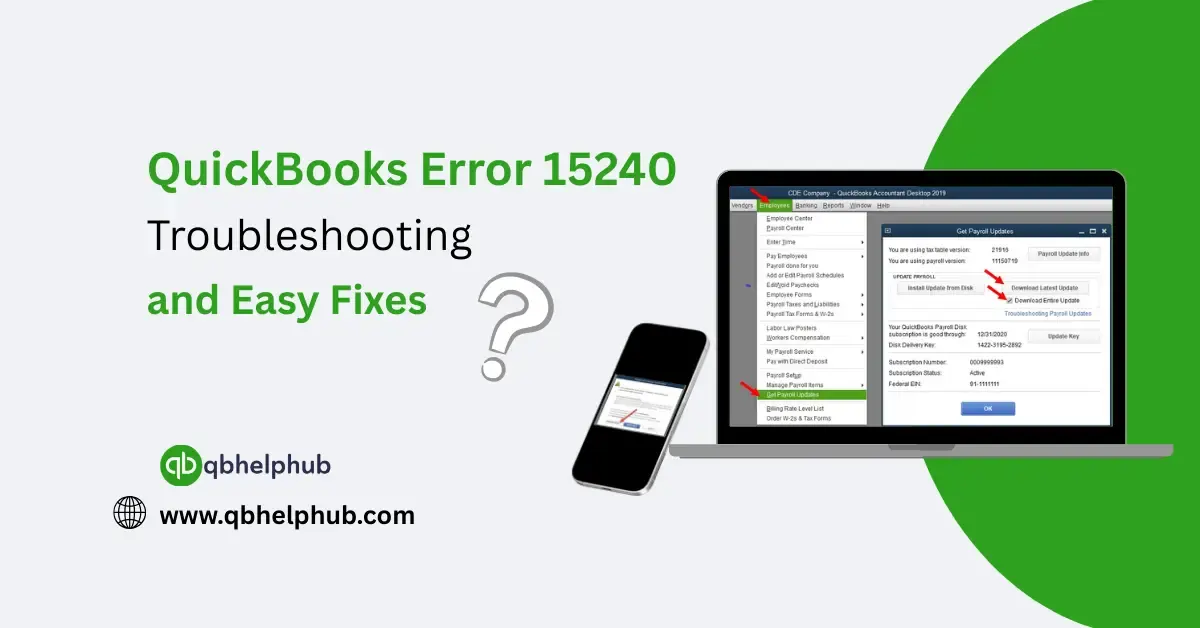
If you’ve ever tried to update QuickBooks and suddenly hit a wall with an error message that reads something like “Error 15240: The payroll update did not complete successfully,” You’re just trying to keep things running smoothly whether it’s paying employees or getting the latest security updates and then QuickBooks throws an error.
This error is common, and more importantly, it’s fixable. Let’s break down what causes QuickBooks Error 15240, what it looks like, and how you can sort it out without needing tech knowledge.
Read Also: How to Fix Common QuickBooks Errors?
What Is QuickBooks Error 15240?
QuickBooks Error Code 15240 usually pops up when:
- You’re trying to update QuickBooks Desktop, or
- You’re downloading a payroll update
The error might be accompanied by one of the following messages:
“The payroll update did not complete successfully.”
“File cannot be opened.”
“You do not have sufficient permissions.”
The root of the problem? It’s usually something small a permissions setting, a misconfigured Internet Explorer option, or a time/date issue that’s blocking QuickBooks from connecting to the update servers.
Read Also: Steps to Resolve QuickBooks Online (QBO) Login Problem
What Causes Error 15240 in QuickBooks?
Here are a few of the most common reasons this error shows up:
- If you’re not logged in as an admin
- Due to incorrect system date or time
- If internet Explorer security settings are too tight
- If, your firewall or antivirus is blocking the connection
- Moreover, the shared download location for payroll updates is incorrect
- Due to misconfigured Windows permissions
In short, QuickBooks is trying to reach out to Intuit’s servers and something is getting in the way.
Step-by-Step: How to Fix QuickBooks Error 15240
There’s no need to panic. These steps usually take care of it.
Step 1: Run QuickBooks as Administrator
This is an easy first step that solves the problem for many users.
- Close QuickBooks if it’s open
- Right-click the QuickBooks Desktop icon on your desktop
- Select Run as Administrator
- Try the update again
If it works, you’re done. If not, move on to the next step.
Step 2: Check Your System Date and Time
QuickBooks checks your system’s date/time to validate certificates and server communication. If your computer’s clock is off, it may reject the update.
- Click on the time/date at the bottom-right corner of your screen
- Choose Adjust Date/Time
- Make sure the time zone is correct
- Enable Set time automatically, or manually correct the time
- Click Sync Now
Try the update again after correcting the time.
Step 3: Check Internet Explorer Settings
Yes, QuickBooks still relies on some settings from Internet Explorer even if you never use it directly.
- Open Internet Explorer
- Go to Settings (gear icon) > Internet Options
- Under the Advanced tab, make sure:
- SSL 2.0 and SSL 3.0 are checked
- TLS 1.2 is checked
- TLS 1.0 and 1.1 are unchecked
- Click Apply > OK, then close Internet Explorer
Now reattempt the update.
Step 4: Adjust User Account Control (UAC) Settings
Sometimes, UAC prevents QuickBooks from executing updates correctly.
- Open the Control Panel
- Go to User Accounts > Change User Account Control settings
- Set the slider to Never Notify
- Click OK and restart your computer
Try the QuickBooks update again. (You can set UAC back after you’re done.)
Step 5: Configure Firewall and Antivirus Settings
Security software can sometimes block QuickBooks from reaching its servers.
You’ll want to allow these files through your firewall and antivirus:
- QBW32.exe
- qbupdate.exe
- Ports: 80 and 443
If you’re unsure how to adjust settings in your antivirus, visit the provider’s website or temporarily disable it while you test the update (but remember to re-enable it afterward!).
Step 6: Verify Shared Download Location
If you’re using payroll and have enabled shared downloads, an incorrect path can trigger this error.
- Open QuickBooks
- Go to Help > Update QuickBooks Desktop > Options
- Check if Shared Download is enabled
- If yes, make sure the download location exists and is accessible
- If in doubt, disable Shared Download, click Save, and try updating again
Step 7: Reinstall QuickBooks Using Clean Install Tool (Last Resort)
If nothing else works, you might have to uninstall and reinstall QuickBooks using the Clean Install Tool.
- Backup your company files
- Uninstall QuickBooks from Control Panel > Programs
- Download the Clean Install Tool from Intuit’s site
- Run the tool and follow the prompts
- Reinstall QuickBooks Desktop
- Try the update again
Only go this route if you’ve exhausted the other steps.
When to Call QuickBooks Support
If you’re still seeing the error after trying all the above fixes, it might be time to call in reinforcements. Contact:
- QuickBooks Payroll Support Number
- QuickBooks 24/7 Support Phone Number
- Or reach out through your QuickBooks Tool Hub for chat-based assistance
Have your license number and version info ready. It’ll speed up the process.
Read Also: What are some common problems with QuickBooks payroll?
To Conclude
QuickBooks Error 15240 can feel like a big deal when it shows up especially if you’re trying to process payroll on a deadline. But most of the time, it comes down to simple issues like admin rights, system time, or security settings. Take a step-by-step approach, stay patient, and don’t hesitate to get support if you can’t get through it on your own. With the right fix, you’ll be back to business in no time.
Get In Touch with Us
If you are interested to know more about QuickBooks and basic troubleshooting steps, we are here to help you through our dedicated customer service team. Fill out the customer response form or feel free to reach to us at support@qbhelphub.com Our highly competent team is here to solve all your queries regarding QuickBooks.