Changing your user ID or transferring your account in QuickBooks, whether you’re using QuickBooks Online or QuickBooks Desktop, requires a few careful steps. Whether you’re updating credentials or handing over ownership of the account, here’s a simple guide to help you through both processes.
1. How to Change User ID in QuickBooks Online
Your user ID is tied to your Intuit account, which is shared across QuickBooks, TurboTax, and other Intuit products.
Read Also: How to Change Primary Admin in QuickBooks Online?
Steps to Change User ID:
- Log in to your QuickBooks Online account.
- Click on the Gear icon (⚙) in the top right.
- Choose Account and settings.
- Select the User profile tab.
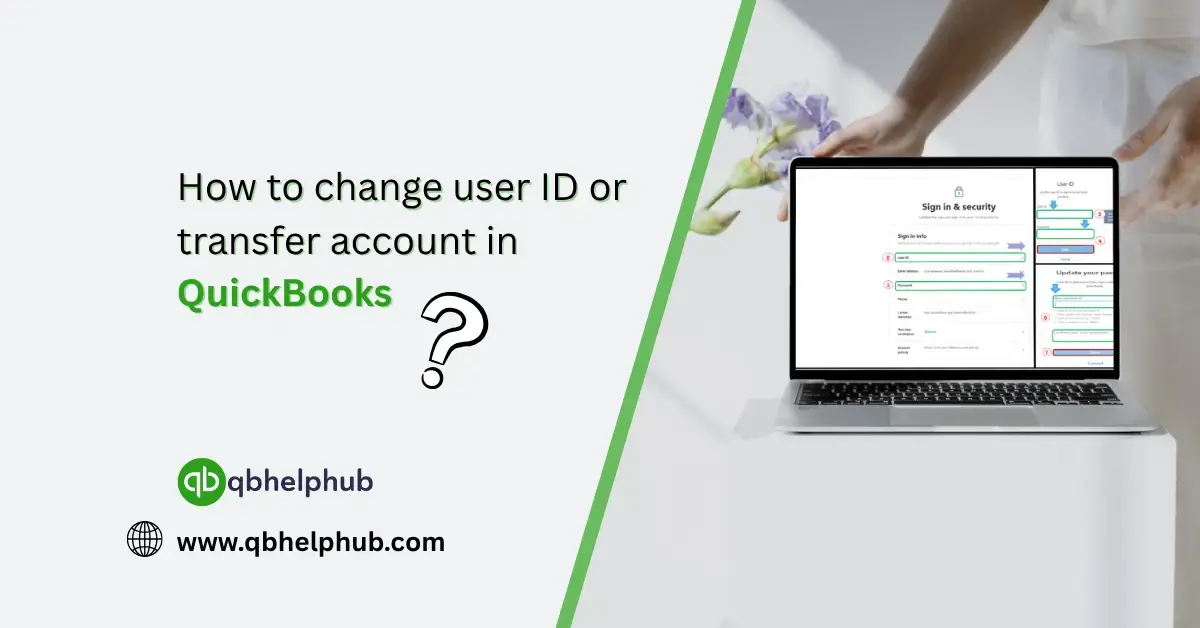
- Under Sign in & security, click User ID.
- Enter a new user ID (like a different email) and save.
Note: Your new user ID must not already be linked to another Intuit account.
2. How to Transfer the Account to a New Owner (QuickBooks Online)
If you’re selling your business or want to switch the primary admin:
Transfer Primary Admin Access:
- Sign in as the current Primary Admin.
- Go to Settings (⚙) > Manage users.
- Find the person you want to make the new Primary Admin.
- If they aren’t listed, click Add user and invite them.
- Click the dropdown next to their name > Make primary admin.
- Confirm and follow the prompts.
- The new user will receive an email with instructions to accept the transfer.
Heads up: Only the Primary Admin can assign a new Primary Admin.
3. Changing User ID or Email in QuickBooks Desktop
QuickBooks Desktop links user ID to your Intuit account as well, so changes happen through Intuit’s website.
To Change Your User ID or Email:
- Visit the Intuit Account Manager: accounts.intuit.com
- Sign in using your current credentials.
- Select Sign-in & Security.
- Click User ID or Email, then follow the prompts to update it.
- You may be asked to verify your identity.
Changes here will reflect across QuickBooks Desktop, ProAdvisor accounts, and Payroll services.
4. Transferring License Ownership in QuickBooks Desktop
If you’re transferring your QuickBooks Desktop license (e.g., selling your business), you’ll need to notify Intuit.
Read Also: How to Add an Accountant to QuickBooks Online (Step-by-Step Guide)
Steps to Transfer Ownership:
- Download and complete the Intuit License Transfer Form
- Provide proof of purchase and current license info.
- Email the form to Intuit’s support team (as listed on the form).
Only the legal license owner can authorize a transfer. Once complete, Intuit will update the registration to the new owner.
To Conclude
Need to hand over the reins or just tighten up account security? These steps will help you change your QuickBooks user ID or transfer access smoothly. Always double-check permissions before making changes, especially if you’re dealing with payroll or billing details.
Get In Touch with Us
If you are interested to know more about QuickBooks and basic troubleshooting steps, we are here to help you through our dedicated customer service team. Fill out the customer response form or feel free to reach to us at support@qbhelphub.com Our highly competent team is here to solve all your queries regarding QuickBooks.
FAQs