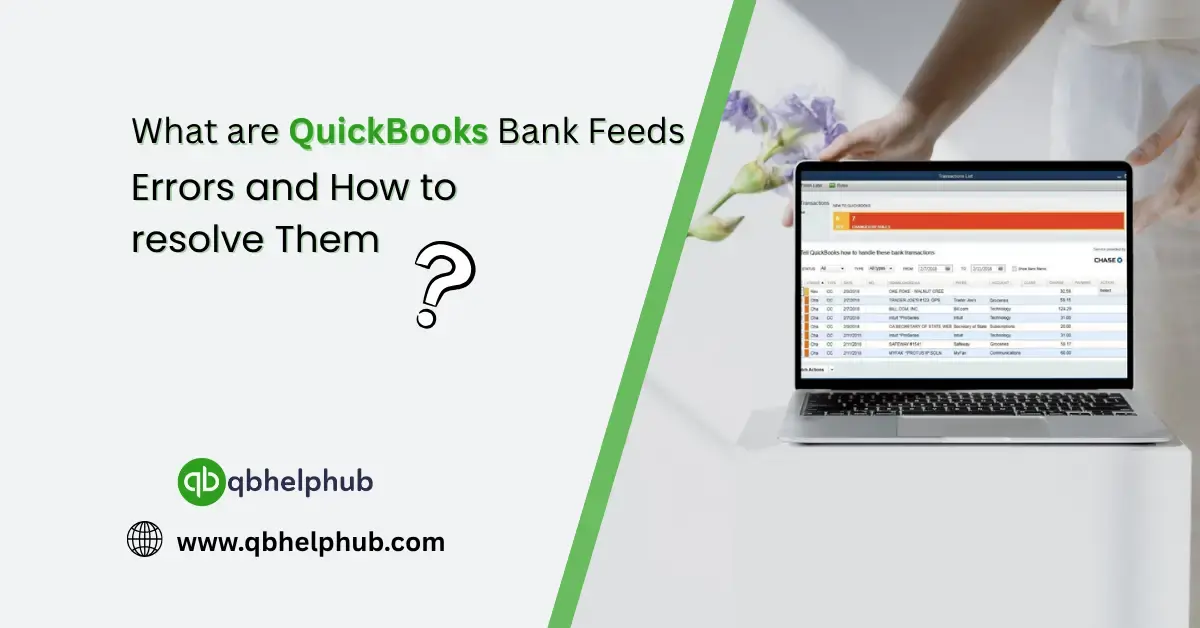
When QuickBooks bank feeds work like they should, they’re a lifesaver. You open QuickBooks Online, and bam, your latest bank transactions are sitting right there, ready to be reviewed or categorized. But when they don’t work? That’s when things start to go sideways.
Bank feed errors are one of the more common issues QuickBooks users face, and they can really throw off your workflow if you’re not sure what’s going wrong, or how to fix it. So, let’s walk through what these errors are, what causes them, and more importantly, how you can get them sorted out without breaking a sweat.
Read Also: How do I Login into an Intuit QuickBooks Account?
What Are QuickBooks Bank Feeds, anyway?
Before diving into the errors, let’s back up a bit. Bank feeds are what allow QuickBooks to connect with your financial institution and automatically pull in transaction data, savings, checking, credit card, you name it. It’s a brilliant time-saver when it’s working.
But since QuickBooks relies on your bank’s connection to stream that info in real-time (or close to it), any hiccup, on either side, can lead to sync issues or error codes.
Common QuickBooks Bank Feed Errors You Might See
There isn’t just one bank feed error. QuickBooks likes to throw all kinds of error codes your way. Some of the most common include:
- Error 102 – This usually means there’s a problem on your bank’s end, like maintenance or server issues.
- Error 103/310 – These mean your login credentials aren’t working. Maybe your password changed or your account got locked.
- Error 105/106 – Typically means QuickBooks can’t find the account at your bank, or the account is closed.
- Error 108 – There’s a message on your online banking site that needs your attention—maybe a pop-up alert or update notice.
- Error 324 – QuickBooks can’t recognize the account anymore, possibly due to changes made at the bank’s side.
- OL-222 / OL-232 – These are more common in QuickBooks Desktop and usually deal with old or incompatible bank files.
These codes might look scary at first glance, but most of them are fixable, sometimes with just a quick refresh or login.
So, What Actually Causes Bank Feed Errors?
Bank feed issues aren’t always QuickBooks’ fault. In fact, most of the time, the trouble starts with the bank. That could include:
- Changed login credentials (password, username, security questions)
- Bank undergoing maintenance or updates
- Outdated QuickBooks version
- Pop-ups or messages on your bank website
- Two-factor authentication that hasn’t been confirmed
Basically, anything that interrupts the secure connection between your bank and QuickBooks can throw up an error.
How to Fix QuickBooks Bank Feed Errors: Step-by-Step
Alright, let’s get to the part that matters, how to fix them. There isn’t always a one-size-fits-all fix, but here’s a general process that solves most cases.
Read Also: How to Transfer Data in QuickBooks? A Complete Migration Guide
-
Update the Bank Feed Manually
Sometimes, all it takes is a quick refresh:
- Go to Banking > select your account > click Update.
- Wait for the sync to complete.
-
Check Bank Login Credentials
- Try logging into your bank’s website directly (in a separate browser).
- If your credentials don’t work there, that’s your issue, reset them and update in QuickBooks.
-
Look for Alerts or Actions
- Once you’re logged in to your bank’s website, check for any notifications, messages, or terms and conditions pop-ups.
- Accept or dismiss anything that could be blocking the sync.
-
Reconnect the Account
If refreshing didn’t help, you may need to reconnect:
- Go to Banking > select the account > click the Edit (pencil) icon.
- Choose Edit sign-in info, re-enter your bank details, and follow prompts.
If that doesn’t fix it…
-
Disconnect and Reconnect the Feed
Use this carefully, do not delete the account, just disconnect the bank feed.
- Go to Banking > choose the account > click the pencil icon > select Edit account info.
- Uncheck “Disconnect this account on save”, then save.
- Reconnect the feed from scratch under the Link account option.
-
Wait It Out (If It’s the Bank’s Fault)
If the issue is on your bank’s end (like with error 102 or 105), you might just have to wait. These errors typically resolve within 24–48 hours once the bank finishes maintenance.
-
Contact QuickBooks Support
Still stuck? If you’ve tried everything and the error just won’t go away, it’s time to call in the pros. QuickBooks support can look deeper into the issue and offer specialized help.
Preventing Future Bank Feed Issues
Once you’ve fixed the error, you probably don’t want to see it again. A few tips to keep your bank feeds clean:
- Log in to your bank every few weeks to keep the connection fresh.
- Avoid changing your bank login often unless necessary.
- Use two-factor authentication properly, and remember to complete it during connection.
- Check QuickBooks updates regularly to ensure your software is current.
Read Also: QuickBooks Checking Account Full Review of Features, Fees, Pros & Cons
Final Thoughts
QuickBooks bank feeds can save hours of work, but when they break, they sure can slow things down. Fortunately, most bank feed errors are more annoying than serious, and they can usually be fixed with a little bit of patience and the right steps.
The trick is not to panic. Check your bank login, look out for security alerts, and don’t be afraid to reset the connection if needed. And if you’re still hitting a wall, don’t hesitate to get help, because at the end of the day, your time is better spent running your business, not fixing sync issues.
Get In Touch with Us
If you are interested to know more about QuickBooks and basic troubleshooting steps, we are here to help you through our dedicated customer service team. Fill out the customer response form or feel free to reach to us at support@qbhelphub.com Our highly competent team is here to solve all your queries regarding QuickBooks.