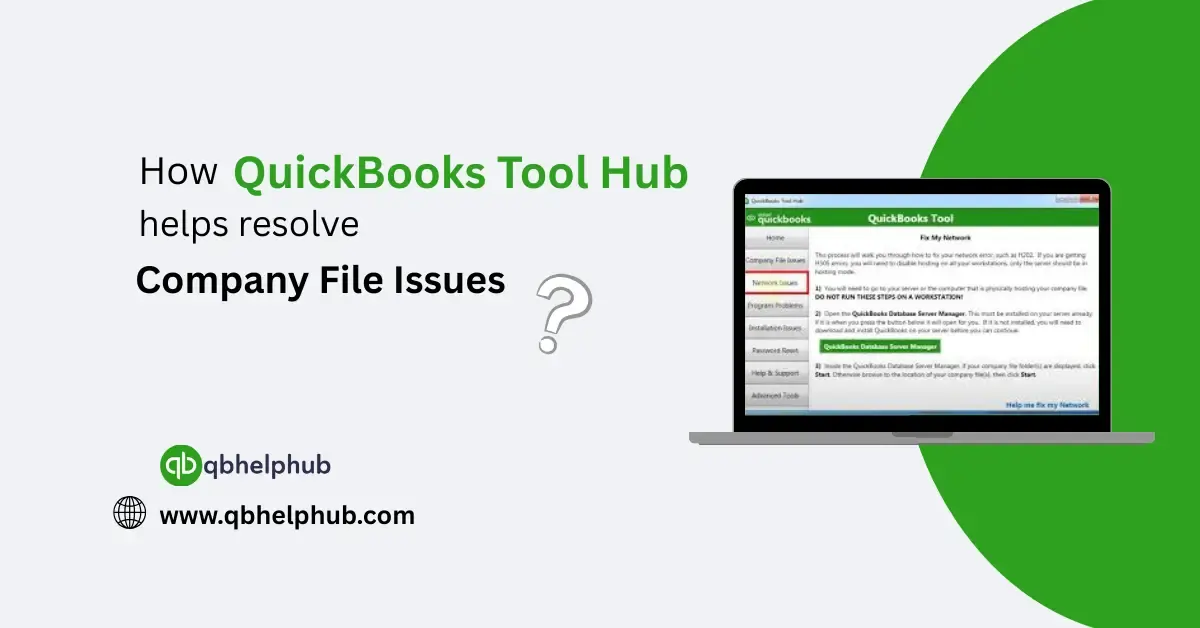
Running a business isn’t just checking numbers and sending invoices, it’s also, about managing a pile of important data inside QuickBooks. And when that company file suddenly refuses to open or worse, looks corrupted? It can really be difficult to manage. But here’s the good news: QuickBooks Tool Hub was basically made for situations exactly like this to resolve company file issues.
First Things First: What Even Is QuickBooks Tool Hub?
If you’re not familiar, QuickBooks Tool Hub is like a big repair kit you can download (for free) straight from Intuit. It’s all-in-one, meaning instead of trying around with a dozen different downloads, you get everything you need in one neat little program. And no, you don’t have to be techy to use it. Honestly, if you can open a program and click through a few options, you’ll be just fine.
Read Also: How to Use QuickBooks Tool Hub to Troubleshoot Common Issues?
How Does Tool Hub Actually Fix Company File Problems?
Company file issues are super common, even seasoned users run into them. Sometimes the file won’t open, or QuickBooks gives you one of those annoying error messages that don’t even really tell you what’s wrong.
This is where QuickBooks File Doctor steps in.
It’s a tool inside the Tool Hub that’s basically your personal file medic. Here’s what it does:
- It scans your file for corruption or errors
- If can fix it automatically
- And if the problem’s tied to a network glitch, it can usually handle that too
- You don’t need to know why the file’s messed up.
You just launch the Tool Hub, open the File Doctor, pick your file, and cross your fingers.
Here’s How QuickBooks Tool Hub Actually Helps
Alright, so let’s break it down in simple terms, because honestly, there’s no reason to make this stuff sound more complicated than it is.
1. It Diagnoses File Problems Automatically
If you’re trying to open your company file and QuickBooks throws one of those scary error codes at you—like 6000, -82, or -6150—don’t freak out. File Doctor, which is built right into the Tool Hub, automatically jumps in. It scans your file to see if there’s corruption or any sneaky little damage hiding inside.
Instead of wasting half your time Googling random fixes (and getting fifty different answers), Tool Hub figures it out for you. Way faster and less stressful.
Read Also: Steps to Resolve QuickBooks Online (QBO) Login Problem
2. It Repairs Minor File Damage
Sometimes your file isn’t completely ruined, it’s just corrupted.
Maybe a few bits are broken behind the scenes, causing crashes or weird behaviour. QuickBooks File Doctor can usually clean up these smaller problems so your file runs like it’s supposed too again.
No need to rebuild everything from scratch. No panicked digging through old backups. It just quietly patches things up without making a big deal out of it.
3. It Fixes Network Problems That Mess with Your Files
If you’re working in multi-user mode and nobody can open the company file… yeah, it might not even be the file itself. Sometimes the network’s just being fussy.
The Tool Hub’s network repair tools can reset the connection between QuickBooks and the server, so everyone can get back to work without you having to call some expensive IT person who charges by the hour just to tell you to “restart everything.”
Step-by-Step: How to Use QuickBooks Tool Hub for Company File Problems
Now that you’ve got the big picture, let’s walk through the actual steps, because knowing is one thing, but doing is where the magic happens.
Step 1: Download and Install QuickBooks Tool Hub
If you haven’t already, go to Intuit’s official website and grab the latest version of QuickBooks Tool Hub. (Don’t bother with random download sites, just go straight to the source.) It installs fast and doesn’t take up a bunch of space on your computer either.
Step 2: Open the Tool Hub
Once you’re in, double-click the QuickBooks Tool Hub icon on your desktop. If you don’t see it right away, you might have to dig around your downloads folder for a second. Happens to the best of us.
Step 3: Let It Scan and Repair
Now for the easy part, you just follow the prompts. Pick your company file from the list (or if you don’t see it there, you can browse around and find it manually). After that, File Doctor gets to work scanning and repairing whatever’s wrong.
Step 4: Check If It’s Actually Fixed
Once the scan wraps up, try opening your company file again. Fingers crossed, right?
In a lot of cases, the Tool Hub’s fix does the trick on the first try.
But hey, if it doesn’t work right away, you’ll usually get a clear message telling you what to do next, or when it’s time to call in the heavy hitters over at QuickBooks Support.
Why QuickBooks Tool Hub Beats Everything?
Before Tool Hub came along, fixing a company file was honestly a bit terrifying. You can be stuck Googling unclear advice, trying a bunch of random fixes, and usually making things somehow worse.
Read Also: QuickBooks and Intuit : Are they the same?
Now? With Tool Hub:
- You get real, professional repair tools built by Intuit.
- You don’t need to know anything super technical.
- You can fix stuff yourself, without wasting your whole day on hold.
It saves you time, stress, and probably a decent chunk of money you’d otherwise spend begging a tech expert to rescue you.
Final Thoughts
If you use QuickBooks Desktop, having QuickBooks Tool Hub installed is kind of like having a protector on standby. It’s free, it’s easy to use, and it can save your butt when something goes sideways. Whether you’re facing an error message that makes no sense or a file that straightaway refuses to open, Tool Hub gives you a real shot at fixing it yourself, without calling in backup.