
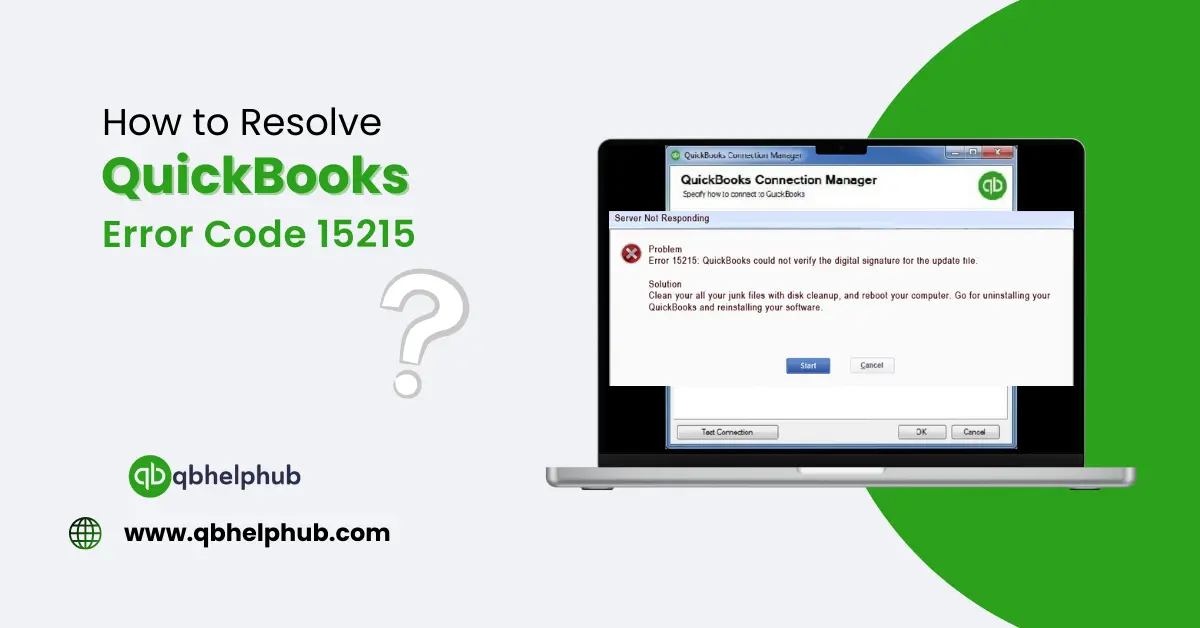
Error 15215 usually occurs when QuickBooks stops the update process because it cannot verify the digital signature of the file. Your computer screen may show you “Error 15215: Unable to verify digital signature”. This can be solved by changing internet settings or checking digital signatures and performing a clean system installation. Let’s explore more ways to fix it:
Read Also: How to Fix QuickBooks Error Code 3003?
Why Does QuickBooks update Error 15215 Happen?
It’s important to understand the reasons behind Error 15215 to begin with fixing it. The Quickbooks update error 15215 occurs from these primary reasons:
- Interference from Other Programs
The update files required by QuickBooks become inaccessible because of an active background program such as antivirus or firewall.
- Issues with Digital Signatures
The update files in QuickBooks need digital signatures for verification purposes. When the signature verification process fails the update system blocks the update files.
- Administrator Restrictions
QuickBooks will find it difficult to download and install updates when it lacks proper permissions from the Administrator. We can start resolving the problem after identifying its root cause.
Basic Fixes: Start Here First
1. Restart Your Computer
A computer restart serves as an effective solution to eliminate temporary issues that stop QuickBooks from functioning properly.
- Close QuickBooks Desktop.
- Restart your computer.
- Execute the update procedure once more after opening QuickBooks.
Proceed to the following fix if the first one fails.
2. Run QuickBooks as an Administrator
QuickBooks may sometimes need additional power to manage its operation properly.
- Close QuickBooks if it’s running.
- Right-click the QuickBooks Desktop icon.
- Select Run as Administrator.
- Try updating QuickBooks again.
Still stuck with the error? You should try to modify your internet settings.
Network & Security Fixes
1. Check Your Internet Connection
The update procedure becomes interrupted by an unstable network connection.
- Open a browser window then navigate to any website which you can find online.
- The modem and router need to be restarted when your website does not load or takes too long to load.
Check for another QuickBooks update attempt after your network becomes steady.
2. Temporarily Disable Antivirus & Firewall
Security programs might confuse QuickBooks update processes as threats which results in blocking the update procedures.
- Access your computer security software settings.
- Temporarily disable real-time protection.
- Try running the QuickBooks update.
- After finishing the update process you must reactivate your security software.
We should check for digital signature problems when your update remains unresponsive. The Advanced Fix addresses Digital Signature problems to resolve the Quickbooks update Error 15215.
Read Also: How to Fix QuickBooks Company File Opening Issues
3. Verify QuickBooks Digital Signature manually
You should manually verify the signature to resolve signature verification problems which typically cause Error 15215.
- The location to access QuickBooks is C:\Program Files\Intuit\QuickBooks but if the program is installed elsewhere then use that path.
- Find the file QBW32.exe.
- Right-click it and select Properties.
- Click the Digital Signatures tab.
- Click Details under Intuit Inc. from the list.
- Open the View Certificate window and proceed to Install Certificate.
- Execute the provided instructions after which you should restart your system.
- Attempt the update process after opening QuickBooks.
A clean reinstall of QuickBooks may be the necessary solution if previous methods fail to fix the issue.
Reinstalling QuickBooks
A. Uninstall QuickBooks
- Open Control Panel > Programs and Features.
- Open the Programs and Features on Control Panel then select the Uninstall option for QuickBooks followed by the on-screen directions.
B. Rename QuickBooks Installation Folders
- Go to C:\ProgramData\Intuit\QuickBooks.
- Rename the folder to QuickBooks.old.
The renaming process helps prevent QuickBooks from accessing outdated files which could be corrupted while installing the program.
c. Reinstall QuickBooks
- Users should get the newest version of QuickBooks from the Intuit website.
- Start the installation process and execute the instructions that appear.
- Open QuickBooks and check if the update works.
The error requires extensive system checks when it fails to resolve.
Fixing Windows-Related Problems
1. Run Windows System File Checker
The absence of important system files or their corruption within Windows creates obstacles for QuickBooks update execution.
- Press the combination Windows + R then enter cmd and press the Enter key.
- Click sfc /scannow and then press the Enter key.
- Windows will detect and repair files that show damage during the scan.
- Your attempt to update QuickBooks should be retried after computer restart.
2. Check Windows Admin Permissions
Your user account without administrator rights prevents QuickBooks from obtaining complete access to update installation.
- Access Control Panel through User Accounts by opening the menu.
- Click Manage User Accounts.
- Your user account must have administrator access.
- After restarting QuickBooks attempt to perform the update procedure once more.
Multiple techniques exist to stop QuickBooks Error 15215 from occurring in the future.
Read Also: How to Fix QuickBooks Error Code 15276: A Complete Guide
3. Keep QuickBooks & Windows Updated
Regular software updates eliminate both system bugs and compatibility problems between different components.
- Use a Stable Internet Connection
- The success of error-free updates requires an uninterrupted strong connection.
- Regularly Check Security Settings
- Close Background Applications before Updating.
- The operation of multiple programs simultaneously creates problems for the QuickBooks update process.
Wrapping Up
This blog provides solution steps to fix the frustrating QuickBooks Error 15215 issue. These steps serve as complete solutions to resolve errors 15215 caused by internet connection problems or security settings or digital signature issues. Begin by performing basic troubleshooting steps that demand system restarts followed by administrator access for QuickBooks. The error can be solved by changing internet settings or checking digital signatures and performing a clean system installation if these steps do not resolve the problem.
Related Articles:


QuickBooks Update Error 15215 can be frustrating, but your article does a great job of providing a step-by-step solution. The clarity in your explanations is what makes your content so valuable!