QuickBooks Tool Hub is often the first line of defence when something goes wrong in QuickBooks Desktop. Whether it’s a company file error, an installation problem, or a frustrating crash, the Tool Hub is designed to offer quick, guided fixes with minimal effort. But sometimes even after following the right steps your issue might still be hanging around or QuickBooks Tool Hub not working.
So what then? The good news is, not every problem ends at a dead end. There are still several steps you can take to troubleshoot further and find a solution that works.
Read Also: QuickBooks Banking Error 105: How to Solve It Fast?
Step 1: Make Sure the Right Tool Was Used
This might sound obvious, but it’s surprisingly common for users to run the wrong repair tool by mistake. QuickBooks Tool Hub has several sections, and each one is designed for a specific type of issue. If the tool doesn’t match the problem, it’s not likely to fix it.
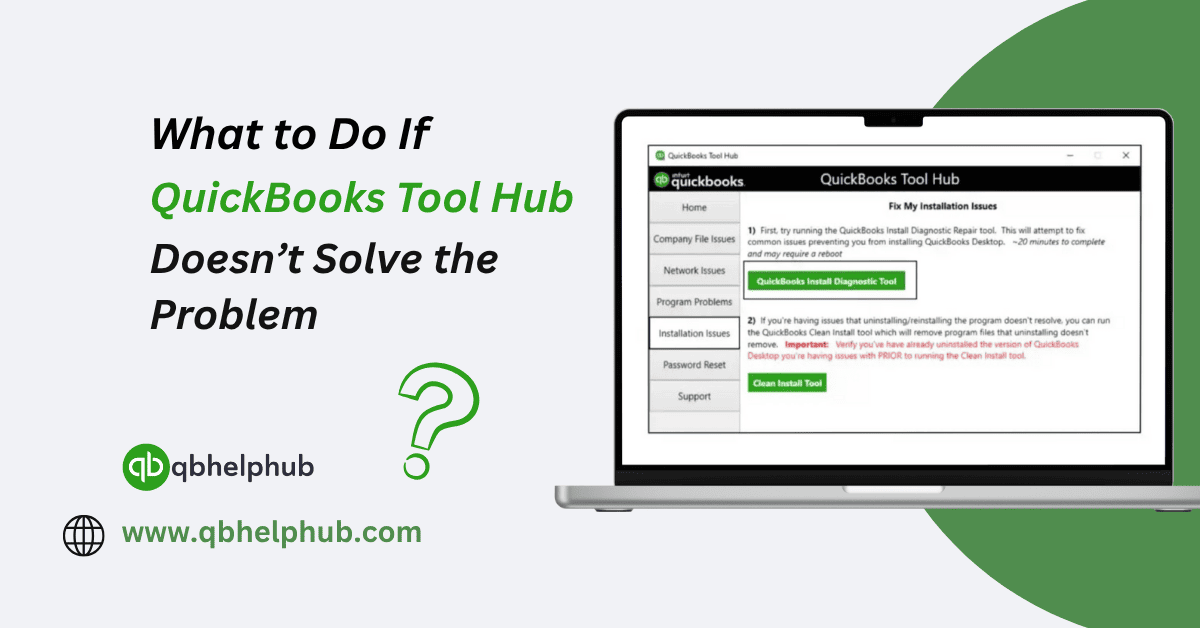
Here’s a quick breakdown of each section:
- Company File Issues – Use this when a file won’t open or returns error codes
- Network Issues – For problems in multi-user mode or when workstations can’t access the server
- Program Problems – Best for crashes, freezing, or when QuickBooks won’t respond
- Installation Issues – For trouble installing or updating QuickBooks Desktop
- Password Reset – If you’ve lost access to your admin login and need a reset
If you’re unsure which tool matches your issue, take a few minutes to revisit the Tool Hub and try the tool that best matches your situation. It’s easy to overlook this step and fixing it might solve the issue right away.
Step 2: Check If Tool Hub Is Up to Date
An outdated version of QuickBooks Tool Hub may not be able to repair problems that were addressed in newer updates. Intuit regularly releases fixes and improvements to Tool Hub, and using an older version can sometimes limit what it can detect or repair.
To check your version:
- Open Tool Hub
- Look at the version number at the bottom of the window
- Compare it with the latest version listed on Intuit’s official site
- If it’s not up to date download the latest version and install it over the existing one
Tool Hub updates won’t erase any settings, and updating it takes less than five minutes.
Read Also: Trouble Printing PDFs in QuickBooks? Here’s How to Fix It
Step 3: Try Restarting QuickBooks and Your Computer
As basic as it sounds, a simple restart still fixes more issues than most people expect.
If Tool Hub ran a repair but the issue remains, close QuickBooks completely, restart your computer, and try again. A restart gives QuickBooks a clean slate to reinitialize properly.
Step 4: Try a Manual Solution (Outside Tool Hub)
If the issue persists, there may be a workaround or manual method that isn’t handled by Tool Hub. Here are a few examples:
- File won’t open- Try restoring a backup or using the Auto Data Recovery folder
- Installation fails? Run the Clean Install Tool manually or uninstall QuickBooks completely before reinstalling
- QuickBooks is slow- Reduce list sizes, condense old data, or suppress unnecessary windows at startup
- Printing problems? Reset your printer settings or test with a different PDF driver
Many of these manual methods are not present as a list in QuickBooks support articles or forums, and they often apply when Tool Hub doesn’t solve the issue directly.
Step 5: Reach Out to QuickBooks Support
If none of the above steps get things working again, it may be time to speak with a QuickBooks support agent.
There’s no shame in escalating a problem especially if it’s affecting payroll, taxes, or daily operations. The support team has access to additional tools and diagnostic methods that go beyond what Tool Hub provides.
Here’s how to reach them:
- Open QuickBooks Desktop
- Click Help in the menu bar
- Select QuickBooks Desktop Help or Contact Us
- Choose the issue category and either start a chat or schedule a callback
Make sure to have your license number and company file name ready in case they ask for it.
Read Also: How to Keep QuickBooks Tool Hub Updated and Running Smoothly?
When to Consider Professional Help?
If the problem involves deep data damage, server-level network issues, or recurring crashes that affect business continuity, it might be worth working with a certified QuickBooks ProAdvisor or IT technician.
This is especially true if:
- Files are becoming corrupted repeatedly
- You’ve tried multiple tools with no change
- QuickBooks won’t launch even after reinstalling
- You’re unsure how to recover critical accounting data
These are situations where outside help can prevent small problems from turning into bigger losses.
Final Thoughts
QuickBooks Tool Hub is a reliable starting point for fixing many common problems. But it’s not perfect and it doesn’t fix every scenario automatically. If it doesn’t work the first time, it doesn’t mean you’ve hit a wall. Start by double-checking the tool you ran. Make sure your Tool Hub is updated. Restart your system. Then, if needed, dig into manual methods or reach out for help from support. In most cases, you’ll find a path forward even if the fix isn’t instant.