If your QuickBooks reports aren’t behaving the way they should, totals not adding up, missing transactions, or reports taking forever to load, you’re definitely not the only one. Reporting problems in QuickBooks Online or Desktop can be frustrating, especially when you’re trying to close the books, file taxes, or prep for a big meeting. The good news? Most reporting issues can be fixed with a few practical steps. Let’s walk through what to check, what might be going wrong, and how to resolve it without spending hours spinning your wheels.
Read Also: QuickBooks Desktop 2022 Discontinuation: What You Must Do Now
1. Start With the Basics: Check the Report Filters
Sometimes the issue isn’t with QuickBooks: it’s just that the filters you’ve applied are too narrow, too broad, or just off. Here’s what to do:
- Make sure date ranges are correct: double-check that you’re not pulling a report for “last year” when you meant “last month.”
- Look at customer or account filters: if you’ve selected only certain customers, vendors, or accounts, you might be leaving out data unintentionally.
Quick Tip: If your report suddenly shows zero balances or blank columns, it’s probably a filter issue. Reset it to default, then rebuild from there.
2. Use the Right Version of the Report
QuickBooks offers multiple versions of similar-sounding reports: and it’s easy to pick the wrong one without realizing it.
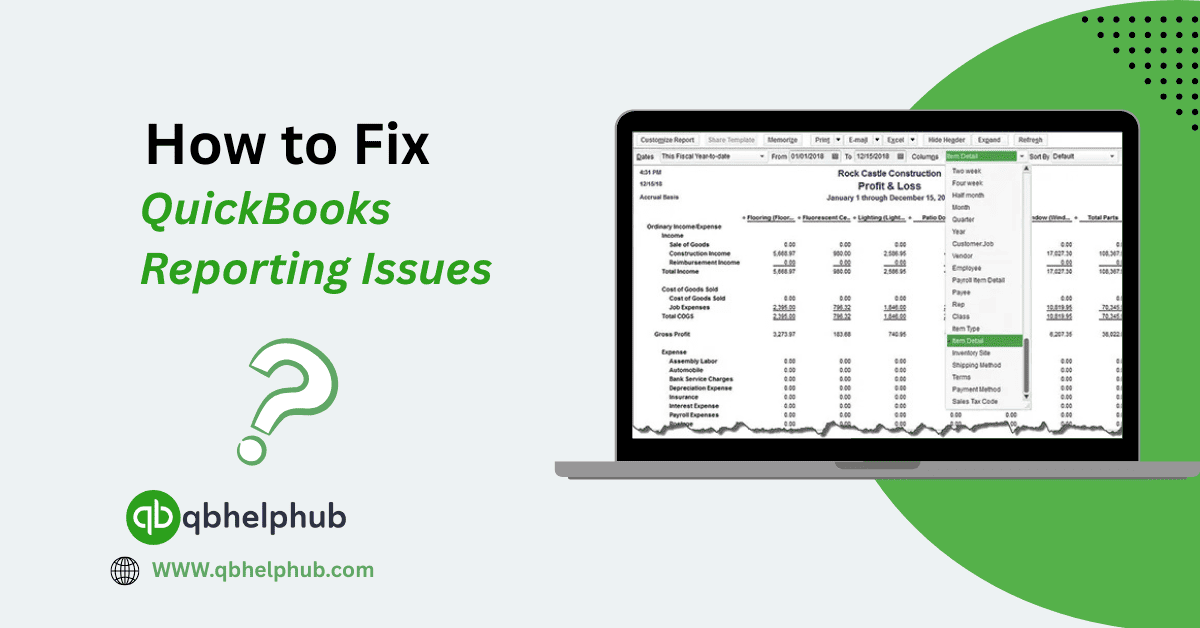
- For example, “Profit and Loss” vs. “Profit and Loss Detail”: one gives you a summary, the other breaks down each line item.
- Or maybe you’re using Cash Basis instead of Accrual, which can cause major shifts in reported income or expenses.
Double-check: Are you running the report in the right accounting method (cash or accrual)? You can toggle this at the top of the report window.
3. Update QuickBooks and Clear Your Cache
This one’s especially for QuickBooks Online users. Sometimes, glitches in your browser or outdated cached data can mess with how reports load or look.
Here’s a quick fix:
- Log out of QuickBooks Online.
- Clear your browser cache and cookies.
- Log back in using Google Chrome or Firefox (they tend to work best).
- Run the report again.
If you’re using QuickBooks Desktop, make sure your software is up to date. Go to Help > Update QuickBooks Desktop, and install any pending updates.
4. Rebuild Data in QuickBooks Desktop
In the Desktop version, reporting issues can sometimes stem from damaged or corrupt company files.
Here’s how to run a quick rebuild:
- Go to File > Utilities > Rebuild Data.
- Let QuickBooks back up your file before rebuilding.
- Once done, follow it up with File > Utilities > Verify Data to check for remaining issues.
It might take a few minutes, but it can solve deeper data problems that affect your reports.
5. Review Your Chart of Accounts or Item Setup
If certain income or expense items aren’t showing in reports, it could be that they’re not mapped correctly.
- Go to your Chart of Accounts and double-check that your categories are set up under the right type (e.g., Income, Expense, Cost of Goods Sold).
- Also, review Product/Service Items (in QBO) or Items List (in Desktop) to make sure they’re linked to the correct accounts.
Example: If you sell something and it’s not showing on your Sales report, it might be tied to a non-income account, easy to overlook.
6. Customize and Memorize Reports (but carefully)
Custom reports are great, until they’re not.
If you’re using memorized reports that were saved a while back, changes to your chart of accounts or items might cause those reports to break or pull weird data.
Fix it by:
- Re-creating the report from scratch using the most current setup.
- Then, resave it as a new custom report, rather than overwriting the old one.
Don’t just keep re-running a saved report without reviewing the filters each time.
Read Also: Top Reasons to Use QuickBooks Enterprise for Business Accounting in 2025
7. Run Reports in Single-User Mode (Desktop Only)
If your reports are freezing or acting strangely in multi-user mode, try switching to single-user mode and rerunning them.
- Go to File > Switch to Single-user Mode
- Re-run the report, it often loads faster and more cleanly this way.
Some complex reports, especially those spanning large data ranges, perform better without multiple users logged in.
8. Try the Report Centre or Management Reports in QBO
For QuickBooks Online users looking for cleaner formats or easier exports:
- Head to the Report Centre and explore Management Reports (under Business Overview).
- These come pre-formatted and are easier to customize for presentations.
If your issue is visual formatting or layout, this might be an easier solution than tweaking every cell manually.
9. Use a Third-Party Reporting Tool (When Native Ones Fall Short)
QuickBooks reports are solid, but sometimes you just need more flexibility. That’s where tools like Fathom, Live Plan, or Google Sheets Connectors come in handy. These tools can give you custom dashboards, better visuals, or just more user-friendly layouts.
10. Still Stuck? Contact Support or a ProAdvisor
Sometimes the problem is deeper than it looks, like data corruption, integration bugs, or file size limits.
Rather than digging endlessly, it’s smart to reach out to:
- QuickBooks Support
- A QuickBooks ProAdvisor
- Or your IT/finance team (if you’re in a company setup)
Getting expert help early often saves time (and money) in the long run.
Read Also: How to Record a Fixed Asset Purchase in QuickBooks Online: Step-by-Step guide
Final Thoughts
QuickBooks reporting issues are frustrating, no doubt. But most of the time, the fix is closer than you think, whether it’s a browser issue, or just using the wrong version of a report. You can fix it by double checking the basics, and work your way through it.
Get In Touch with Us
If you are interested to know more about QuickBooks and basic troubleshooting steps, we are here to help you through our dedicated customer service team. Fill out the customer response form or feel free to reach to us at support@qbsolved.com Our highly competent team is here to solve all your queries regarding QuickBooks.
FAQs