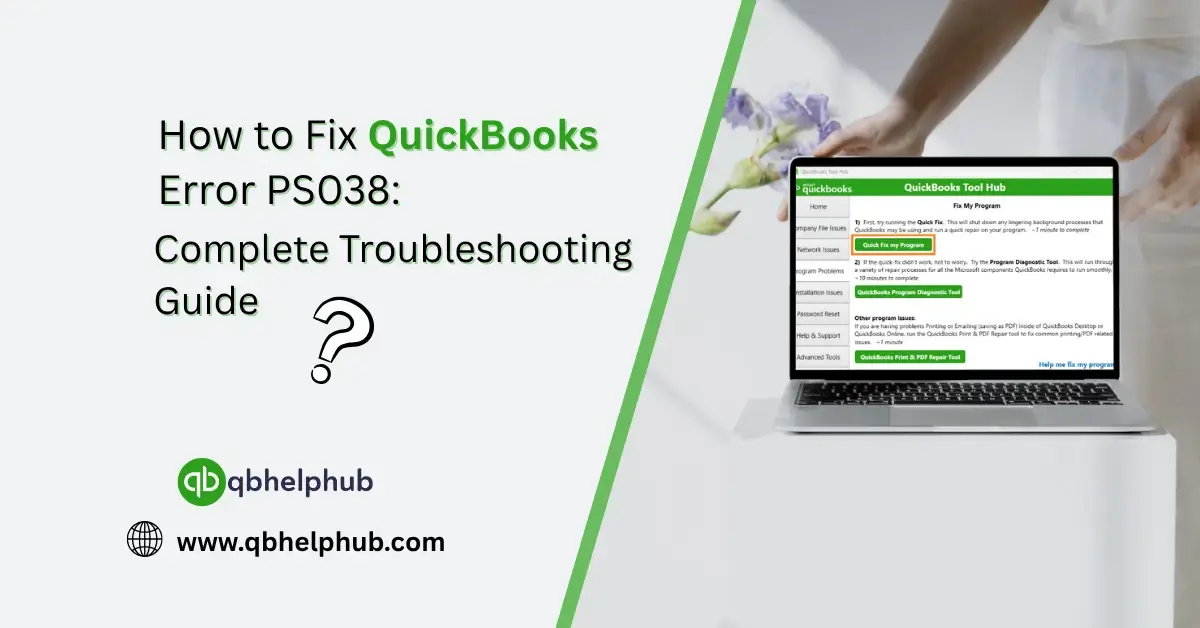
If you’ve run into fix QuickBooks Error PS038, you’re not alone, and yes, it’s as annoying as it sounds. This error tends to pop up when you’re trying to run payroll, and usually the message says something like: “You’ve retrieved the latest payroll update and validated your payroll subscription. We strongly recommend that you go online again before” You might also notice it won’t let you process payroll because some pay checks are stuck with a “To Send” status. But here’s the good news, you don’t need to panic. Below is a complete, plain-English walkthrough to help you get past this error and get back to managing payroll like a pro.
What Causes Error PS038 in QuickBooks?
At its core, this issue is caused when one or more pay checks are trapped in limbo, marked as “online to send”, but QuickBooks can’t push them through to Intuit’s server. This creates a roadblock in your payroll process.
Common causes include:
- Outdated payroll tax table
- Interrupted internet connection during a sync
- Corrupted or stuck pay checks
- Using an outdated version of QuickBooks Desktop
Read Also : How to Record Tax Payments in QuickBooks?
Step 1: Update QuickBooks and Payroll Tax Tables
Start with the easiest fix, make sure you’re on the latest version.
- Open QuickBooks Desktop.
- Go to Help > Update QuickBooks Desktop.
- Click Update Now, then Get Updates.
- Restart QuickBooks after the update finishes.
- Now head to Employees > Get Payroll Updates.
- Check “Download entire payroll update” and hit Update.
Still seeing the error? No worries. Let’s dig deeper.
Step 2: Find Stuck Pay checks
Now let’s locate the pay checks that QuickBooks is tripping over.
- Press Ctrl + F to open the Find window.
- Choose the Advanced tab.
- Select filters:
- Detail Level > Summary Only
- Online Status > Online to Send
- Hit Find.
This will pull up a list of pay checks that are flagged as unsent. You’ll need to manually resave them.
Step 3: Back Up Your Company File
Before you make any edits, play it safe and create a backup.
- Go to File > Back Up Company > Create Local Backup.
- Save your file somewhere secure just in case you need to roll back.
Trust me, backups are the lifesaver you don’t appreciate until you need them.
Read Also: How to Pay myself in QuickBooks
Step 4: Resave Each Stuck Pay check
This step may sound too simple to work, but it often does.
- Double-click on each pay check listed from Step 2.
- Make no edits.
- Click Save & Close.
- Repeat for all stuck checks.
This can sometimes clear the “Online to Send” flag and push the checks through.
Step 5: Use the Verify and Rebuild Tools
Let’s see if QuickBooks detects any hidden file issues.
- Go to File > Utilities > Verify Data.
- If QuickBooks finds problems, go to File > Utilities > Rebuild Data.
- Follow the on-screen prompts and allow the rebuild to finish.
Once that’s done, restart QuickBooks and check if the error still appears.
Step 6: Run Payroll Checkup Tool
Still stuck? Try running the Payroll Checkup.
- Open QuickBooks.
- Go to Employees > My Payroll Service > Run Payroll Checkup.
- Follow the prompts.
It’ll scan for common payroll issues and walk you through fixes if needed.
Step 7: Contact Intuit Support (Only If Necessary)
If you’ve tried everything above and nothing’s worked, it might be time to contact support. There could be backend issues that only Intuit can resolve.
How to Avoid PS038 in the Future
- Update regularly: Keep QuickBooks and payroll tax tables current.
- Stay connected: Make sure you’re online during payroll updates.
- Monitor pay check status: Look for stuck “To Send” statuses often.
- Back up frequently: Especially before and after payroll runs.
Read Also: What is QuickBooks Error Code PS033?
Final Thoughts
QuickBooks Error PS038 might seem like a major headache, but it’s usually a sign that something small, like a stuck pay check, needs a gentle nudge. Following the steps above will take care of it in most cases, and you’ll be back to running payroll without breaking a sweat. And don’t forget, keeping QuickBooks updated and running regular data checks can go a long way in preventing issues like this from popping up again.
Get In Touch with Us
If you are interested to know more about QuickBooks and basic troubleshooting steps, we are here to help you through our dedicated customer service team. Fill out the customer response form or feel free to reach to us at support@qbhelphub.com Our highly competent team is here to solve all your queries regarding QuickBooks.
FAQs