When running a business, books are like the company’s diary, they track and record everything happening inside. But over time, books and records can get messy. Old transactions, duplicate entries, unbalanced accounts can clutter up your QuickBooks Online file. These issues make reports confusing, taxes stressful, and financial decisions less reliable.
If you’ve noticed that your QuickBooks data doesn’t match your bank statements, or your reports don’t seem to add up, it might be time for a cleanup. Cleaning up QuickBooks Online means getting rid of errors, fixing transactions, and organizing everything. This way your financial records stay accurate and easy to understand. This guide walks through how to clean up your QuickBooks Online file step by step so can bring order back to your books.
Read Also: How QuickBooks Online Helps Businesses Simplify Accounting and Save Time?
Why a Cleanup Is So Important?
Many small businesses start by using QB Online very well but over time, little mistakes add up. You might enter the same expense twice or forget to categorize a deposit. Maybe an employee used the wrong account for a purchase, or an old invoice was never marked as paid. These issues seem small at first but grow into bigger problems that affect reports, taxes, and cash flow. A clean set of books means you know where your money is coming from and where it’s going. It helps your accountant do their job faster and ensures that you’re making business decisions based on facts, not guesses.
Step 1: Review the Chart of Accounts
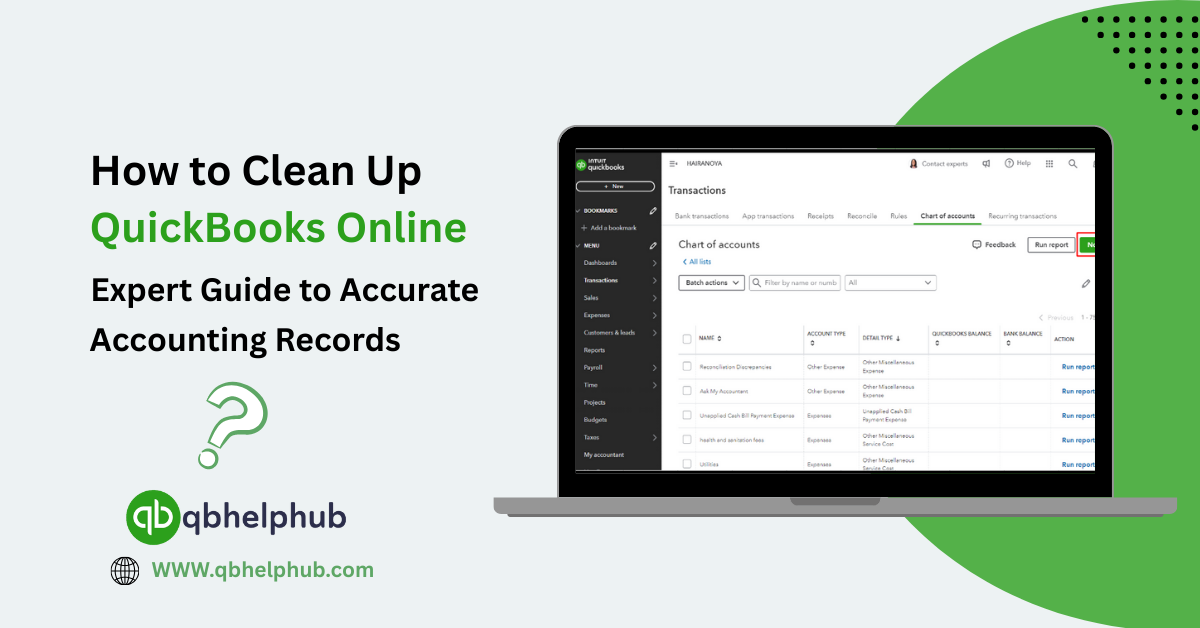
Think of your chart of accounts as the foundation of your QuickBooks file. It lists all the categories used to track money, income, expenses, assets, and more. Over time, this list can become crowded with duplicate or unused accounts.
Start by opening your chart of accounts in QuickBooks Online. Go through each one carefully. Ask yourself if it’s still needed or if there’s a better way to group similar expenses. For example, you might find you have both “Office Supplies” and “Stationery” tracking the same thing.Combine them into one clean category.
If you’re unsure which accounts are safe to delete or merge, mark them inactive instead. This hides them from future use without removing past data.
Step 2: Reconcile Bank and Credit Card Accounts
Bank reconciliation is one of the most important parts of cleaning up QuickBooks Online. It’s the process of matching what’s in QuickBooks with what’s actually in your bank account.
Start with the oldest unreconciled month and work forward. Compare each transaction on your bank statement with what appears in QuickBooks. If something doesn’t match, check whether it was entered twice, assigned to the wrong account, or missed entirely.
If you discover old transactions that never cleared, take a closer look. Sometimes these are mistakes left from earlier imports or old data that was never cleaned up. Removing or fixing them will make your balance sheet more accurate.
When everything matches, your reconciliation report should show zero differences. This means your books reflect your real financial activity.
Step 3: Fix Duplicates and Missing Transactions
Duplicate entries are one of the most common problems in QuickBooks Online. They often happen when you import bank transactions and also enter them manually. This creates confusion and makes income or expenses look inflated.
Go to your transaction list and sort by date or amount. Look for identical entries and check if they truly represent two separate payments. If not, delete the extra one.
Also, watch for missing transactions. Sometimes a payment was made but never recorded in QuickBooks, which causes your reports to be off. Cross-check your records with your bank downloads to fill in the gaps.
Step 4: Clean Up Customer and Vendor Lists
Over time, your customer and vendor lists can grow long and cluttered. You might see duplicate names or inactive accounts that haven’t been used in years.
Review your customer list carefully. Merge duplicates that refer to the same person or business. If someone hasn’t made a purchase in a long time, mark them inactive instead of deleting them. This keeps your old records intact while simplifying your dashboard. Do the same for vendors. A clean list saves time when entering bills or payments and makes reporting more accurate.
Read Also: Why QuickBooks Online Is the Best Accounting Software for Startups?
Step 5: Review Invoices and Bills
Unpaid invoices and open bills are another common reason QuickBooks files get messy. Sometimes invoices were paid but never marked as received, or bills were recorded but not cleared. Open your “Unpaid Invoices” and “Unpaid Bills” reports. Check whether any of them are old or no longer valid. If you find invoices that have been paid outside QuickBooks mark them as paid manually. For bills that you no longer owe, void or delete them after confirming with your accountant. This keeps your accounts payable list honest and up to date.
Step 6: Recheck Opening Balances
If your books have been off for a while, you might need to revisit your opening balances — the starting amounts for your bank accounts, credit cards, and loans. Incorrect opening balances are one of the most common reasons for reconciliation problems.
Compare the opening balance in QuickBooks with your first bank statement for the year. If they don’t match, adjust it carefully or consult your accountant to fix it properly. Small differences can throw off months of data if left unchecked.
Step 7: Reclassify Transactions
Sometimes, transactions are recorded in the wrong account. For example, a business owner might categorize a personal expense as a business one. This can disturb your profit and loss reports.
QuickBooks Online has a “Reclassify Transactions” tool available in the Accountant version. It allows you to move groups of transactions to the correct category quickly. Even without that tool, you can open individual entries and fix them one by one. Reclassification ensures that your reports show an accurate picture of your business spending.
Step 8: Run Key Reports to Verify Accuracy
After cleaning up your data, it’s time to test your work. Run a Profit and Loss Report, Balance Sheet, and Trial Balance. These reports help you spot errors or missing entries.
Look at each line carefully. Does the income look right? Do your expenses make sense? If you see negative numbers or accounts that look off, go back and double-check. Consistent reports mean your cleanup has worked.
Step 9: Back Up and Save Your Data
Once your QuickBooks file is in order, back it up. QuickBooks Online automatically saves your work, but exporting a copy of your data to Excel or PDF keeps you at peace. Think of it like saving a photo of your clean workspace before it gets messy again. Regular backups are especially helpful before making big changes or importing new data. That way, if anything goes wrong, you can always restore your last clean version.
Step 10: Keep It Clean Going Forward
Cleaning up QuickBooks Online is one thing keeping it clean is another. Make it a habit to reconcile your accounts every month. Enter all your transactions weekly so they don’t pile up. Review reports regularly, even if things look fine.
If you’re unsure about complex transactions, don’t guess. Reach out to your bookkeeper or accountant before creating entries that need correction later. A few minutes of clarification can save hours of cleanup. You can also set up reminders in QuickBooks for due dates, invoices, or bill payments. Staying consistent with small tasks keeps your records accurate all year round.
When to Call a Professional?
Sometimes, QuickBooks data can get too complicated to fix alone. This happens especially if there are years of errors, multiple users, or old imports from other software. In such cases, it’s best to hire a QuickBooks ProAdvisor or a professional bookkeeper. They can run advanced tools, fix journal entries, and find errors you might miss. A one-time professional cleanup can save you from future headaches and set up your system correctly moving forward.
To Conclude
Cleaning up QuickBooks Online is not just fixing numbers; it’s about taking control of your business. A messy file leads to wrong reports, bad decisions, and unnecessary stress. But once you clean it up, your financial story becomes clear again.
Start by reviewing your chart of accounts and bank statements, removing duplicates, and fixing invoices or bills. Take your time with each step and ask for help when needed. A clean QuickBooks file doesn’t just save time; it builds confidence in every decision you make. By maintaining good habits, reviewing reports regularly, and keeping your data accurate, your books will stay organized all year long.
Read Also: What is QuickBooks & Why it Actually Matters for Small Business Accounting?
Get in Touch with Us
If you are interested to know more about QuickBooks Online and basic quick fixes, we are here to help you through our dedicated customer service team. Fill out the customer response form or feel free to reach to us at support@qbhelphub.com Our highly competent team is here to solve all your queries regarding QuickBooks.
FAQs (Frequently Asked Questions)