Backing up your QuickBooks data is one of those essential habits that’s easy to ignore, until something goes wrong. But simply hitting “backup” isn’t enough. You need to know it worked. Whether you’re using QuickBooks Desktop or QuickBooks Online (with app integrations), here’s how to confirm that your backup didn’t just go through, but actually saved your financial lifeline.
Read Also: Common QuickBooks Payroll Problems and How to Fix Them
1. For QuickBooks Desktop Users
If you’re using QuickBooks Desktop, the built-in backup tool creates a .QBB file. Here’s how to confirm that it worked properly:
Step-by-Step: Check the Backup File
- Open QuickBooks Desktop.
- Go to File > Back Up Company > Local Backup.
- Choose Options to see where your backup was saved.
- Navigate to that folder on your computer or external drive.
- Look for the .QBB file, the timestamp should match the date and time you ran the backup.
Pro Tip:
Right-click the file > select Properties. If it has a file size (typically several MBs or more), chances are it backed up successfully. If it’s unusually small (under 1MB), it may be corrupted or incomplete.
Double-Check with QuickBooks:
- Go to File > Utilities > Restore Backup Copy.
- Choose your .QBB file to test if QuickBooks can open and read it (don’t save over your current file, use a test folder).
2. For QuickBooks Online Users
QuickBooks Online doesn’t have a native manual backup like Desktop. However, if you’re using third-party apps (like Rewind or ChronoBooks), you’ll want to confirm they’re doing their job.
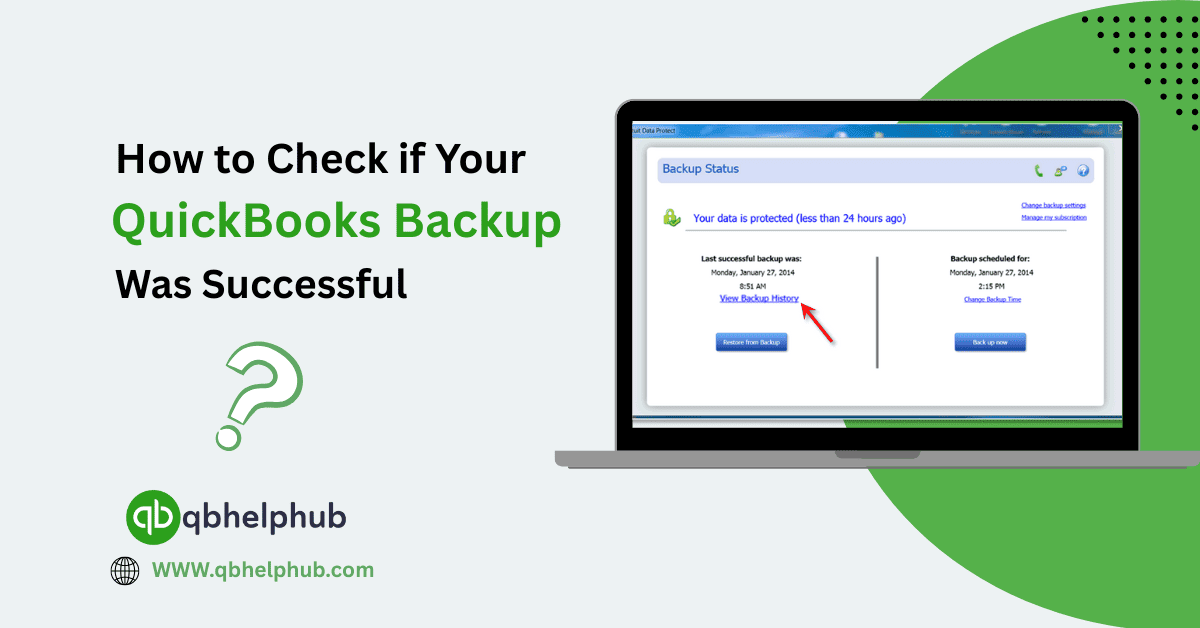
Check Backup Status in Your App:
- Log in to the app you’re using for backups.
- Look for a Dashboard, Backup History, or Activity Log section.
- Confirm that the latest backup shows a recent date and says “Successful” or “Completed”.
Most backup apps will show:
- Time of backup
- Number of changes saved
- Success/failure message
If your most recent backup is from days ago, that’s a red flag. Check your connection to QuickBooks or your app settings.
3. Enable Email or Desktop Notifications
Whether using Desktop or Online, many backup systems can send you alerts when a backup succeeds or fails.
- In QuickBooks Desktop, under backup options, you can check a box to receive a confirmation when the backup completes.
- For third-party backup apps, go into settings or notifications and enable email alerts for successful and failed backups.
4. Automate + Audit Regularly
Don’t just assume automated backups are working. Create a monthly habit to:
- Open the latest backup file in a separate QuickBooks folder (as a test copy).
- Confirm that recent transactions, invoices, or reconciliations are visible.
- Compare the data in your live file with your backup to verify consistency.
Conclusion
Backing up your QuickBooks file is only half the battle, knowing it worked is what protects you. For Desktop users, check your .QBB file for proper size and test restores regularly. For QuickBooks Online users using backup apps, log in and confirm the last backup was successful. Even with automation, it’s smart to audit your backups monthly. Because in accounting, one missed backup can mean hours, or days, of lost work. Stay cautious and protect your data before you lose it.
Read Also: Why is Intuit QuickBooks the most famous software for SMEs?
Get In Touch with Us
If you are interested to know more about QuickBooks and basic troubleshooting steps, we are here to help you through our dedicated customer service team. Fill out the customer response form or feel free to reach to us at support@qbsolved.com Our highly competent team is here to solve all your queries regarding QuickBooks.
FAQs (Frequently Asked Questions)