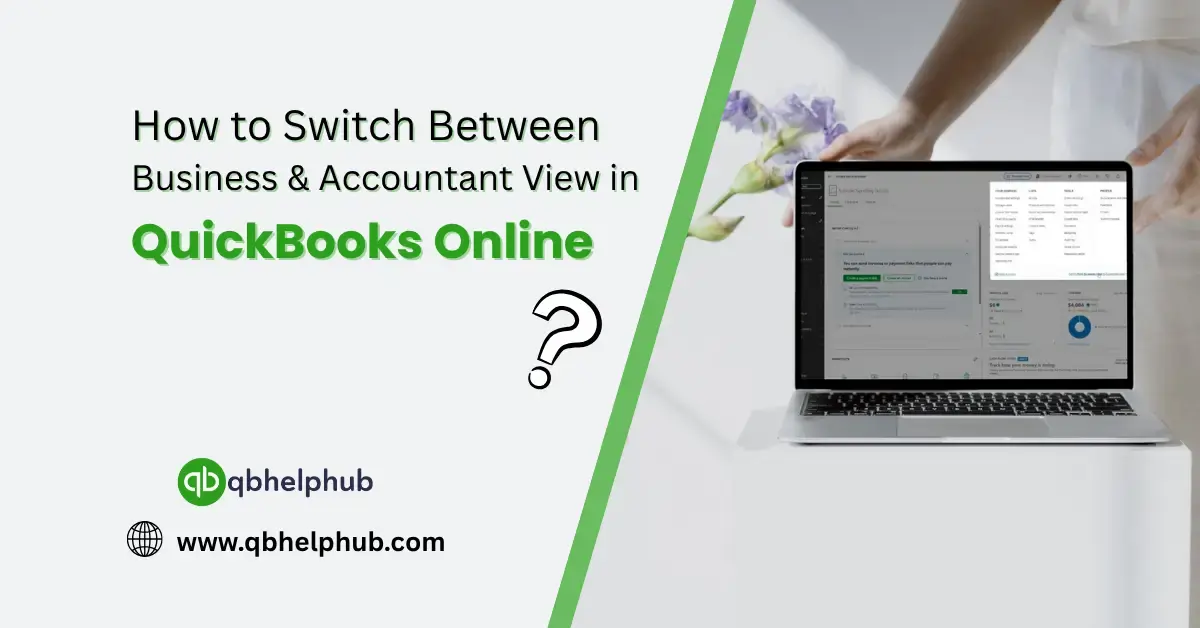
If you’ve been using QuickBooks Online for a while, you’ve probably noticed there’s more than one way to look at things, literally. We’re talking about Business View and Accountant View, two different layouts that change how QuickBooks Online appears and functions.
Now, maybe you’re wondering: “Why does this even matter?” or “How do I switch from one to the other without messing something up?” don’t worry. You’re not alone, because, many users flip back and forth between these views depending on their comfort level or who’s using the account. So, let’s unpack exactly what these views are, how they differ, and how you can switch between them effortlessly.
Read Also: Where Can You View All Transaction Reports in QuickBooks?
Business View vs Accountant View: What’s the Difference Anyway?
First off, these two views aren’t different versions of QuickBooks, because, they’re just two ways of organizing and displaying the same financial tools. The data stays the same no matter which view you’re using, but the layout and terminology shift a bit to fit your background.
- Business View is designed for small business owners or folks who aren’t accountants by trade. It uses simplified language (like “Money In” and “Money Out”) and presents your financial dashboard in a more user-friendly way.
- On the other hand, Accountant View, leans into standard accounting terms, Chart of Accounts, Journal Entries, etc., and mimics the layout that accountants are used to working with.
Moreover, it is better to switch sometimes, since switching between the two doesn’t delete anything or alter your books, it just changes how things are displayed.
Why Would You Want to Switch Views?
There are plenty of reasons you might want to toggle between these perspectives.
Let’s say you’re a business owner handling day-to-day tasks but occasionally bring in your bookkeeper to tidy up the accounts. You might prefer Business View, while your bookkeeper needs Accountant View for their workflow. Or if you’re learning accounting and want to slowly transition into using more advanced features. Consequently, the best part is that QuickBooks gives you the option to switch any time, no extra fees, no complicated steps.
Read Also: How to Setup and Manage QuickBooks for Small Businesses?
How to Check Which View You’re Currently In
Before you make any changes, it helps to know what view you’re working with. Here’s how you can check:
- Log in to your QuickBooks Online account.
- Then, look at the left navigation menu.
- If you see terms like “Get Paid & Pay”, “Banking”, and “Sales”, you’re likely in Business View.
- If you notice “Transactions”, “Chart of Accounts“, and “Expenses”, you’re probably in Accountant View.
Still not sure? There’s a faster way to confirm it.
- Firstly, click the gear icon in the top right corner.
- If you see the option to “Switch to Accountant View,” then you’re currently in Business View, and vice versa.
Steps to Switch from Business View to Accountant View
Switching views only takes a few clicks. Here’s how to make the change from Business View to Accountant View:
- Click the gear icon ⚙️ at the top right corner of your dashboard.
- Then select “Switch to Accountant View” from the dropdown menu.
- Following which, QuickBooks will refresh, and your layout will now follow the traditional accounting interface.
That’s it. No save button, no restart required. The switch is instant.
Steps to Switch from Accountant View to Business View
Need to go back? Maybe the accountant left, and you’d rather see things in simpler terms. Here’s how to switch back:
- Click the gear icon again.
- Then select “Switch to Business View.”
- As a result, your dashboard will reload and display the user-friendly format.
You can do this as many times as you want. There’s no limit.
What Actually Changes When You Switch Views?
While the features and tools stay the same, the presentation of those features changes. Here’s a quick idea of what you’ll notice:
| Feature | Business View | Accountant View |
| Menu Terminology | Friendly terms like “Cash Flow” | Formal terms like “Reports” |
| Navigation | Simplified, icon-heavy | More detailed and traditional |
| Banking | “Banking” or “Transactions” | “Banking” + “Chart of Accounts” |
| Access to Journal Entries | Hidden or less obvious | Clearly visible and labelled |
This might seem like a small shift, but for someone new to accounting, or someone who’s been in it for 20 years, it can make a big difference.
Will Switching Views Affect My Data?
Not at all. This is one of the most common concerns people have before clicking that switch button. But rest easy, switching views is purely cosmetic. It does not:
- Delete or modify transactions
- Change reports or calculations
- Reset your settings
Also, everything remains exactly as it was, just organized a little differently on your screen.
Read Also: How To Take Control of Your Small Business Cash Flow?
Final Thoughts
QuickBooks Online continues to make itself flexible to the wide variety of businesses and users out there. Whether you’re more comfortable with friendly terms like “Get Paid” or want full access to journal entries and advanced reports, QuickBooks View Modes allow you to tailor the platform to your needs. Moreover, switching between Business and Accountant View isn’t something you need to overthink, it’s just a better way to match how you work with how your tools look. So go ahead, click around, see what works best for your workflow.
Get In Touch with Us
If you are interested to know more about QuickBooks and basic troubleshooting steps, we are here to help you through our dedicated customer service team. Moreover, you can fill out the customer response form or feel free to reach to us at support@qbhelphub.com Our highly competent team is here to solve all your queries regarding QuickBooks.