QuickBooks is already a powerful accounting tool, no doubt. But when your business grows or starts to rely on multiple apps, the need to connect everything becomes real. That’s where the QuickBooks API steps in. It lets you link other software to QuickBooks in a way that makes everything flow smoother. You save time, reduce manual work, and avoid data entry headaches.
In this post, let’s break down what the QuickBooks API actually is, how it works, and how you can use it to your advantage, especially if you’re not exactly a developer. It’s not as scary as it sounds, promise.
Read Also: How to Easily Import Bank Transactions into QuickBooks Online?
What Is the QuickBooks API, really?
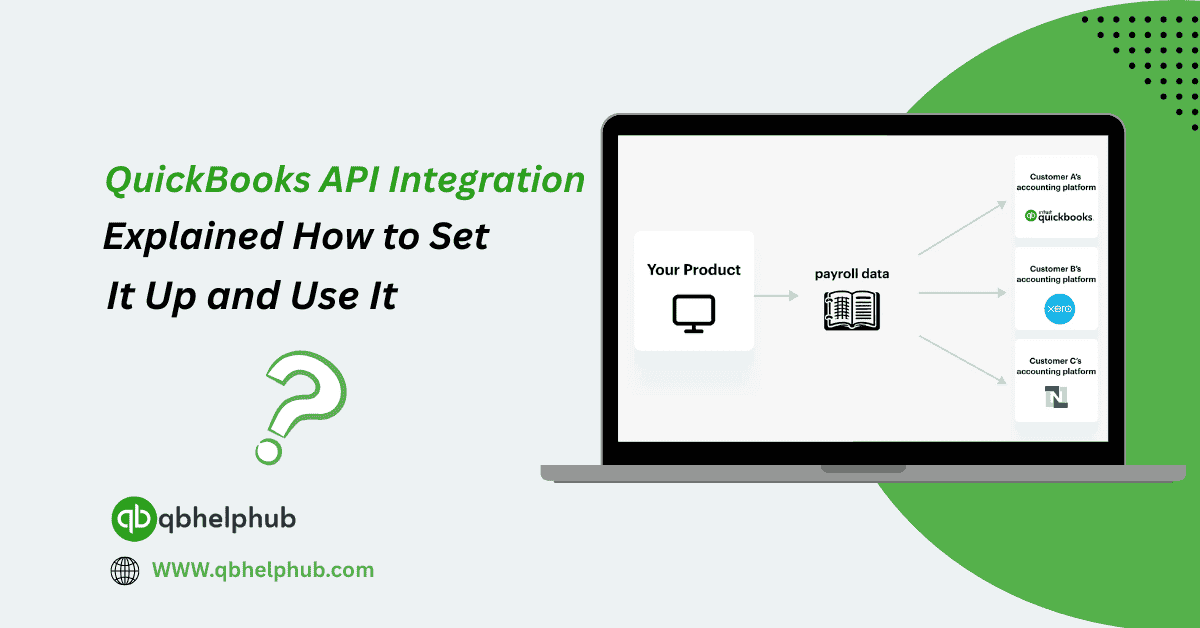
API stands for Application Programming Interface. It’s kind of like a translator that lets two apps talk to each other. The QuickBooks API allows third-party apps to “communicate” with your QuickBooks data securely.
So, if you want your CRM to automatically update invoices in QuickBooks, or you’re using a custom-built dashboard to pull financial data, the API is what makes that connection possible. It works with both QuickBooks Online and, to a limited extent, QuickBooks Desktop (via a different SDK setup).
Why Would You Want to Use the QuickBooks API?
Here’s the deal, manually entering the same data into multiple systems wastes time. And let’s be honest, mistakes creep in. Integrating QuickBooks with your other platforms, like inventory, ecommerce, or payroll, just makes sense.
With the API, you can:
- Automatically create or update invoices
- Sync customer or vendor records between platforms
- Pull reports into external dashboards
- Push timesheet data from HR software into QuickBooks
- Even create custom apps that work with your QB account
It streamlines how your business handles accounting data behind the scenes.
Read Also: How to Mark Invoices as Paid in QuickBooks?
How Do You Set It Up? (Don’t Worry, It’s Doable)
Even if you’re not a developer, you can get started with API connections through platforms like Zapier or pre-built apps on the QuickBooks App Store. But if you’re working with a developer or building something custom, here’s how the setup goes.
Step 1: Create a Developer Account
Sign up and create an app. This step gives you access to your API keys, basically the passwords that allow your app to interact with your QuickBooks data.
Step 2: Connect Your App to QuickBooks
After creating your app, you’ll use OAuth 2.0 (a type of secure login) to link the app to your QuickBooks Online account. It’s like authorizing access, just like logging into a website with Google or Facebook.
Step 3: Choose What Data to Access
Once connected, you can access different parts of your account: customers, invoices, expenses, payments, etc. You can also create, update, or delete records depending on your permissions.
Step 4: Start Making API Calls
Using tools like Postman or any programming language (like Python or JavaScript), you can start sending commands (called API calls) to QuickBooks. For example, you can pull all unpaid invoices or push a new vendor bill.
Again, if this sounds too tech-heavy, platforms like Zapier, make (formerly Integromat), or even your in-house dev team can handle this.
Common Use Cases That Actually Make Life Easier
Most businesses don’t need complex custom apps, just smart integrations. Here are some examples of what you can do:
- Ecommerce Sync: Connect your Shopify or WooCommerce store to QuickBooks, so every order becomes an invoice automatically.
- CRM Updates: When you close a deal in HubSpot or Salesforce, trigger an invoice or customer creation in QB.
- Inventory: Keep your inventory tool and QuickBooks in sync without having to type anything twice.
- Payroll Systems: Integrate with time-tracking tools to automate payroll journal entries.
- Reporting Dashboards: Create visual dashboards using tools like Google Data Studio or Power BI by pulling live QB data.
Some Quick Tips for Using the API Smoothly
- Test in Sandbox First: QuickBooks gives you a dummy test environment, use that to try your API calls before using live data.
- Keep Security in Mind: Always use secure methods when storing API credentials. Don’t hardcode keys into apps.
- Use Rate Limits Wisely: QuickBooks limits how often you can send requests. Don’t hammer the API with too many calls too fast.
- Check API Status: If something isn’t working, it might be a service outage. QuickBooks has a status page just for that.
What If You Don’t Want to Code?
Not everyone wants to deal with developer stuff, and that’s fine. You can still take advantage of QuickBooks API features by using trusted apps from the QuickBooks App Store. Most of them already use the API on the backend, you just connect your account and you’re good to go.
Zapier is another excellent choice. It lets you connect QuickBooks to apps like Gmail, Google Sheets, Slack, and more without writing any code at all.
Conclusion
Integrating with QuickBooks through its API might sound technical at first, but in reality, it’s just about making your work easier. Whether you’re a tech-savvy business owner or just looking for smarter ways to automate repetitive tasks, the QuickBooks API is worth exploring. You don’t need to build a huge custom app, even a few small integrations can save you hours each month.
If you’re looking for more hands-free options, use one of the many prebuilt integrations or talk to a developer to get it tailored for your business. Either way, you’ll be surprised how much smoother your workflow can be.
Read Also: How Much Does QuickBooks Charge for Credit Card Payments?
Get In Touch with Us
If you are interested to know more about QuickBooks and basic troubleshooting steps, we are here to help you through our dedicated customer service team. Fill out the customer response form or feel free to reach to us at support@qbsolved.com Our highly competent team is here to solve all your queries regarding QuickBooks.