There’s nothing more unsettling than trying to open your company file in QuickBooks and getting an error message or worse, the file loads but doesn’t behave the way it should. Numbers don’t add up, transactions are missing, or the software crashes for no clear reason. If any of that sounds familiar, you might be dealing with file damage or data corruption.
It happens, not because you’ve done something wrong, but because QuickBooks files are complex. They’re made up of thousands of interconnected records, and just one misstep an interrupted save, a network glitch, or a system crash can knock something out of place.
What Does File Corruption Look Like in QuickBooks?
The signs aren’t always obvious, but if you know what to watch for, you can catch it early.
Here are some common red flags:
- QuickBooks freezes or crashes when opening a file
- You’re getting unexplained errors (like -6000 series errors)
- Certain reports won’t run or show strange numbers
- Transactions appear duplicated or missing
- You can’t back up the file or verify the data
- Your file takes a long time to open or respond
If one or more of these sound familiar, it’s worth taking a closer look.
What Causes QuickBooks File Damage?
There are quite a few potential culprits. Some are software-related, others are environmental. A few common triggers include:
- Sudden power outages during a save
- Crashes while using QuickBooks
- Interrupted network connections when using multi-user mode
- Oversized company files
- Running outdated versions of QuickBooks
- Hard drive or system errors
You don’t need to identify the exact cause to fix the problem, but it’s helpful to know how it might have started so you can avoid it down the road.
Step-by-Step: Fixing QuickBooks File Corruption
Let’s walk through practical solutions to repair your company file and get your data back in good shape.
Read Also: QuickBooks Error 15240: Troubleshooting and Easy Fixes
Step 1: Back Up the Damaged File
Before making any changes, create a backup even if the file is damaged. If something goes wrong during the repair, at least you’ll have a copy to fall back on.
- Open QuickBooks (if the file still loads)
- Go to File > Back Up Company > Create Local Backup
- Save the backup to a safe, external location
If you can’t open the file at all, skip to Step 2.
Step 2: Use the Verify and Rebuild Data Tools
QuickBooks comes with built-in tools that can spot and repair minor file issues.
To verify your data:
- Open QuickBooks
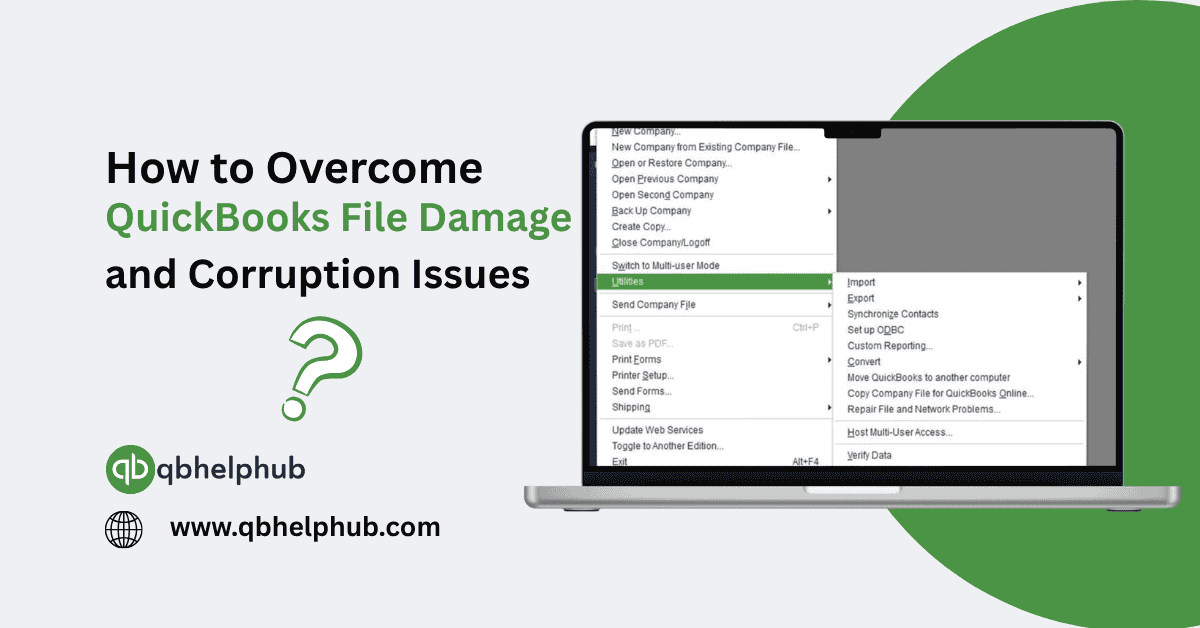
- Go to File > Utilities > Verify Data
- Let QuickBooks scan the file
If it finds problems, you’ll be prompted to rebuild.
To rebuild:
- Go to File > Utilities > Rebuild Data
- Follow the on-screen prompts
- QuickBooks may ask you to back up before rebuilding do it
- Allow the rebuild process to complete
Once done, rerun Verify Data to make sure the issues are gone.
Step 3: Try QuickBooks File Doctor
If the Verify/Rebuild tool doesn’t solve the problem, it’s time to bring in the big guns.
QuickBooks File Doctor is part of the QuickBooks Tool Hub, which is a free utility provided by Intuit.
Here’s how to use it:
- Download the QuickBooks Tool Hub from Intuit’s website
- Open it and click on the Company File Issues tab
- Select Run QuickBooks File Doctor
- Choose your company file from the list
- Click Check your file and enter your admin password when prompted
File Doctor will scan your file for corruption and try to repair it automatically.
Step 4: Restore from a Backup (If needed)
If none of the tools work, you may need to restore from a clean backup. This is why regular backups matter.
- Go to File > Open or Restore Company
- Choose Restore a Backup Copy
- Follow the steps to open an earlier version of your file
- Re-enter or import any missing transactions from the damaged version
Restoring from backup is never ideal, but sometimes it’s the best way to get things back on track.
Step 5: Contact a Data Recovery Expert (As a Last Resort)
If your file is severely damaged, and none of the tools or backups work, Intuit offers QuickBooks Data Services. They specialize in recovering corrupted files that can’t be fixed through normal means.
You’ll need to:
- Submit your file through Intuit’s data recovery page
- Wait for them to assess and (hopefully) repair it
- Be prepared for a turnaround time of a few business days
It’s a paid service, but if your data is important and you don’t have a good backup it might be your only option.
Preventing File Damage Going Forward
Fixing file corruption is one thing. Preventing it from happening again? That’s where the real win is.
Here are some habits to build:
- Always back up your company file before major changes or updates
- Avoid using wireless networks for multi-user mode
- Shut down properly- don’t force QuickBooks to close
- Watch your file size- when it starts getting huge, archive old data
- Use surge protectors or battery backups on key systems
Final Thoughts
File damage in QuickBooks can feel like a serious setback, especially when you rely on it every day to run your business. But in most cases, the fix is right there inside QuickBooks or through the Tool Hub. Take it one step at a time. Verify. Rebuild. Use File Doctor. And most importantly, build good habits so you’re not scrambling when something goes wrong. The best fix is the one you never have to use.
Get In Touch with Us
If you are interested to know more about QuickBooks and basic troubleshooting steps, we are here to help you through our dedicated customer service team. Fill out the customer response form or feel free to reach to us at support@qbhelphub.com Our highly competent team is here to solve all your queries regarding QuickBooks.