
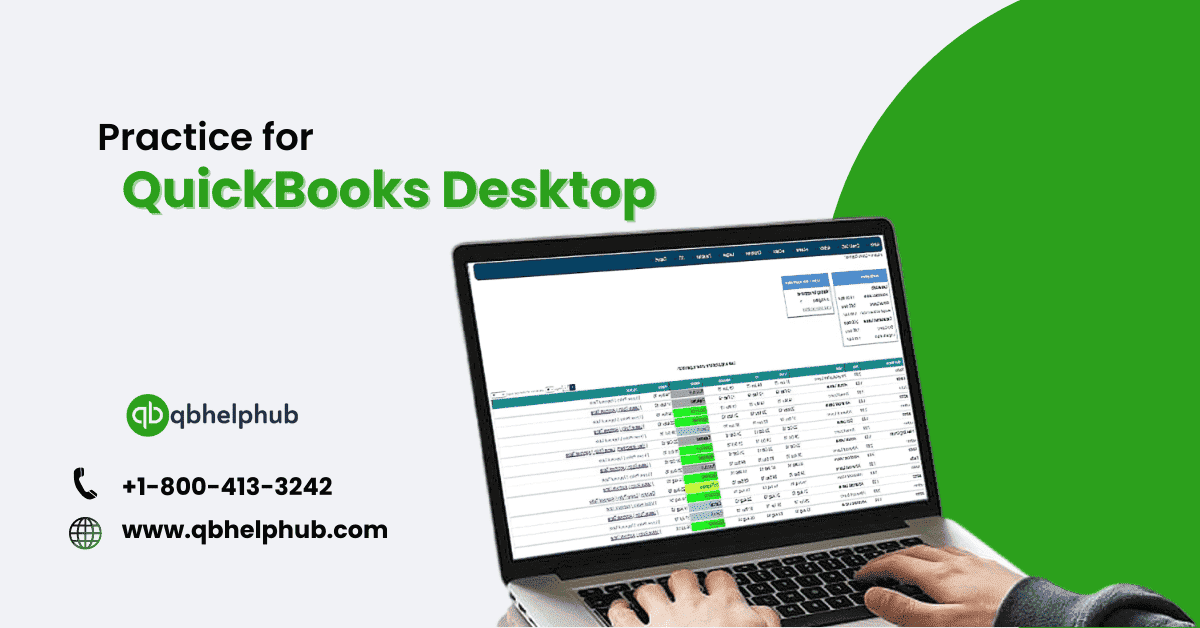
Are you an aspiring accountant, or a small business owner or just someone who wishes to have a better understanding and track of his/ her finances? Well, whatever is your reason, the answer to the posed question is an absolute yes! But how to do this without getting overwhelmed by the abundance of literature all around you? In answer to that, we will give you all the information to master QuickBooks Desktop practice in this post.
Introduction to QuickBooks Desktop
QuickBooks Desktop is an incredibly feature-rich accounting software, one of the great capabilities of which was making financial control easy in businesses. This bookkeeping tool is famous for its powerful features and user-friendly interface. Learning how to navigate the features and use them to the best of your ability can be challenging, much like learning a new language. But you shouldn’t worry, this guide is here for you!
Setting up QuickBooks Desktop
First and foremost, you have to set up and configure your QuickBooks Desktop on your device This will entail:
- Installation of the Software: You need to download QuickBooks Desktop from the official website of Intuit and install the program. All the instructions will be given alongside.
- Create a Company File: This is where all your financial information stays within your device. Follow the set-up wizard to fill in the details of your company.
- Preference Setup: Set up preference settings—set up your chart of accounts and fiscal periods as per your business.
Understanding the Dashboard
The QuickBooks dashboard is your command center. It contains all the shortcuts that allow you to execute key functions, summarize your financial data, and warn you about tasks that require your attention. Take a little time to click through the dashboard so that you understand its structure and what all you can do with it.
Creating and managing accounts
Your chart of accounts is the framework of your financial records. Follow these steps to manage it perfectly:
- Making new accounts: You will need to learn how to create new and separate accounts for assets, liabilities, income, and expenses.
- To change and edit your existing accounts as your business needs change is crucial, update and fix them as the needs arise.
- Deleting accounts once they become useless will be beneficial for you, just check them once before as it may affect your financial reports.
Recording transactions
Accurate recording of the transactions is important. Quickbooks Desktop Practice by:
- Entering Sales Receipts: Record income as received.
- Checks: Record all expenses paid by check.
- Journal Entries: Make manual adjustments to your accounts when necessary.
Read also: Top reasons to upgrade to QuickBooks Desktop Pro 2024
Managing customers and vendors
Keep track of whom you owe and who you are owed by:
- Add Customers and Vendors—Add all relevant information related to each of the customers and vendors.
- Maintain lists of customers and vendors to keep such records up to date.
- Link and track your sales and purchases to the right customers and vendors.
Handling invoices and payments
Maintaining and ensuring a consistent cash flow is extremely important for a business. You can make sure of that by acing your invoices and payments management.
- Assess your customers effectively and create their invoices.
- Record payments upon their receipt.
- Stay on top of your collections with reminders and reports.
Reconciling accounts
No one wants to see mismatching statements, and for that we do reconciling. Reconciliation entails checking your records to ensure that they are in consonance with your bank statements. Here is how to do it:
- Account selection: Select an Account to Reconcile and enter the necessary information, i.e., Statement Date and Ending Balance.
- Matching Transactions: This feature will bring your bank statement and QuickBooks in consonance with each other.
- Resolving Discrepancies: Note down the differences and correct the errors to reach accuracy.
Generating financial reports
Financial report making is a very important skill you would want to learn.They play an extremely vital role in facilitating informed decision making:
- Keep track of your income and expenses by maintaining your income statements.
- Balance Sheets: Learn how to maintain your balance sheets and ensure that you have the complete knowledge of your business ledger and its health.
- Understand how money is moving in and out of your business by keeping a track of the cash flow.
Customizing QuickBooks Desktop
The best thing about QuickBooks is that you ccan customise it to suit all your requirements.
- Personalize QuickBooks: You can add a touch of your business to your sheets and profiles by adding your logo and color to every invoice, estimate, and sales receipt.
- Manage User Permissions: With effective management of user permissions you can control who has access to your data in QuickBooks and who can edit and change it.
- Create Customized Reports: You can learn how to customise and design reports on key metrics relevant for your business.
Integrating with other tools
QuickBooks can run various applications of third parties to use their functionality:
- Connect payroll services: With integration to services like QuickBooks Payroll, one operation controls payroll.
- With the help of a few clicks QuickBooks can be connected to any online sales platforms for your ease and help, such as Shopify or Amazon, to back up your sales.
- Time-Tracking Software: Integrate with tools such as TSheets to a great extent simplify time tracking and invoicing.
Practicing with realistic scenarios
Practice makes perfect. Run through simulations of real scenarios in business to help build up your confidence:
- Create Sample Data: You can use sample company files in QuickBooks Desktop to practice without affecting your actual data.
- Daily Transactions: The student will practice entering sales, expenses and payments as one would in a real business.
- Run Month-End Procedures: Reconcile the accounts, review the report, and close the books to get a sense of what the monthly routine will be like.
Common mistakes to avoid
You can start saving hours and much frustration by avoiding common pitfalls:
- Not Backing Up Data: Backup your QuickBooks data on a regular basis to avoid loss of data.
- Ignoring Reconciliation: In order to ensure a double check that all your transactions align with your bank statements you should always reconcile your accounts.
- Always recheck your transaction history to ensure transactions are properly categorized.
Resources for further learning
Being in loop with the usage of the features and continuous practice will only make you proficient in QuickBooks Desktop.
- Tutorials: There are many self-guided tutorials available in the system that will help you overcome problems as and when you come across some.
- Take online courses: You may want to consider taking online crash courses on Udemy or LinkedIn for learning QuickBooks.
- Community Forums: Another helpful thing could be joining forums and user groups to exchange tips and advice with other QuickBooks users and learning from them.
Read also: QuickBooks and Intuit : Are they the same?
Conclusion
We understand that learning and becoming a pro at QuickBooks can be daunting and challenging, but with practice and patience, you’ll become an expert in no time. And once you master it the reward will be worth it. Adhering to these steps and following through, you will have all your transactions and tallies in the palm of your hand. Keep up with your practicing, explore the other resources, and very soon you’ll be using QuickBooks Desktop effortlessly.

QB Help Hub’s recommendations for practicing QuickBooks on a Desktop were incredibly helpful. Their resources and tips provided a solid foundation for mastering the software.
What are the best methods to practice using QuickBooks on a Desktop effectively?
QB Help Hub offered excellent guidance on practicing QuickBooks on a Desktop. Their tips and resources helped us get hands-on experience and improve our skills with the software.
Your guide on how to practice QuickBooks on a desktop is very helpful for beginners. Learning QuickBooks can be overwhelming, but your structured approach makes it easier to grasp. Great job!