Running into an error while installing QuickBooks is frustrating especially when it shows a code like Error 1935 with no clear explanation. If you’ve seen this one pop up during installation, don’t worry. You’re not alone, and it’s usually not as complicated as it first seems. In most cases, QuickBooks Error 1935 shows up when the system is trying to install or update .NET Framework, which QuickBooks needs in order to function properly. If that process gets interrupted or blocked, the whole installation fails.
Through this blog we will walk you over everything you need to know about fixing Error 1935 so you can get back to running your business without more delays.
Read Also: What to Do If QuickBooks Tool Hub Doesn’t Solve the Problem?
What Is QuickBooks Error 1935?
This error typically shows up during installation (or reinstallation) of QuickBooks Desktop. You’ll see a message that reads:
“Error 1935: An error occurred during the installation of assembly component…” QuickBooks tried to install something behind the scenes usually a Microsoft .NET Framework component but it didn’t work.
What Causes Error 1935?
Let’s look at the most common reasons behind this installation error:
- .NET Framework is damaged or not installed properly
- An antivirus or security program is blocking the installation
- Windows updates are missing or incomplete
- Another installation is already running in the background
- System files are corrupt or registry issues exist
The good news is that most of these issues are fixable with a few simple steps.
Step-by-Step: How to Fix QuickBooks Error 1935
Let’s work through some effective solutions. Start from the top and work your way down there’s no need to try everything at once.
Step 1: Restart Your Computer
Sounds simple, but a restart clears out many temporary glitches. If any installation processes were stuck in the background, this gives them a fresh start.
After restarting, try the installation again.
Step 2: Turn Off Antivirus Temporarily
Security software can sometimes block installations it mistakenly sees as threats.
To test this:
- Temporarily disable your antivirus program (each brand has a slightly different method)
- Re-attempt the QuickBooks install
- Once installation is complete, turn your antivirus protection back on immediately
Don’t forget to reactivate it afterward. You don’t want to leave your system unprotected.
Read Also: How to Fix QuickBooks License Error After Cloning?
Step 3: Install or Repair .NET Framework
Here’s what you can do to repair .NET Framework:
Option A: Enable .NET Framework manually
- Open the Control Panel
- Click Programs > Turn Windows features on or off
- Make sure .NET Framework 4.5 or later is checked
- Click OK and restart the computer
Option B: Use Microsoft .NET Repair Tool
If .NET is already enabled but still causing problems:
- Download the .NET Framework Repair Tool from Microsoft’s website
- Run the tool and follow prompts
- Restart your PC and try the QuickBooks installation again
Step 4: Check Windows for Pending Updates
Outdated operating systems are often the root of compatibility problems.
To update:
- Go to Settings > Update & Security > Windows Update
- Click Check for Updates
- Install any available updates
- Restart your system once everything is complete
Step 5: Run the QuickBooks Install Diagnostic Tool
Intuit offers a free tool through the QuickBooks Tool Hub that can help with many install-related issues.
Here’s how to use it:
- Download and install the QuickBooks Tool Hub (from the official Intuit website)
- Open it and go to the Installation Issues tab
- Click QuickBooks Install Diagnostic Tool
- Let the tool run (this may take 10–15 minutes)
- And then, restart your system.
Then try installing QuickBooks again.
Read Also: How to Cancel QuickBooks Payroll or Subscription (No Hidden Steps)
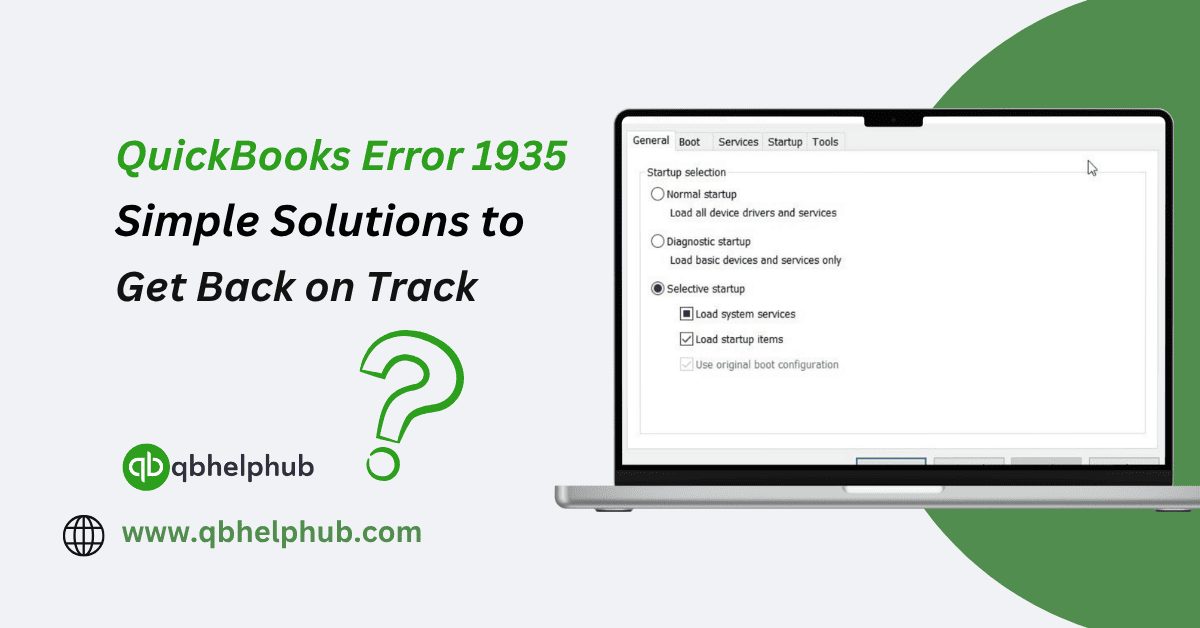
Step 6: Install QuickBooks in Selective Startup Mode (Advanced)
If all else fails, try installing QuickBooks while only essential services are running.
Steps:
- Press Windows + R, type msconfig, and hit Enter
- Under the General tab, select Selective startup
- Uncheck Load startup items
- Go to the Services tab, check Hide all Microsoft services, then click Disable all
- Click OK and restart your computer
Try the installation again in this minimal setup. Once finished, return to Normal startup by repeating the steps above.
When to Call for Help
If you’ve worked through all of these steps and Error 1935 keeps showing up, it might be time to get a hand from the experts.
You can reach out to:
- QuickBooks 24/7 support phone number
- QuickBooks desktop support specialists
- Or get help through your QuickBooks Tool Hub’s chat support feature
Be ready with your product version, license number, and a screenshot of the error message, if possible, it’ll speed things up.
To Wrap Up
QuickBooks Error 1935 can be annoying but it’s not a dead end. Most of the time, it’s tied to a blocked installation or an interruption with .NET Framework. With the right steps, you can fix it yourself without needing to reinstall everything from scratch. And remember, if you ever feel stuck, the QuickBooks support team is just a phone call away.
Get In Touch with Us
If you are interested to know more about QuickBooks and basic troubleshooting steps, we are here to help you through our dedicated customer service team. Fill out the customer response form or feel free to reach to us at support@qbhelphub.com Our highly competent team is here to solve all your queries regarding QuickBooks.