QuickBooks Desktop is one of the most trusted tools for handling small business finances, but even reliable software runs into trouble now and then. One of the most stressful problems that users face is company file damage. When the system crashes or QuickBooks refuses to open a file that worked just fine the day before, it’s easy to feel like everything is stuck. Fortunately, Intuit created a solution for this exact scenario: QuickBooks Tool Hub.
This free desktop program includes a set of tools designed to repair common QuickBooks issues, including file corruption and data damage.
If you’ve ever opened QuickBooks and something just didn’t seem right missing data, error codes, or a file that won’t load at all this tool could be the thing that saves you hours of frustration.
Read Also: How QuickBooks Tool Hub Helps Resolve Company File Issues?
What Does Data Damage Actually Mean?
In simple terms, data damage refers to anything that makes a QuickBooks company file unstable, unreadable, or incomplete.
It might not sound serious at first, but if that file contains payroll details, invoices, or years of financial records, even small issues can snowball quickly.
The causes vary. A power outage during a save. A hard drive glitch. Saving files on a poor network connection. Even something like QuickBooks freezing at the wrong time could damage the file’s structure.
Common Signs Something’s Wrong
Here are a few red flags that often point to file corruption:
- QuickBooks crashes while opening a company file
- You see error codes like -6000, -6150, or -6189
- Transactions disappear, show incorrect amounts, or don’t match reports
- Reports load slowly or give inconsistent totals
- You’re unable to create a backup or restore the file successfully
Sometimes these issues are minor and go away with a restart. But other times, they signal deeper damage that needs a tool like QuickBooks File Doctor to fix.
Read Also: How to Use QuickBooks Tool Hub to Troubleshoot Common Issues?
Enter QuickBooks Tool Hub: Your Repair Kit
QuickBooks Tool Hub was created to simplify troubleshooting. Instead of downloading multiple tools separately, it brings everything together in one place including the solution to many file-related problems.
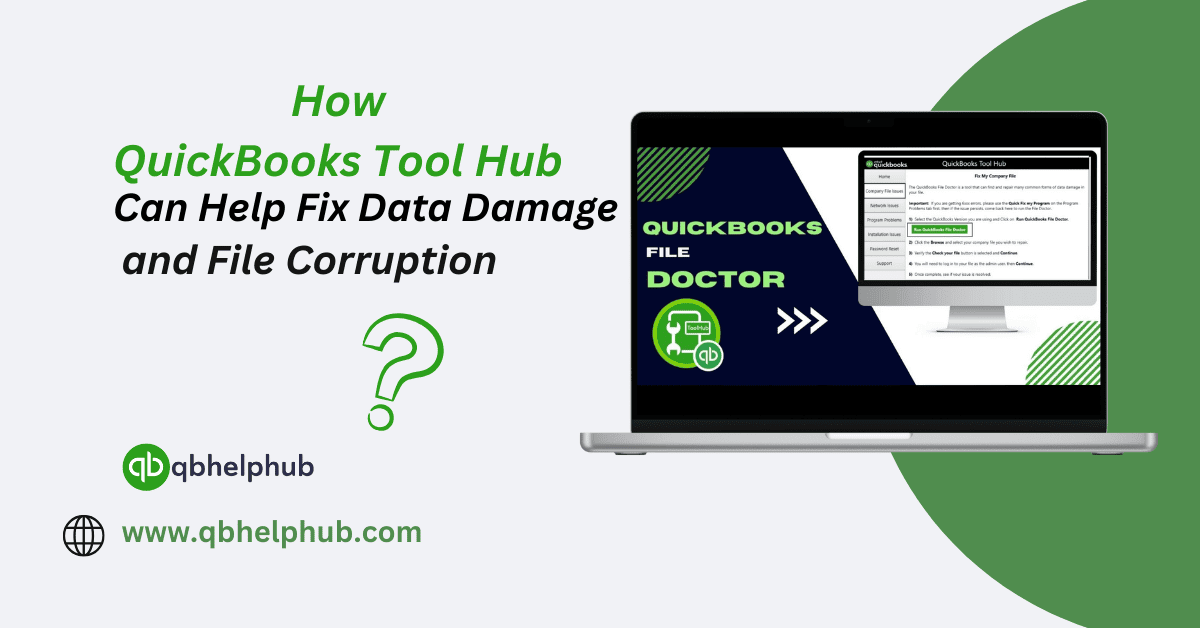
For data damage and corruption, the feature you’ll likely use is QuickBooks File Doctor. It’s built right into the Tool Hub and focuses entirely on company file repairs.
What File Doctor Actually Does?
Once launched, File Doctor scans your company file and looks for broken data blocks, missing pieces, or inconsistencies that can prevent QuickBooks from reading the file properly.
If it finds issues and most of the time, it does it will attempt to repair them automatically. There’s no need to guess what went wrong or manually check through your records. File Doctor handles the back-end repair process while keeping your financial data intact.
The time it takes depends on how large your company file is. A smaller file might finish in five minutes. Larger databases can take 20 minutes or longer. Either way, it’s often faster and more reliable than restoring from a backup especially when that backup might also be flawed.
How to Use Tool Hub to Repair Data Damage?
Here’s a quick guide to using QuickBooks Tool Hub when your company file isn’t cooperating:
Step 1: Download QuickBooks Tool Hub from Intuit’s official website
Step 2: Open the program after installation
Step 3: Click the Company File Issues tab
Step 4: Select Run QuickBooks File Doctor
Step 5: Choose the affected company file and let the scan begin
Step 6: Wait for the scan to complete and follow any prompts if you need additional
Once finished, try reopening your company file in QuickBooks. In many cases, you’ll be back to work with everything running smoothly again.
Read Also: QuickBooks Self-Employed 2025: Is It Right for You?
While File Doctor resolves most standard file issues, it’s not a miracle cure for every situation.
If the file is severely damaged or parts of it are missing entirely, Tool Hub may suggest contacting Intuit’s data recovery service. This is rare, but it does happen especially with very large files or those damaged multiple times over. That said,for the majority of users, Tool Hub is more than enough to resolve corruption without needing outside help.
Extra Tips to Avoid Future Data Damage
- Always back up your file before major updates
- Avoid saving your company file on unstable or remote network drives
- Use QuickBooks in single-user mode when performing data-heavy tasks
- Shut down the system properly don’t force QuickBooks to close
Taking a few precautions can go a long way toward preventing damage in the first place.
FAQs (Frequently Asked Questions)
To Conclude
There’s never a good time for a company file to go bad, but during payroll, year-end reporting, or tax filing season, a damaged QuickBooks file can feel like a crisis.
That’s why having QuickBooks Tool Hub installed and ready is one of the best things you can do as a QuickBooks Desktop user. It’s free, easy to use, and includes powerful tools like File Doctor that can repair broken files and get your data back on track often in less time than it takes to call support. When QuickBooks stops responding or your company file won’t open, don’t panic instead try Tool Hub first. It might just save your day.