Accessing QuickBooks Online the right way can make daily business tasks smoother, faster, and more efficient. Whether the goal is to send out invoices, view financial reports, or track business spending, knowing how to log in correctly is where everything begins. Without that simple first step, staying on top of finances quickly becomes a challenge.
QuickBooks Online makes it easy for small business owners and accountants to handle everything from payments to payroll in one place. But before diving into any of those features, signing in securely is key. Understanding the login process, knowing what to do when problems occur, and learning how to protect the account can save a lot of stress down the line.
Read Also: How to Login to QuickBooks Online
Why Logging in to QuickBooks Online Matters?
QuickBooks Online was built for flexibility as it allows access to important business data from almost anywhere, on a desktop, a tablet, or even a phone. The login connects users to a full set of tools that help keep records accurate and tasks on track.
Once signed in, users can:
- Review sales reports and financial statements
- Send and track invoices in real time
- Connect and monitor bank transactions
- Run payroll and manage employee records
- Keep vendor and customer information organized
Having instant access to this information will help you make faster business decisions with more confidence.
Step-by-Step Guide: How to Sign in to QuickBooks Online
The process to sign in is short and straightforward. Here’s how it works from start to finish.
Step 1: Open the Login Page
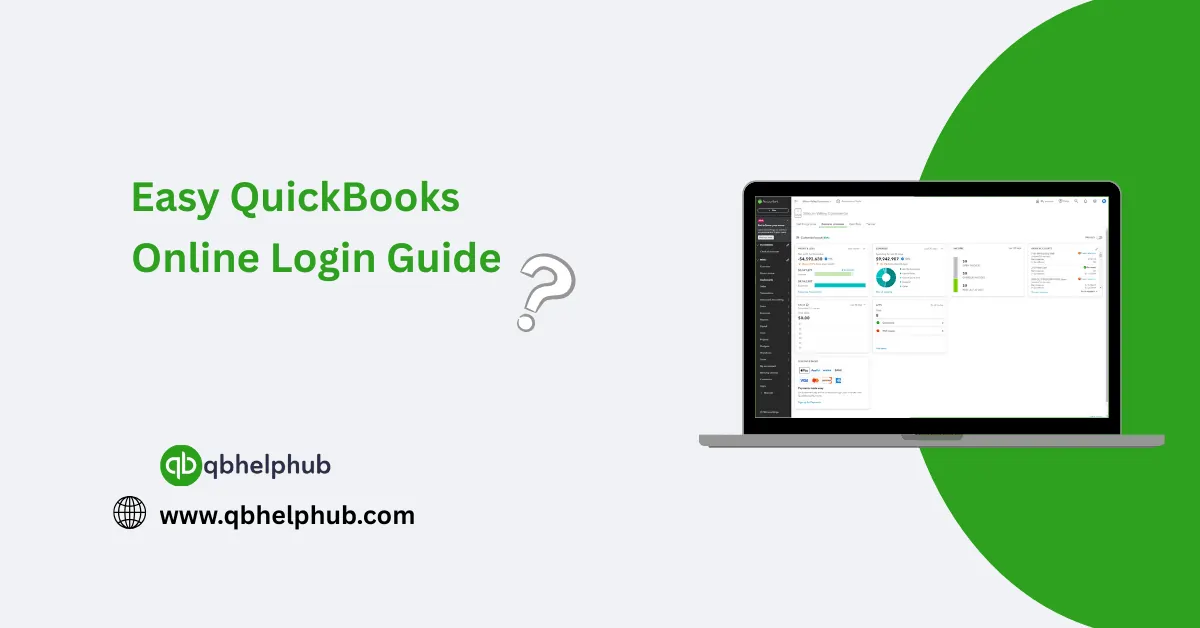
Start by opening a web browser and visit quickbooks.intuit.com. Once the page loads, look at the top right corner and click on Sign In.
Step 2: Enter Login Credentials
Next, a login screen will appear.
- Enter the email address or user ID connected to the account.
- Type in the password associated with that email.
- Click Sign In to move forward.
For accounts that have two-step verification turned on, there’s one more step. A six-digit code will be sent to the phone or email linked to the account, enter that code when prompted to complete the sign-in process.
Step 3: Choose a Company File
After logging in, those managing multiple companies will see a list. Simply click the name of the business to open its dashboard. In addition, this brings up the full QuickBooks Online interface, where all tools and reports are located.
Read Also: Resolve QuickBooks Online QBO login Problem
What to Do If Login Issues Come Up?
Even the most straightforward process can seem so hectic sometimes while, login problems with QuickBooks Online usually come from one of a few common issues:
-
Forgotten Password
If the old password isn’t working, click the “I forgot my user ID or password” link on the sign-in page, simply follow the instructions to reset it using the email on file.
-
Incorrect Email or User ID
Double-check the email spelling because small typo can stop the login and in case you are still not sure, try using another email address.
-
Trouble with Two-Step Verification
Didn’t get the code? Try resending it. If the issue continues, check if the correct phone number or email is still on the account settings. Outdated contact details can block the verification step.
-
Browser Issues
Sometimes, the browser causes login trouble. Try clearing cookies and cache or switching to a different browser. Moreover, make sure JavaScript is enabled and pop-up blockers are off.
Read Also: How to Login as an Accountant in QuickBooks Online
Tips to Keep the QuickBooks Account Safe
Security is a big deal when it comes to business data. Taking a few extra steps can help keep the account protected from unwanted access.
- Firstly, try to use a strong and unique password different from other accounts.
- Then, turn on two-step verification to add a second layer of protection.
- Also, always make sure to log out after finishing work, especially on shared computers.
- Moreover, avoid signing in from public Wi-Fi unless it’s through a secure connection or VPN.
Mobile Login: QuickBooks on the Go
For those who prefer to handle accounting from a phone or tablet, the QuickBooks Online mobile app offers the same access as the web version. Download the app from the App Store (for iOS) or Google Play (for Android). Use the same email and password to log in.
The mobile version lets users:
- Send invoices right from the job site
- Track mileage for deductions
- Scan and save receipts instantly
- Check bank balances and cash flow in real time
It’s a great option for those who need to stay productive while traveling or working away from the office.
Logging in to QuickBooks Online is more than just a technical step, in fact it is one of the best ways for managing the business finances in a smart, organized way. Once inside, the tools and data available can help track every dollar, every sale, and every expense. Following the proper steps, staying secure, and knowing how to handle issues means spending less time troubleshooting and more time running the business.
Get In Touch with Us
If you are interested to know more about QuickBooks, we are here to help you through our dedicated customer service team. Fill out the customer response form or feel free to reach to us at support@qbhelphub.com Our highly competent team is here to solve all your queries regarding QuickBooks.