Running a small business is all about tracking your money and it’s important to know your income, expenditures and all finance related tracking. This is where QuickBooks comes to help as one of the most popular accounting tools, because it is designed for business owners who are not accountants. In this blog, we will guide you through the steps to use QuickBooks for your small business.
Read Also: 10 QuickBooks Tips All Business Owners Must Implement in 2025
Benefits of QuickBooks for Small Business
Initially, as a small business owner, you would want to spend less time on paperwork and more time working on growing your business, which is why QuickBooks is designed with you in mind. No matter whether you sell products, deliver services, or both, QuickBooks allows you:
- Track income and expenses
- Send professional invoices
- Pay your workers or independent contractors
- Prepare for taxes
- See where your money is going
Here’s how to set up and use the most important features.
Step 1: Create your QuickBooks account
The initial setup is no hassle when you sign up for QuickBooks. However, you will be asked a few basic questions about your business and by answering these correctly, QuickBooks can customize your experience.
- Fill out the name and contact information for your business
- Pick your Industry (e.g. retail, services, consulting)
- Then, select your type of business (sole proprietor, partnership, LLC, )
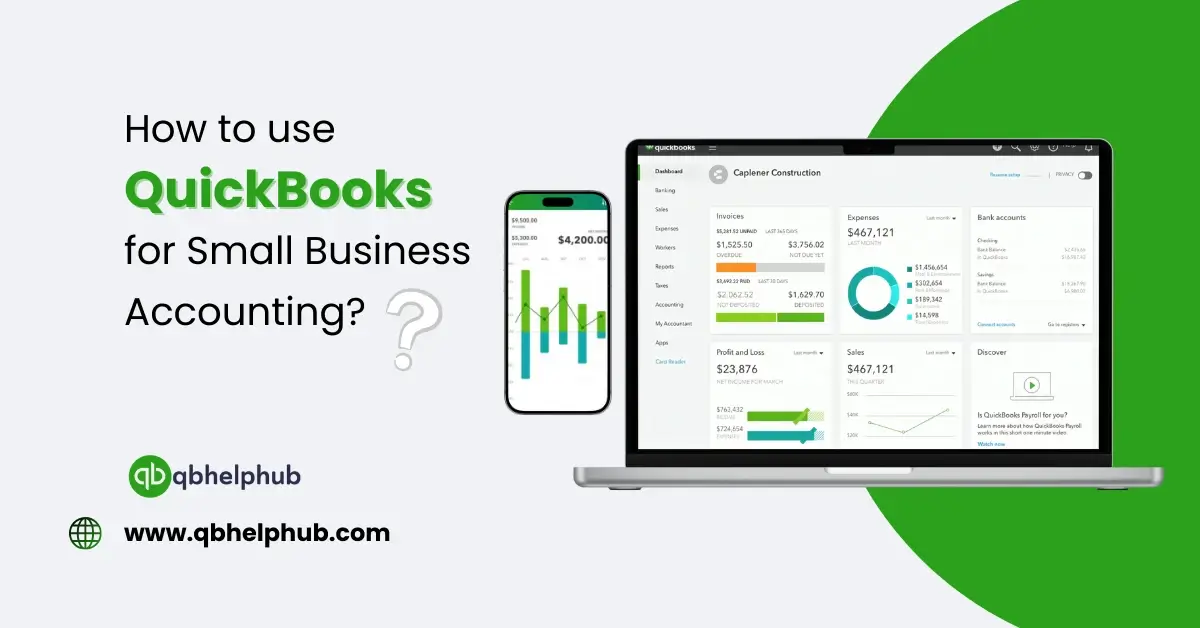
- Finally, QuickBooks provides you with a streamlined dashboard that gives you a snapshot of your finances.
Step 2: Link Your Bank Accounts
One of the best features of QuickBooks is that it can connect to your bank or credit card directly because this means it will automatically pull in your transactions.
Here’s how to connect:
- Go to the Banking tab
- Click Link Account
- Choose your bank and log in
- Select the accounts that you would like to link
- Click Connect
Once that’s done, QuickBooks will begin displaying your income and expenses. It is updated daily, so you are always dealing with a recent set of numbers.
Step 3: Classify Your Transactions
Once transactions flow into QuickBooks, you must inform the system what these transactions are for QuickBooks to make the accurate accounting entry. So, if you purchased office supplies, you implemented that as “Office Supplies.” If you received payment from a customer, you record it as an “Income.”
In addition, over time, QuickBooks will learn from your selections, and it will automatically suggest categories, and this will save you a lot of time and help keep your books clean.
Read Also: QuickBooks vs FreshBooks in 2025
Step 4: Invoice and Payment
QuickBooks allows you to easily create invoices and send them to your customers. You can also keep track of who has paid and who owes you money.
To create an invoice:
- Click Sales > Invoices
- Click Create Invoice
- Then, input customer, items, prices, and due date
- Click Send
You can also add options that let customers pay with card or bank transfer online and it also enables you to get paid more quickly.
Step 5: Track Expenses and Bills
Record the things you buy for your Business as it enables you to visualize your spending and simplifies tax preparation.
Here’s what to do:
- Under the Expenses Tab, you enter your expenses
- For Example, Date, Vendor or Debit
- Upload a photo of the receipt
- Moreover, you can enter bills and create due date reminders, too, this also ensures that you never miss a payment.
Step 6: Generate Reports to Review the Health of Your Business
You can generate reports illustrating your business performance in QuickBooks. Here are some of the most useful:
- Profit & Loss Statement – income vs. expenses
- Balance Sheet – indicates your assets and liabilities
- Cash Flow Statement – An indicator of the money flowing in and out
Navigate to Reports tab to find reports because it’s a great tool for understanding your business and making better decisions.
Step 7: Prepare for Taxes
Accounting software, like QuickBooks, helps you stay organized, which is useful for filing taxes. You can:
- See total income and expenses
- Track sales tax (if needed)
- Collect everything your accountant needs
If you have QuickBooks Self-Employed or a plan that gives you access to tax tools, it can even estimate your quarterly tax payments.
A Guide for a Better Use of QuickBooks
- Create recurring invoices for repeat customers
- Schedule reminders for making payments or settling bills
- Download the mobile app to work on the go
- If you use the desktop version, back up your data
Read Also: Is QuickBooks Desktop Being Phased Out?
To Conclude
QuickBooks can help make small business accounting easy, it allows you to track money, send invoices, manage bills and run reports all in one place. Applying these steps; you will know how to use QuickBooks confidently because, you don’t have to be an accountant, once you get used to it, you’ll feel in control of your business finances.
Get In Touch with Us
If you are interested to know more about QuickBooks, we are here to help you through our dedicated customer service team. Fill out the customer response form or feel free to reach to us at support@qbhelphub.com Our highly competent team is here to solve all your queries regarding QuickBooks.