

QuickBooks is a very popular accounting software created by Intuit that helps both small and midsize businesses. It simplifies various tasks such as payroll inventory, handling finances, creating reports, etc., so that bookkeeping is easier and faster. But like other software, it also has problems. It has some errors which can slow down your work.
In this article, we will discuss the most common Quickbooks error codes, why they happen, and how to solve them easily. At the end of this guide, you can know the effective steps to fix the Quickbooks error codes and use QuickBooks smoothly.
Common QuickBooks Error Codes: What Causes Them?
For various reasons, QuickBooks errors pop up. So it is important to know the reason behind the errors and how to fix them quickly.
- Network Problems: If you do not have a fast and stable network connection or internet connection, these errors can occur. Especially when you are working in multi-user mode or accessing QuickBooks data over a network.
- Corrupted Files: Sometimes, corrupted or damaged company files are also the main reason for these system errors.
- Outdated Software: If you do not have the latest version of QuickBooks, then it can also cause a compatibility issue which results in errors.
- Incorrect Installation: While installing Quickbooks, make sure it is properly installed and all the installation files are present; otherwise, it can lead to these errors.
- Firewall Settings: Sometimes, the firewalls or antivirus programs can block QuickBooks from connecting to the internet, which may result in these errors.
- System Configuration: If you are wrongly setting up your operating system then also you can face these errors.
Now, let’s take a step into the specific QuickBooks error codes and how to fix them.
1. QuickBooks Error Code 6000 Series (Errors 6000, -6000, -82, -6000, -305)
What is it?
The QuickBooks’ 6000 series error happens when you try to open, access, or create a company file. These errors are created due to damage to company files, or there is a network issue, especially when you are using multiple users.
Causes:
- Corrupted or damaged QuickBooks company files
- Multiple users try to access the company files in a single-user mode at a time.
- Incomplete installation of QuickBooks
- Problems with Network settings or user permissions
How to Fix:
1. Use the QuickBooks File Doctor Tool:
- You can download and run the QuickBooks File Doctor Tool, which helps you scan and fix data corruption with your company file.
2. Switch to Single-User Mode:
- You can change your settings to single-user mode if multiple users are using the same company file at a time.
3. Check Firewall Settings:
- Make sure your firewall or antivirus software is not blocking the QuickBooks access. So you can add exceptions for QuickBooks to the firewall settings.
4. Restore from Backup:
- If any of your company files are damaged or lost, you can restore them from the last backup file and continue your work from there.
Read Also: How to Fix QuickBooks Error Code 6123, 0?
2. QuickBooks Error H101, H202, H303, and H505
What is it?
H-series error means that QuickBooks is having trouble accessing the company file, which is stored on another computer. These H-series errors happen when you are trying to access multi-user mode or use QuickBooks over a network.
Causes:
- Wrong hosting set-up
- Firewall or security software blocking QuickBooks
- Damaged QuickBooks database server manager
- QuickBooks can’t connect the server’s IP address
How to Fix:
1. Verify Hosting Settings:
- On all computers except the server, open QuickBooks and turn off the “Host Multi-User Access” option. On the server computer make sure it is turned on.
2. Run QuickBooks Database Server Manager:
- You can open the QuickBooks Database Server Manager and scan the folder where your company file is stored. So that you can build a better connection between the server and the workstation.
3. Adjust Firewall Settings:
- Always make sure QuickBooks can work properly on your network. So you need to add exceptions to your firewall for QuickBooks ports. It includes 8019 ports for the (DSM) Database Server Manager and for file sharing, the ports are 56728,55378,and 55379.
4. Use QuickBooks File Doctor:
- You can download and run the QuickBooks File Doctor, which helps identify and fix network connectivity issues.
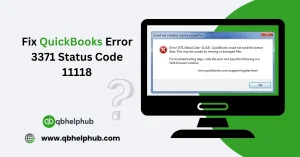
3. QuickBooks Error 3371: Could Not Initialize License Properties
What is it?
When QuickBooks fails to load the license data it can lead to the error 3371. When a system crash occurred or QuickBooks reinstalled on a new computer without properly transferring the license information, this error can happen.
Causes:
- Missing or damaged QuickBooks registration files
- Outdated Windows operating system
- Antivirus or firewall blocking QuickBooks
How to Fix:
1. Delete the ecml File:
- The ECML file holds the QuickBooks license details. When you delete this file QuickBooks creates a new one. To do that follow this: C:\ProgramData\Intuit\Entitlement Client\v8 and delete the ECML file. Reopen QuickBooks and re-enter your license information.
2. Update Windows:
- Make sure your windows system is up to date. QuickBooks needs some certain features to work properly. This update of your system can help to fix the issue.
3. Run QuickBooks Tool Hub:
- Download and install the QuickBooks Tool Hub. Use the “Installation Issues” section to fix error 3371 automatically.
4. QuickBooks Error 6143: Unable to Open Company File
What is it?
Due to the damaged or corrupted file QuickBooks faces a problem to open the file which indicated the error 6143.
Causes:
- Company file corruption
- Damaged QuickBooks installation
- Incorrect folder permissions
How to Fix:
1. Restore from Backup:
- Restore the company file from the last backup files.
2 Repair QuickBooks Installation:
- If the problem does not solve then repair your QuickBooks installation process through the control panel.
3. Run QuickBooks File Doctor:
- This tool will scan and repair any corruption in your company file.
4. Move the Company File to a Different Location:
- You can move your company file to a local drive, do not move to a network drive. Then try to reopen it.
5. QuickBooks Error 1603: Update Installation Error
What is it?
When QuickBooks won’t open or install due to some certain windows features then this error 1603 happens.
Causes:
- Missing or damaged of some files such as Microsoft .NET Framework, MSXML, or C++ components
- Corrupted QuickBooks installation files
How to Fix:
1. Use QuickBooks Install Diagnostic Tool:
- You can download and run the QuickBooks Install Diagnostic Tool. This tool automatically identifies and fixes installation issues with QuickBooks.
2. Update Windows Components:
- Update your Microsoft .NET Framework, MSXML, and C++ components. You can update it through windows update or else downloading manually the latest versions.
3. Run QuickBooks as Administrator:
- You can right-click the QuickBooks icon and choose “Run as Administrator” before installing the update.
4. Reinstall QuickBooks:
- After uninstalling QuickBooks, you can reinstall QuickBooks following the proper install method. Which will replace the damaged files.
Read Also: How to Use QuickBooks and How Do I Learn to Use It?
6. QuickBooks Error 80029c4a: Unexpected Error
What is it?
When a system file or a dynamic link library (DLL) file related to QuickBooks is missing or damaged then this error 80029c4a happens.
Causes:
- Corrupt or missing QuickBooks program files
- Incomplete QuickBooks installation
- Antivirus software mistakenly marking QuickBooks files as threats
How to Fix:
1. Repair QuickBooks:
- Use the control panel to run the QuickBooks repair.
2. Check Your Antivirus:
- Add QuickBooks to the exceptions list in your antivirus softwares. Sometimes, antivirus programs treat the QuickBooks files as miscellaneous files wrongly.
3. Reinstall QuickBooks:
- You can replace the damaged files through uninstall and reinstall the QuickBooks.
4. Run Windows System File Checker:
- As administrator you can open the command prompt and run the command sfc /scannow. This process scans your system for missing or corrupt system files.
7. QuickBooks Error Code 6123, 0: Cannot Connect to the Database
What is it?
Error 6123,0 happens when you restore a backup file or open a company file but QuickBooks can’t connect to the database.
Causes:
- Corrupted company file
- Damaged network connection
- Blockages from security software
How to Fix:
1. Run QuickBooks File Doctor:
- You can run the File Doctor tool to fix the damaged files or network-related issues.
2. Check Network Setup:
- Make sure your network is properly configured and the QuickBooks server hosting is running.
3. Disable Security Software:
- You can disable the antivirus programs and firewalls softwares for some time to check if they are blocking QuickBooks from connecting to the company file.
4. Create a New Windows User:
- You can create a new windows user with administrator rights which can create the permission problems that cause this error 6123, 0.
8. QuickBooks Error 15243: QuickBooks Update Error
What is it?
When QuickBooks can’t finish an update then it is sure that there is a problem with the File Copy Service (FCS), so this error happens.
Causes:
- Damaged FCS service
- Improper and incomplete QuickBooks installation
- Updated files are corrupted in QuickBooks
How to Fix:
1. Repair FCS Service:
- Make sure the QuickBooks FCS service is turned on. You can open the windows service manager and start the QuickBooks FCS service if it is currently turned off.
2. Manual Updation of QuickBooks:
- Download the updates from QuickBooks and install them manually.
3. Run QuickBooks Install Diagnostic Tool:
- This tool helps fix issues with the installation process that might be causing update problems.
Read Also: What Types of Businesses Can Use QuickBooks Online?
Conclusion
QuickBooks error codes can be irritating, but you can easily solve these issues with proper steps. You have to know the proper reason behind this error and follow the above-mentioned steps and tips to easily solve QuickBooks errors and keep accounting on track. You can use QuickBooks tools such as the Doctor file tool and QuickBooks tool hub, which fix these Quickbooks error codes easily. Always keep your software up to date and regular backups of your company files can prevent future errors

QuickBooks users often face multiple errors, and your article on fixing various error codes is a fantastic one-stop solution. The comprehensive approach makes troubleshooting much easier!