One of the most helpful features of QuickBooks Online is the Bank Feeds. It is an automatic connection between the bank and QuickBooks account. It brings in your transactions daily so you can review, match, and record them without entering everything by hand. But if it is not set up or managed properly, the bank feeds can get messy fast.
Optimizing your bank feeds is the key to keeping your books accurate and making reconciliation easy. It is the process of matching bank records with your QuickBooks data. Let’s look at the ways how we can make this process work perfectly, even if someone is not an accounting pro.
Read Also: Automating Recurring Transactions in QuickBooks Online and Desktop: Step-by-Step Guide
Understanding How Bank Feeds Work in QuickBooks Online
Bank feeds automatically import your transactions from your financial institutions into QuickBooks Online. Every deposit, withdrawal, or expense appears in your bank feed. This way, it is ready for you to review and categorize.
This automation saves hours of manual data entry and reduces the risk of mistakes. But it still needs your attention to stay accurate. All transactions must be reviewed regularly. It must be matched with existing records and approved before being added to the books.
When optimized, bank feeds can give you near real-time insight into cash flow. It also helps to spot errors early and make reconciliation at month’s end nearly effortless.
Step 1: Start with a Clean Connection
Everything begins with how you connect your bank account to QuickBooks. Always make sure you link to the right bank and the correct account type. If you have multiple checking or savings accounts, double-check before selecting accounts. Also make sure to select the one that matches your business transactions.
QuickBooks lets you connect most banks securely. Log in using your online banking credentials through QuickBooks Online. Do not login directly through your bank’s website. Once linked, transactions from the past 90 days will start flowing in automatically.
If your bank supports it, enable automatic daily updates. This keeps your feed fresh without you having to fetch transactions manually.
Step 2: Review and Categorize Transactions Regularly
One of the biggest mistakes users make is letting transactions pile up before review. That’s when errors slip through very easily.
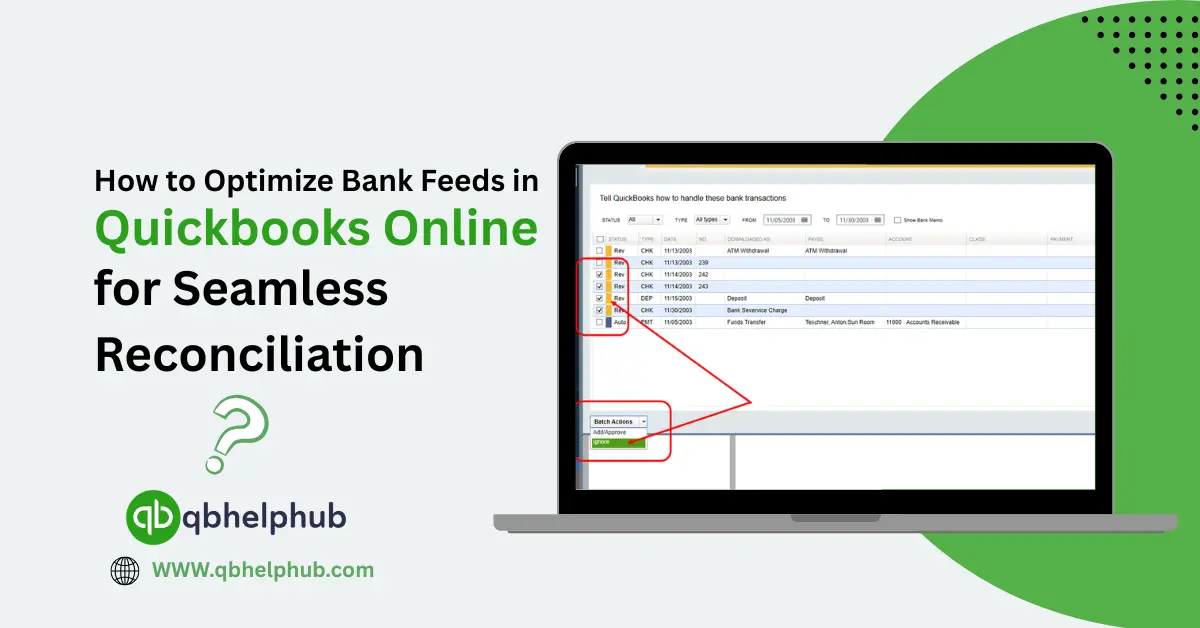
Make it a habit to check your bank feeds at least once or twice a week. QuickBooks shows all imported transactions in the “For Review” tab under Banking. You’ll see columns for date, description, and amount. Your job is to tell QuickBooks what each transaction is for.
If QuickBooks finds a likely match, say, a payment that matches an invoice you sent it will suggest it. Review carefully and click “Match” if it’s correct. For new expenses, assign the right category like “Office Supplies” or “Utilities.”
Doing this regularly ensures your reports stay accurate. It also makes sure that reconciliation takes minutes instead of hours later.
Step 3: Use Rules to Automate Repetitive Work
If you find yourself categorizing the same types of transactions over and over, let QB do it for you. The Bank Rules feature lets you set up automation. This way, QuickBooks automatically recognizes recurring transactions and applies the correct category.
For example, you can create a rule that says:
- If the description contains “Amazon,” categorize it as “Office Supplies.”
- If the transaction comes from “Uber,” mark it under “Travel.”
This saves time, especially for businesses with frequent recurring payments. The more rules you set, the cleaner your feed becomes. So, there are fewer chances for human errors.
Step 4: Avoid Duplicates and Disconnected Accounts
Sometimes, users reconnect their bank when they face syncing issues. This happens because of not disconnecting the old link first properly. This often leads to duplicate transactions. It’s one of the most common causes of reconciliation headaches.
Before reconnecting a bank, always check if the old connection is still active. If it is, disconnect it properly first. Also, make sure not to manually upload statements when automatic feeds are working. Doing both creates duplicates that can confuse your books.
If duplicates do appear, don’t panic. Use filters to find them, then manually exclude or delete the extra entries.
Step 5: Match Instead of Adding When Possible
QuickBooks tries to identify whether a bank transaction already exists in your books. For example, if you’ve already recorded an expense or a payment. Whenever possible, match the transaction instead of adding it.
Matching links the bank record to your existing QuickBooks entry. This also helps in keeping your books balanced. Adding creates a brand-new entry, which can lead to duplicates.
If QuickBooks can’t find a match automatically, look for it manually. You can do that by checking the transaction details. Matching keeps your reconciliation reports simple and error-free.
Step 6: Reconcile Monthly Without Fail
Reconciliation is simply the process of comparing what’s in QuickBooks. This helps to compare it with what’s in your actual bank account. If both match perfectly, you know your records are accurate.
Even with optimized bank feeds, reconciliation is still essential. There might be timing differences sometimes. For example, checks not yet cleared or transactions your bank processed late.
Do it at the end of every month. Go to the Reconcile page in QuickBooks first. Then, select your bank account, enter the ending balance from your bank statement. Lastly, review each transaction. Everything that appears in both should be marked as cleared. When the difference reaches zero, you’re done.
Step 7: Use Tags for Better Insight
QuickBooks lets you use Tags to track spending by project, department, or campaign. These tags go beyond basic categories. You can tag transactions imported from your bank feeds to get a clearer picture of where money goes.
For example, if you run a marketing agency, you can tag expenses by client name. Later, you can pull a report showing how much you spent per client. It’s an extra layer of insight that helps with budgeting and financial planning.
Step 8: Back Up and Review Your Bank Rules
Over time, you might forget about some rules you’ve set up. This can lead to mistakes if your spending patterns change. Review your rules every few months and adjust them as needed. It’s best to back up your QuickBooks data occasionally. Although, QuickBooks Online stores everything in the cloud. But keeping your own export gives you extra safety and control.
Why Optimizing Bank Feeds Matters for Reconciliation?
Reconciliation is one of the most important accounting tasks. This is because it verifies your financial data. When your bank feeds are optimized, you spend less time fixing mismatches. This frees up more time focusing on running your business.
A clean feed means every transaction in QuickBooks mirrors what’s in your bank. You can easily track income, spot errors, and prepare tax reports with confidence. It also helps if you ever work with an accountant or auditor, they’ll appreciate the accuracy.
Read Also: QuickBooks Online for Construction Accounting: The Complete Guide
Common Mistakes to Avoid
Even experienced users make errors that slow down reconciliation. The most common ones include skipping regular reviews or adding instead of matching. Try to avoid ignoring old unreconciled transactions and using the wrong bank account. Avoiding these mistakes keeps your feed organized and your books in perfect shape.
Another big mistake is connecting personal accounts to QuickBooks just for convenience. This almost always leads to confusion later, especially during tax time.
Keeping Things Simple and Consistent
The key to smooth bookkeeping isn’t complex tools, it’s consistency. Set a weekly reminder to review your feed. Clean up uncategorized transactions and reconcile monthly. Once you make it a routine, QuickBooks does most of the heavy lifting.
Many small business owners find that 10–15 minutes a week is enough to keep everything up to date. That short time investment saves hours of frustration at the end of the month.
Read Also: Tax Season Tips for Accountants Using QuickBooks Online
To Conclude
Optimizing bank feeds in QB Online is one of the smartest ways to save time and keep your finances accurate. When your feed is connected correctly try to review them regularly. Keep a habit of reconciliation and tagging to help maintain your books regularly. The system works best when you do small and consistent checks rather than big catchups. With a clean bank feed, reconciliation becomes quick. This way, errors disappear easily, so your financial picture stays clear all year long.
FAQs (Frequently Asked Questions)