If you’re using QuickBooks Desktop and suddenly run into issues printing to PDFs maybe while trying to send an invoice, save a report, or print a pay stub you’re not alone. This is a surprisingly common issue that pops up for many users, and when it does, it tends to arrive at the worst possible time. Thankfully, there are several practical ways to fix it. And you don’t need to be a tech wizard to sort it out. Let’s walk through the possible causes, what you can try on your own, and when it’s time to reach out for help.
Read Also: Quick Fix for QuickBooks BEX Error: A Step-by-Step Guide
What’s Going on When QuickBooks Won’t Print to PDF?
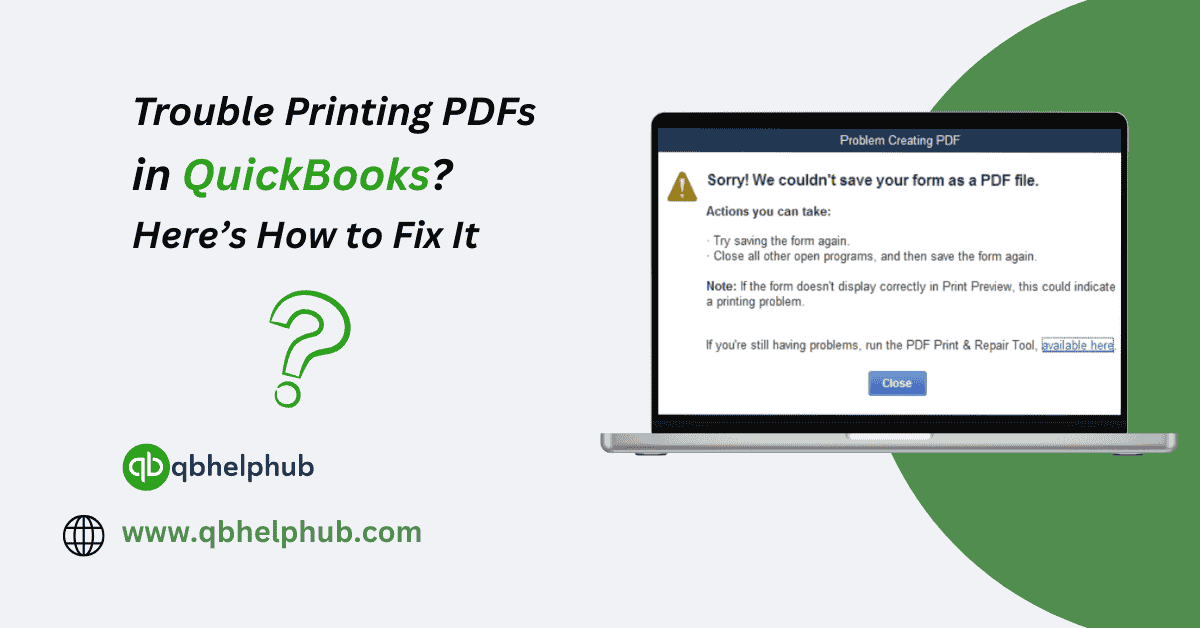
QuickBooks uses certain built-in tools to generate PDF files, and if those tools break or become misconfigured, the whole printing function tends to stop working. Instead of a successful PDF, you’ll often get an error message or nothing at all.
Some users might see messages like:
- “QuickBooks could not save your form as a PDF file.”
- “Missing component”
- “PDF converter not found”
Others might not see a message at all just a blank result when trying to email or save documents.
What Usually Causes the Problem?
Several factors could be behind this glitch. Here are the most common ones:
- A damaged or disabled Microsoft XPS Document Writer
- Outdated or corrupt QuickBooks PDF converter (especially in older versions)
- Conflicts with your default printer or PDF software
- Incorrect folder permissions or a cluttered temp directory
- QuickBooks not running with the right system permissions
Some of these are easier to fix than others, but we’ll start with the simplest steps first.
Read Also: Is Intuit QuickBooks Online Secure? Protect Your Financial Data
Step-by-Step Fixes to Try
You don’t need to try all of these at once. Start with the first, and move down the list if the issue continues.
1. Update QuickBooks and Windows
It might sound obvious, but this step is often overlooked. Running an older version of QuickBooks or using it on an outdated Windows OS can trigger unexpected issues, including PDF errors.
- In QuickBooks: Go to Help > Update QuickBooks Desktop
- For Windows: Open Settings > Update & Security > Windows Update
After updating, try printing to PDF again. If it still doesn’t work, move on.
2. Run QuickBooks as Administrator
QuickBooks may not be getting the permissions it needs to run certain background tools.
- Close QuickBooks if it’s open
- Right-click on the desktop icon
- Choose Run as Administrator
This one’s easy and it works more often than you’d expect.
3. Use the Built-in QuickBooks Tool Hub
Intuit provides a free utility called the Tool Hub, which includes a tool specifically for PDF and printing errors.
Here’s how to use it:
- Download the latest version of QuickBooks Tool Hub from Intuit’s official site
- Open the program
- Click on the Program Problems tab
- Select QuickBooks PDF & Print Repair Tool
- Let it finish running, then restart QuickBooks
This tool checks and resets the internal settings used for printing and saving documents.
4. Check the Microsoft XPS Document Writer
QuickBooks depends on a Microsoft utility called the XPS Document Writer to handle PDFs. If that’s missing or broken, nothing will work right.
To check:
- Go to Control Panel > Devices and Printers
- Look for Microsoft XPS Document Writer
- If it’s not there:
- Open Windows Features
- Find “XPS Services” and enable it
Once re-enabled, reboot your computer and retry QuickBooks.
5. Reinstall the PDF Converter (if using an older version)
If you’re still on an older version of QuickBooks say 2016 or earlier, you might be using the older PDF converter utility.
To reinstall:
- Navigate to:
- C:\Program Files\Common Files\Intuit\QuickBooks\QBPDF
- Run the install.exe file
- Follow the instructions, then restart your computer
This should repair the component and restore PDF functionality.
Still Stuck?
If you’ve tried these steps and the issue continues, there might be deeper system conflicts permissions, printer registry entries, or older drivers.
This is when it makes sense to get in touch with the QuickBooks support team. Depending on your situation, here are the contact options:
- QuickBooks 24/7 support phone number
- QuickBooks payroll support phone number (for payroll PDF issues)
- QuickBooks payroll help number
- QuickBooks payroll customer support number
- QB payroll support number
These channels can connect you with technicians who can help remotely or walk you through advanced steps.
Read Also: How QuickBooks Tool Hub Helps Resolve Company File Issues?
A Few Tips to Prevent It in the Future
To reduce the chance of PDF printing issues popping up again, here are a few best practices:
- Avoid printing large reports with QuickBooks minimized or running in the background
- Clear your system’s temp folders every so often
- Set QuickBooks to always run as administrator
- Keep your software updated, not just QuickBooks, but also your PDF viewer and Windows system
And if you rely on payroll tools, especially QuickBooks full payroll service, make sure those are updated too. Issues with payroll forms (like W-2s and 941s) often trace back to outdated or misconfigured software.
Final Thoughts
The inability to print or save a PDF in QuickBooks can be frustrating, especially when deadlines are tight. But most of the time, it’s caused by a small glitch that’s fixable with a few simple steps. Start with updates. Run the repair tool. Check your system settings. And if none of those work know that, our help at qbhelphub is a phone call away. With the right steps and support, you’ll be back to printing invoices and reports in no time.
Get In Touch with Us
If you are interested to know more about QuickBooks and basic troubleshooting steps, we are here to help you through our dedicated customer service team. Fill out the customer response form or feel free to reach to us at support@qbhelphub.com Our highly competent team is here to solve all your queries regarding QuickBooks.