
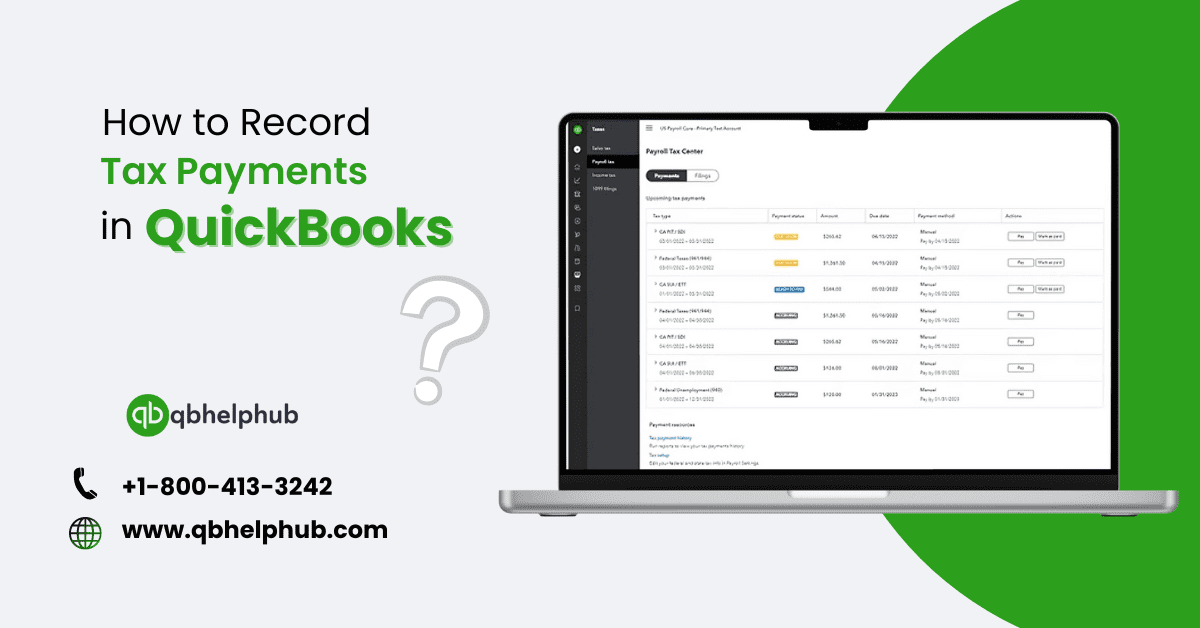
QuickBooks is a popular accounting software, especially for small and medium-sized businesses. One of its main features is how easily and quickly it manages the business finances and tracks tax payments. Whether you are a sole proprietor handling Payroll taxes or managing sales taxes for a business. So, to follow a correct tax rule, it’s important to record the tax payments in Quickbooks correctly.
Read also: How to Use QuickBooks and How Do I Learn to Use It?
In this article, we’ll guide you through the process of recording tax payments in QuickBooks. We’ll cover everything from the basics of tax payments to specific steps to ensure you can manage your taxes efficiently. The goal is to give you an SEO-optimized, comprehensive guide on how to properly record tax payments in QuickBooks so your business runs smoothly and avoids costly errors.
Why Is Recording Tax Payments in QuickBooks Important?
Recording tax payments in QuickBooks is important for several reasons:
- Compliance: Staying compliant with local, state, and federal tax laws is important for any business. If you are not recording the taxes correctly, you may pay the penalties or extra interest charges, which can be expensive.
- Accuracy in Financial Reporting: When taxes are recorded accurately, your financial reports (such as income statements and balance sheets) will reflect the true state of your business.
- Budgeting and Forecasting: If you are keeping accurate tax payments, your business uses its resources more wisely through better planning decisions and budgeting.
- Cash Flow Management: Recording taxes properly in QuickBooks helps you keep track of what you owe. This way, you can avoid any surprises and get a clear idea of your payment date and amount.
Now, let’s dive into the practical steps for recording tax payments in QuickBooks.
Step 1: Set Up Your Tax Accounts in QuickBooks
Before you can record tax payments, it’s essential to set up the right accounts in QuickBooks. Follow these steps:
Sales Tax Setup:
- First, go to the Taxes section in QuickBooks.
- Then, Click on Sales Tax and choose Set up Sales Tax.
- Now, put the state and locality details.
- When the sales tax feature is enabled, QuickBooks automatically calculates your transaction’s sales tax. This step helps show how much money you have taken.
Payroll Tax Setup:
- First, open QuickBooks and then go to the payroll section.
- Then you will find some prompts to set up payroll taxes, including federal and state taxes.
- Also, you can set up the employee’s tax deductions to make sure the payroll taxes are correct.
Read Also : How to Pay Wage Garnishment in QuickBooks Online?
Step 2: Record Tax Payments
Now your tax accounts are set up properly, it’s time to record the actual tax payments. There are different types of taxes, and the process varies for different taxes.
Recording Sales Tax Payments in QuickBooks:
- In QuickBooks, go to the left side Menu and then click on Taxes and choose the Sales tax.
- In the Sales Tax Center, you can see how much you owe and then click on Record Tax Payment.
- Enter the details of your payment, like payment date, payment amount, and the account you are paying from.
- Then choose the Record Payment to save your transactions.
QuickBooks will update your records to show that your sales tax balance has already been reduced by the payment you made.
Recording Payroll Tax Payments in QuickBooks:
- First, in QuickBooks, go to the Employee or Payroll section.
- Then choose the tax payment of payroll under the taxes that you want to make.
- Then you will get the prompts to enter the date, amount, and payment method.
- Click Submit Payment to finalize the process.
- Now, to finalize the process, click on the Submit Payment button.
Now in QuickBooks, you will see the reflected payroll tax payments in your payroll reports.
Recording Income Tax Payments in QuickBooks:
If you’re a sole proprietor or business that needs to pay income taxes, you’ll have to record these payments yourself.
- First, click on + New and choose Expense.
- Select the account you’re using to make the income tax payment.
- Put the authority of the relevant tax department (e.g., IRS, State Department of Revenue) as the vendor.
- Now, record the payment amount and date.
- Choose the correct tax category for tax payment of your income.
Thi step helps you to record all your income tax payments accurately for financial reporting and future reference.
Step 3: Reconcile Your Accounts
After you have recorded all your tax payments, it is important to check your account.This makes sure that the transactions in QuickBooks match what’s on your bank and credit card statements. It helps confirm that all your tax payments are entered correctly.
- Go to Accounting in the menu on the left-hand and choose Reconcile.
- Now, choose the account you want to reconcile.
- After that, enter the ending balance and date of statement from your bank statement.
- Then match them with your bank transactions in QuickBooks.
If there is any mismatch then immediately check and correct them to ensure your tax records are accurate.
Common Issues and How to Fix Them
Despite QuickBooks being an intuitive platform, you may still encounter some issues when recording tax payments. Here’s how to solve the most common problems.
Issue 1: Incorrect Sales Tax Payment Amounts
This can happen if your sales tax is not set up correctly or if you have made changes in invoices manually. To fix it, you have to check it twice under Taxes in QuickBooks and make sure they match your state’s rates.
Issue 2: Duplicate Tax Payments
If you have accidentally recorded the tax payment twice, then just reverse one of the payments. You can do it in the Chart of Accounts. First, find the duplicate transaction and delete or cancel it.
Issue 3: Missing Tax Payments
If a tax payment is missing, it might be because of a mistake when you entered initially. So, you should recheck the records for accurate payment and make sure you entered under the correct account and with the proper details. If you find the transaction is still missing, then you have to recreate it using the steps described earlier.
Best Practices for Recording Tax Payments in QuickBooks
To ensure smooth tax management and avoid common pitfalls, follow these best practices:
1. Set Reminders for Tax Deadlines:
If you are missing a tax deadline then you have to pay the fine or penalty. So, use the reminder feature of QuickBooks to alert for upcoming due dates for sales, payroll and income taxes.
2. Review Tax Liabilities Regularly:
QuickBooks gives you a clear breakdown of your liabilities. By rechecking them regularly, it will help you keep up with your tax obligations.
3. Keep Detailed Records:
Keep detailed records of your supporting documentation, like receipts and bank statements for tax payments, in QuickBooks. This will help you prepare for an audit or to respond to any tax authority while inquiries happen.
4. Use QuickBooks Payroll for Automated Tax Payments:
If you have employees, QuickBooks Payroll simplifies the tax payment process by automatically calculating, withholding, and submitting payroll taxes on your behalf.
5. Consult a Tax Professional:
Quickbook is great for managing your taxes. But still, it’s a better idea to consult with a professional to make sure you’re getting the most tax benefits and following all the tax laws.
Troubleshooting Tax Payment Entries in QuickBooks
Even with the best intentions, you may run into issues when recording tax payments. Let’s look at some troubleshooting tips.
Problem: The Sales Tax Center Doesn’t Show the Correct Amount Owed
If the sales tax center does not show the correct tax amount, the problem might be with your sales tax settings. To fix it, first, go to Taxes > Sales Tax settings then match everything with the rates and rules for your area. Also, check all the invoices and sales receipts are marked as taxable when needed.
Problem: Payroll Taxes Appear Overdue
This issue can happen if QuickBooks was not updated after you made a payroll tax payment outside the software like through your bank or another payroll service. To fix it, manually record the payment by following the steps in the Payroll section above. Make sure the payment date and amount match what you paid.
Problem: Income Tax Payment Isn’t Categorized Correctly
Make sure your financial reports are accurate. Categorize the income tax payments correctly. If you put the income tax payment in the wrong expense category, go to Accounting > Chart of Accounts, find the transaction and move it to the right tax account.
Read Also: How to run a payroll checkup in QuickBooks?
Conclusion
For maintaining accurate financial records and staying on the top of the tax rules, it is important to record tax payments in QuickBooks. QuickBooks easily manage all of your tax responsibilities whether it is payroll taxes, sales taxes, or income taxes. By following the steps above mentioned in this guide and practicing it can help you bookkeeping and growing in the business world. Make sure to regularly check and match your tax payments, and if needed, talk to a tax professional. Keeping your tax records accurate not only makes tax filing easier but also helps avoid any financial issues that could impact your business.


Recording tax payments in QuickBooks is crucial for compliance, and your article provides a clear and practical guide. Your ability to simplify complex topics is truly impressive!