
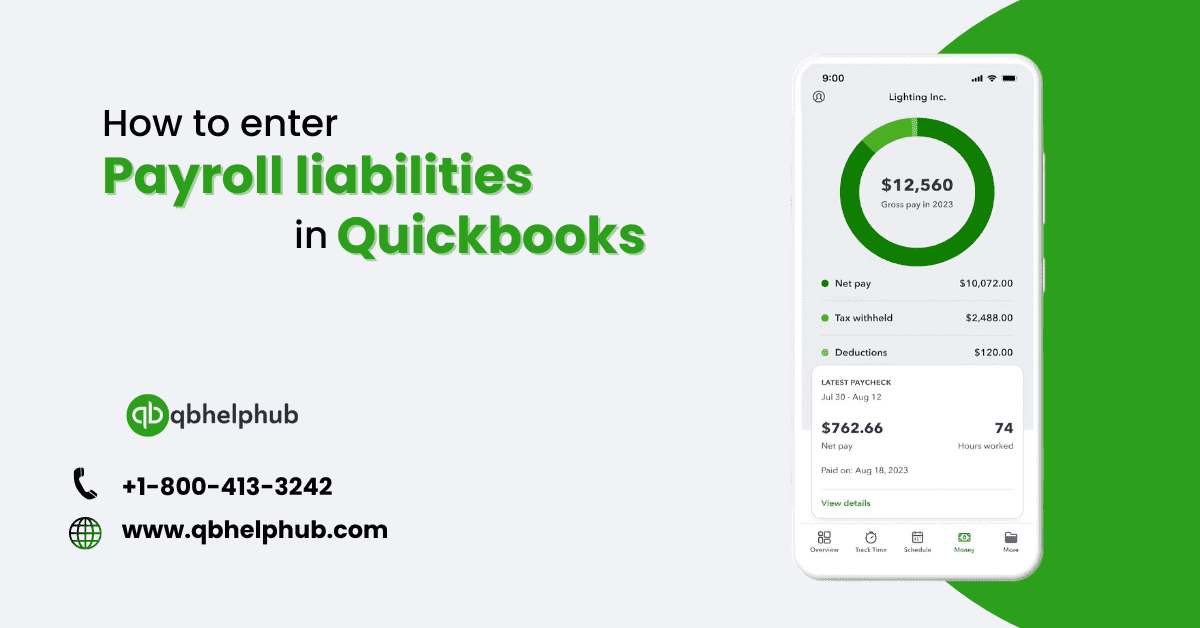
For many small business owners, handling payroll liabilities is simply overwhelming. QB makes this much easier with its friendly interface. We will help you understand and follow how to enter the Quickbooks payroll liabilities in QuickBooks through this step-by-step guide. Get ready to take care of your payroll responsibilities—let’s dive in!
Understanding payroll liabilities
Prior to deeply exploring QuickBooks, first learn what payroll liabilities are. These are amounts due from the business relating to employee payroll. This may consist of taxes withheld from employee paychecks, employer contributions to social security, Medicare, and unemployment insurance, and other fringe benefits of employees such as health insurance and contributions to retirement accounts. Think of them as your “pending bills” in your payroll process. These are liabilities that you have to cautiously manage, similar to paying utility bills monthly.
Setting up payroll system in Quickbooks
You will need first to have a properly set-up payroll system in QuickBooks before you can enter payroll liabilities.
- Set up your payroll service: First, selecting “Payroll Setup” from the left-hand menu under the “Employees” tab. Then, you will be guided through entering all of your business information and employee data by QuickBooks.
- Set up Payroll Items: QuickBooks uses payroll items to calculate wages, taxes, and deductions. You can add these or even change them from the “Payroll Item List” under the “Lists” menu.
- Check Payroll Settings: Be sure that your payroll settings are right, including pay schedules and employee tax information. You should follow this setup is to properly calculate payroll liability.
Recording Payroll liabilities
After setting up your payroll, the next thing that you are going to do will be logging the payroll liabilities. This is how you do it:
- Navigate to the Payroll Center: Click the “Employees” menu and then select “Payroll Center”.
- Select Pay Liabilities: Under the “Pay Liabilities” tab, you’ll find a list of liabilities due for payment. This may include federal and state taxes, among other deductions.
- Choose Liabilities to Pay Select the checkboxes next to the liabilities you want to pay and then select “View/Pay.” View amounts then select, “Pay Selected Liabilities.”
- Enter Payment Details Enter payment details such as type and date of payment then select, “Pay.”.
Entering Payroll tax liabilities
Payroll tax liabilities are such an important component to payroll management. Here is how you should go about handling these liabilities:
- Navigate to Payroll Liabilities: Click on the “Employees” menu, then select payroll center, and in this menu select pay liabilities.
- Choose The Tax Liabilities: You need to choose the particular payroll taxes from the list, like federal income tax, social security, and medicare.
- Fill Payment Details: Fill in payment details of things like the amount to pay and dates to pay, then save the payment.
- Record Payment: Once you get payment confirmation, QuickBooks will automatically update your liability accounts.
Read also: What are some common problems with QuickBooks payroll?
Handling employee benefits and deductions
Benefits and deductions of the employee are also maintained. As follows:
- Access Payroll Items: Open “Lists” and select “Payroll Item List”.
- Add and/or modify items: Click “New Payroll Item” to add a new benefit or deduction or select an item to edit an existing one.
- Specify Details: Enter the details for this benefit or deduction by specifying the amount and its frequency; then save it.
- Apply to Employees: Apply the benefits or deductions to relevant employee profiles.
Reconciliation of payroll liabilities
Reconciliation ensures that your recorded liabilities are in agreement with actual payments made. Here’s how to reconcile:
- Generate Liability Reports: Go to the “Reports” menu, then select “Employees & Payroll,” and finally choose “Payroll Liability Balances.”
- Compare with Payments: The report should be compared with the actual payments and bank statements for agreement.
- Make Adjustments: If there are differences, adjust your payroll records accordingly.
Creating payroll liabilities reports
You should prepare reports periodically to track your payroll liabilities. The steps for this process are as follows:
- Open Reports Menu: Go to “Reports” and select “Employees & Payroll”.
- Select Report Type: Click “Payroll Liability Balances” or any other appropriate report.
- Customize and Run Report: Customize the settings as per your choice, then click on “Run Report”.
- Save and Print: Save the report for your record and print it if necessary.
Adjusting payroll liabilities
At times, you might need to make some adjustments to the liabilities. Here is how to do it:
- Step 1: Open Payroll Center
- Click on the “Employees” menu, and then tap “Payroll Center”.
- Step 2: Record Timesheet
- Tap “Pay Liabilities” and select the liability you’ll like to adjust.
- Step 3: Adjust Details
- Make any necessary adjustments to the liability details, and then tap Save Adjustments.
Troubleshooting common issues
If you have issues with the Payroll Liabilities, consider the following steps:
- First, check your settings to ensure that your payroll settings and tax rates are up to date.
- Second, verify entries and payments have been recorded appropriately.
- Finally, you can also seek additional help with QuickBooks customer support or online forums.
Best practices for payroll management
Make payday hassles a thing of the past by applying these best practices:
- Regular Updates: Keep your payroll system updated with the latest tax rates and employee information.
- Record Accurately: Maintain an accurate record of all payroll transactions and liabilities.
- Review Regularly: Review payroll reports regularly to catch the discrepancies early.
Using QuickBooks support resources
QuickBooks has the following tools that can help you manage payroll:
- Help Menu: Find help within QuickBooks from the “Help” menu.
- Online Community: Join the online community at QuickBooks to get tips and advice.
- Customer Support: Get help directly from Intuit‘s customer support.
Updating payroll liabilities
To keep your payroll liabilities up to date, be sure to:
- Keep Liability Entries Up to Date: New liabilities should be entered as soon as possible when incurred.
- Adjust Liabilities: Existing liabilities should be updated to include revisions to employee benefits or other changes impacting tax rates.
Automatic payroll entries
This feature can save you time and decrease errors.
- Set Up Automatic Updates: Have QuickBooks automatically update payroll entries and liabilities for you.
- Schedule Payments: QuickBooks will allow you to schedule automatic payments of payroll liabilities.
Integration third party payroll services
If you use a third-party payroll service, make sure that it integrates seamlessly with QuickBooks:
- Check for Compatibility: Check that the service integrates with QuickBooks.
- Sync up data regularly: Make sure payroll data is transferred between the third-party and QB.
Final thoughts on making payroll liability entries in QuickBooks
Navigating payroll liabilities in QuickBooks doesn’t have to be a pain in the neck. These steps will point you in the right direction toward properly recording and managing your payroll liabilities. Regular updates, careful reconciliation, and using QuickBooks resources can keep your payroll system running smoothly.


Payroll liabilities can be confusing, but your guide on entering them in QuickBooks is extremely helpful. You’ve provided a step-by-step approach that makes the process much more manageable!