Many QuickBooks Desktop users run into Error 80029C4A, especially when launching the software after an update or system change. The program won’t launch, or it crashes out of nowhere, and you’re left staring at a code that makes no sense. Thankfully, you don’t need to be an IT expert to fix it. This blog help you walk you through what Error 80029C4A means, what causes it, and the steps you can take to get QuickBooks running again.
Read Also: How to Fix Common QuickBooks Errors?
What Is QuickBooks Error 80029C4A?
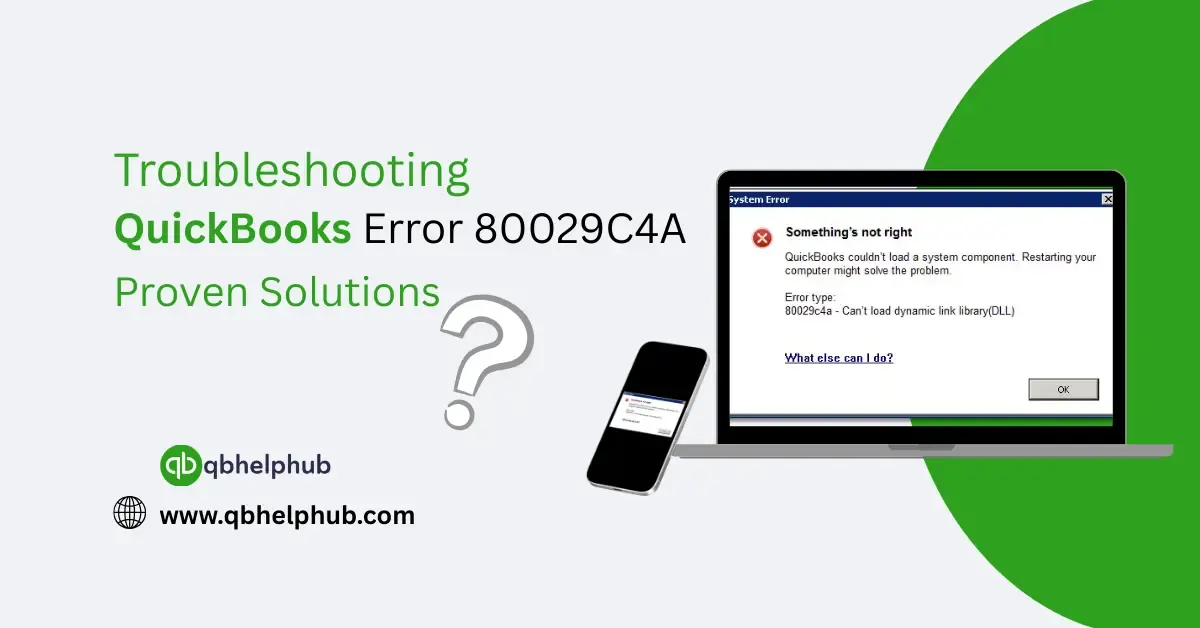
The full error usually says something like:
“Error 80029C4A – Error loading type library/DLL.”
Put simply, QuickBooks is having trouble loading a component it needs to start up. It could be a missing or corrupted file, or sometimes a conflict with your antivirus software.
This error typically happens when:
- QuickBooks or Windows was recently updated
- A required system file (like a .DLL file) is damaged or deleted
- Antivirus software falsely flags QuickBooks components
- QuickBooks installation is incomplete or corrupted
Let’s get into how to fix it.
Read Also: What are some common problems with QuickBooks payroll?
Step-by-Step Solutions for QuickBooks Error 80029C4A
You don’t need to try everything at once just work through these in order until the issue is resolved.
Step 1: Restart Your Computer
Before diving into deeper fixes, try restarting your system. Also, this can clear out temporary glitches that may be blocking QuickBooks from launching correctly. Once the system restarts, open QuickBooks again.
Step 2: Update Your QuickBooks Desktop
Sometimes the error is caused by outdated program files.
Here’s how to update:
- Open QuickBooks
- Then, go to Help > Update QuickBooks Desktop
- Next, click on the Update Now tab
- Select Get Updates, then close and reopen QuickBooks
- If prompted, click Install Now
If you can’t open QuickBooks at all, skip this step and move on to repairing the program.
Step 3: Repair QuickBooks Installation
If a program file is damaged or missing, repairing the installation can often help.
To do this:
- Close QuickBooks
- Open the Control Panel > Programs and Features
- Find and select QuickBooks Desktop
- Click Uninstall/Change, then choose Repair
- Follow the prompts
Once it’s done, restart your system and try launching QuickBooks again.
Step 4: Run QuickBooks as Administrator
Lack of admin rights can sometimes block QuickBooks from accessing system files.
- Right-click the QuickBooks Desktop icon
- Then, choose to Run as administrator
- Accept any prompts and see if the error is resolved
Step 5: Perform a Clean Install Using Tool Hub
If the repair didn’t work, you may need to fully uninstall and reinstall QuickBooks using the Clean Install Tool.
- Download the QuickBooks Tool Hub (if not already installed)
- Open Tool Hub, click on Installation Issues
- Select Clean Install Tool, follow the instructions
- Reinstall QuickBooks using your original license and version info
This gives you a fresh setup without leftover files causing problems.
Step 6: Check Your Antivirus and Security Software
In many cases, antivirus programs mistakenly block QuickBooks files, causing Error 80029C4A.
Here’s what you can do:
- Firstly, disable your antivirus software temporarily
- Then try launching QuickBooks
- If it opens successfully, you’ll need to add exceptions for QuickBooks files in your antivirus settings. These include:
- QBW32.exe
- qbupdate.exe
- All files in the QuickBooks folder
Remember to re-enable your antivirus after testing.
Step 7: Re-register .DLL Files (Advanced)
This step involves using Command Prompt to re-register specific QuickBooks-related DLL files.
Important: Only attempt this if you’re comfortable with command-line tools. If not, skip to the next step or contact support.
Read Also: How to Use QuickBooks Tool Hub to Troubleshoot Common Issues?
When to Contact Support?
If you’ve tried all of the above and still see the error, it may be time to get help from the pros.
You can contact:
- QuickBooks 24/7 support phone number
- Use QuickBooks Tool Hub > Contact Us for live chat
- Or speak with a certified ProAdvisor if you have one
Have your license number and error details ready as it’ll speed up the process.
Final Thoughts
Error 80029C4A may look intimidating, but it’s usually a fixable issue involving damaged files or blocked system components. A step-by-step approach starting with simple restarts and updates, and moving up to clean installations can typically solve the problem without needing outside help. And if you’re ever unsure, reaching out to QuickBooks support or a trusted technician is always a smart move.
Get In Touch with Us
If you are interested to know more about QuickBooks and basic troubleshooting steps, we are here to help you through our dedicated customer service team. Fill out the customer response form or feel free to reach to us at support@qbhelphub.com Our highly competent team is here to solve all your queries regarding QuickBooks.